BANT and Custom Qualifying Questions
Last updated: October 13, 2026
What this is
BANT and custom qualifying questions let you collect qualification details when a lead engages with your content. Your sales team gets pre-qualified leads with the context they need to act.
This article explains how to set up qualifying questions, add them to campaigns, and how leads are checked when publishers upload answers.
Key takeaway: Create a qualifying question once in Data > Fields, mark each answer Qualifying or Disqualifying, and add it to any campaign. Leads with a disqualifying answer, or an answer that doesn't match your options, are rejected automatically.
What are qualifying questions?
Qualifying questions are custom form fields you add to a campaign. They collect structured answers from leads, beyond standard contact and company fields. You choose the question, the accepted answer options, and whether each answer is qualifying or disqualifying.
When a publisher uploads a lead, the platform checks the answer against your criteria automatically. Leads with a disqualifying answer are rejected before they reach you.
Common uses:
BANT-style qualification (Budget, Authority, Need, Timeline)
program-specific questions about product interest, purchase intent, compliance needs, or use case fit
Step 1: Create a qualifying question in Data > Fields
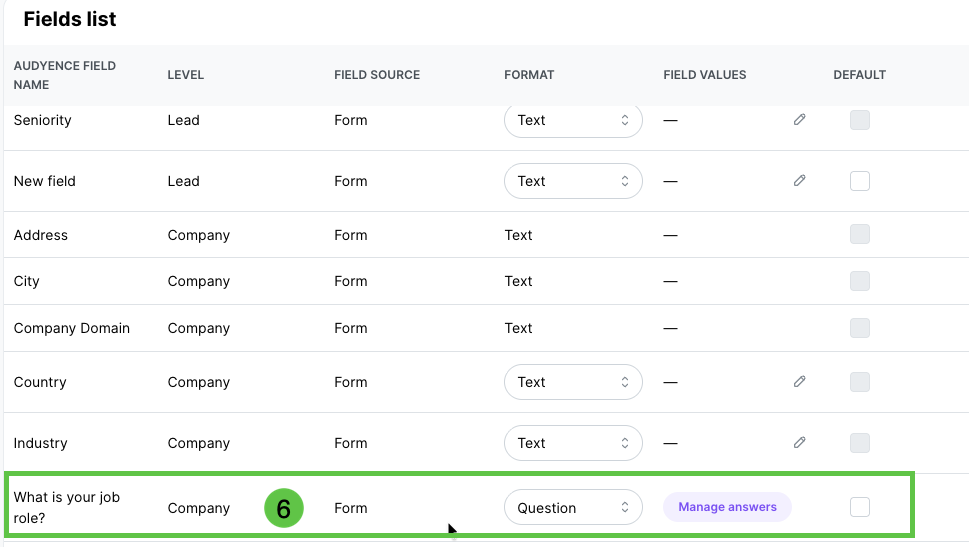
You create qualifying questions at the account level in Data > Fields, the same place you manage standard form fields and pick-list fields. Once created, a qualifying question can be added to any campaign.
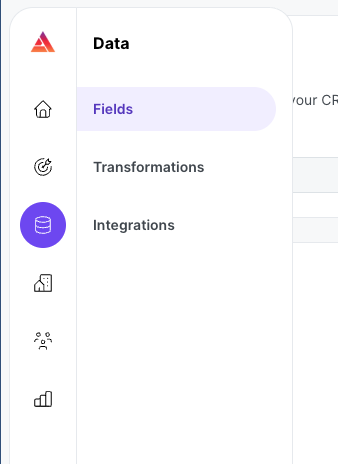
Go to Data > Fields.
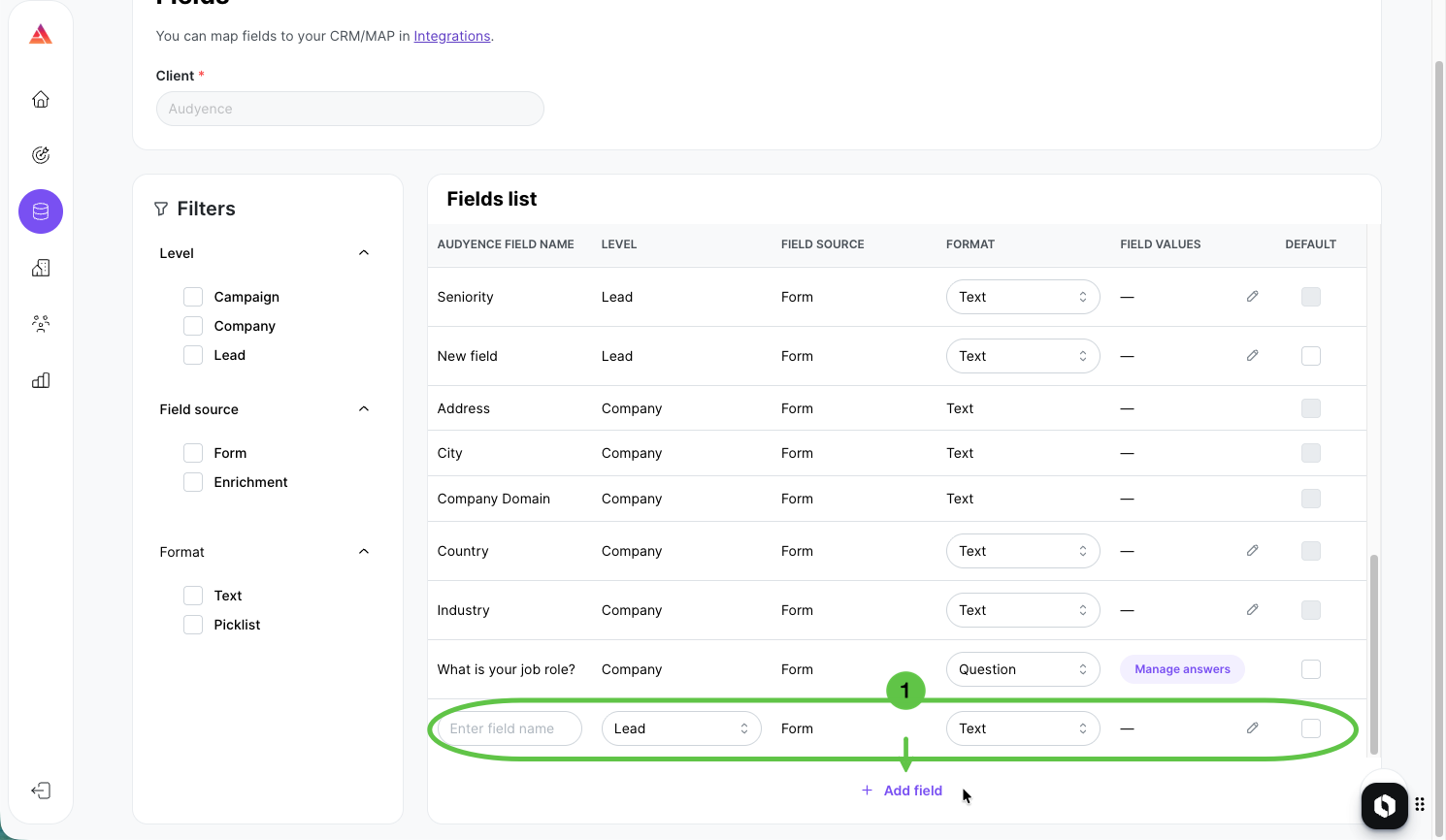
Click + Add form field.
Select Question as the field type.
Enter the question text (up to 500 characters). Leads see this question on the publisher's landing page.
Select an answer type:
Multiple Choice: the lead picks one answer.
Multiple Response: the lead picks all that apply.
Free form: the lead types an answer.
For Multiple Choice and Multiple Response, add answer options in the Field Values panel. Mark each option Qualifying or Disqualifying.
Save the field.
Tip: You can upload a file of answer options and their qualification status instead of entering them one by one.
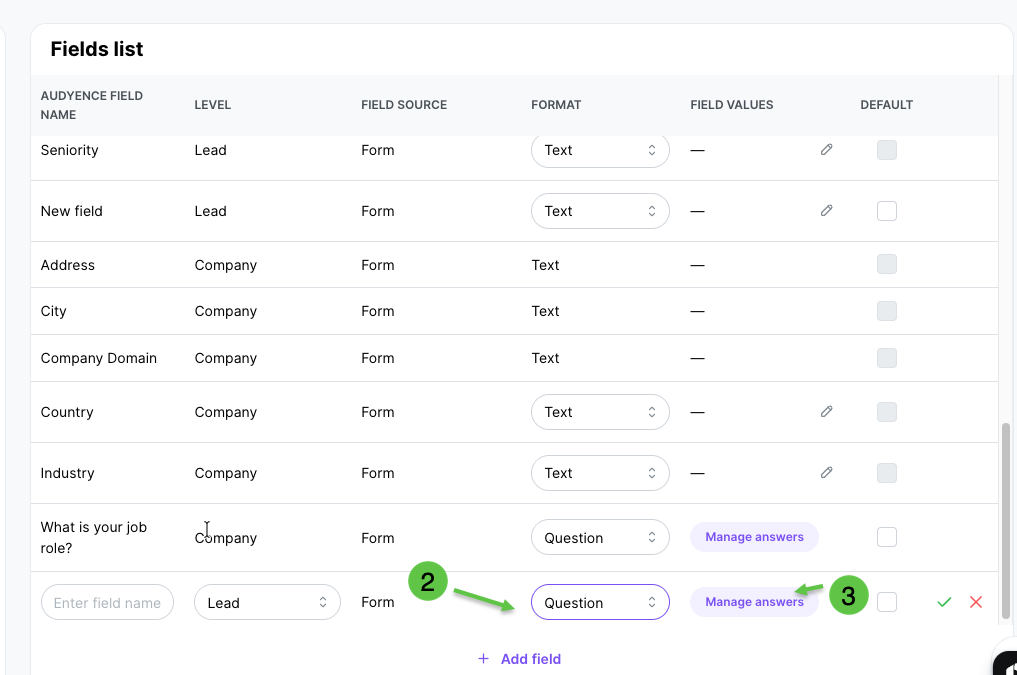
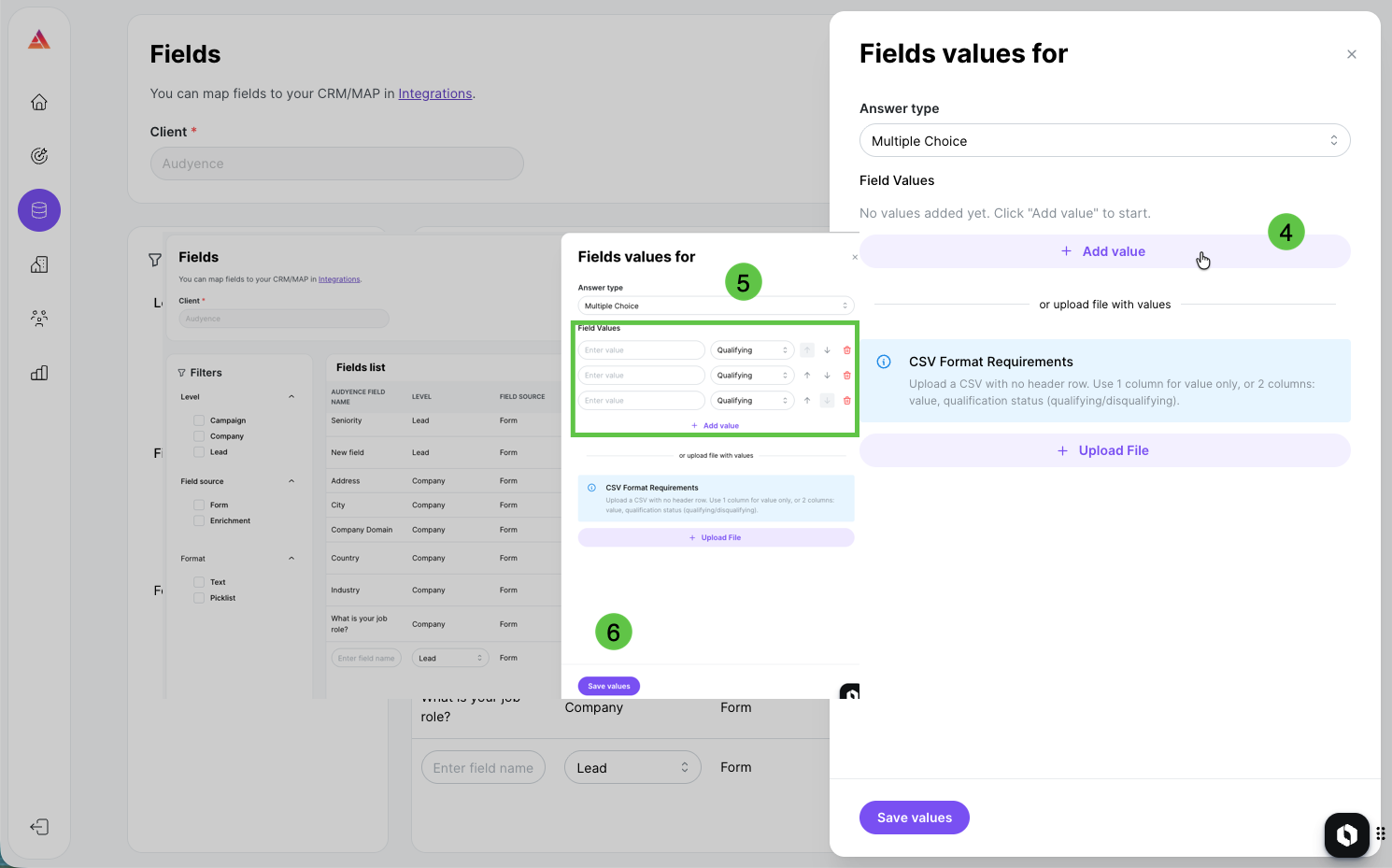
Note: Rules for qualifying questions:
Question text is required.
Multiple Choice and Multiple Response fields need at least 2 answer options.
At least one answer option must be marked Qualifying.
Answer options must be unique (the check ignores capitals and spaces at the start or end).
Free-form questions can't be marked Qualifying or Disqualifying. Free-form answers are accepted as they are.
You can't save a question until it meets all of these rules.
Step 2: Add qualifying questions to a campaign
In the campaign form, go to Step 3: Leads > Data to collect.
Click + Add field in the form fields table.
Select the qualifying question field(s) you want.
The question appears in the campaign form fields table next to standard fields. Click the field values count to see the answer options and whether each is Qualifying or Disqualifying.
Tip: If the question doesn't exist in Data > Fields yet, you can create it right on this screen.
Warning: Once publishers accept the RFP or deal, the qualifying question setup is locked for that campaign and can't be changed.
How leads are checked
When a publisher uploads leads for a campaign with qualifying questions, each answer is checked automatically:
Answer | What happens to the lead |
|---|---|
Matches a Qualifying answer option | Passes the check for that question. |
Matches a Disqualifying answer option | The lead is rejected. |
Doesn't match any answer option | The lead is rejected. |
One of two answers matches a Qualifying option | When a lead has more than one question, the lead is rejected if any single answer is disqualifying. |
Note: Answer matching isn't case-sensitive and ignores spaces at the start or end.
What publishers get
When your campaign goes out as an RFP or deal, publishers automatically get a qualifying questions section in the campaign brief. It includes:
the question text
the answer type (multiple choice, multiple response, or free form)
the list of accepted answer options for structured questions
This helps publishers build accurate landing pages and send answers that pass the checks. If you update qualifying question fields on a draft campaign before publishers accept it, publishers see the updated version.
Lead export and sync with your MAP/CRM
Qualifying question answers are included in lead CSV exports and connected integrations:
Each qualifying question gets its own column, with the question text as the column header.
Export filters (date range, status, campaign) work as usual.
Each qualifying question is synced based on your field mapping.
Frequently asked questions
Can I require a qualifying question to be answered?
Marking custom fields as required or optional isn't supported yet. For now, all qualifying questions are treated as required when leads are uploaded.
What happens if a publisher leaves a qualifying question blank?
A blank answer to a multiple choice or multiple response question gets the lead rejected, because it doesn't match any answer option. Rejected leads don't show on the Lead Delivery screen.
Can I use the same qualifying question in more than one campaign?
Yes. Qualifying questions in Data > Fields are available to every campaign in your account. Creating a question once and reusing it keeps answer options and qualification logic the same across programs.
Can qualifying question answers sync to my CRM?
CRM field mapping for qualifying questions (Marketo, Salesforce, HubSpot) is planned for a future release. Today, answers are captured in Audyence and included in lead exports.