Field Management
Last updated: October 13, 2026
What this is
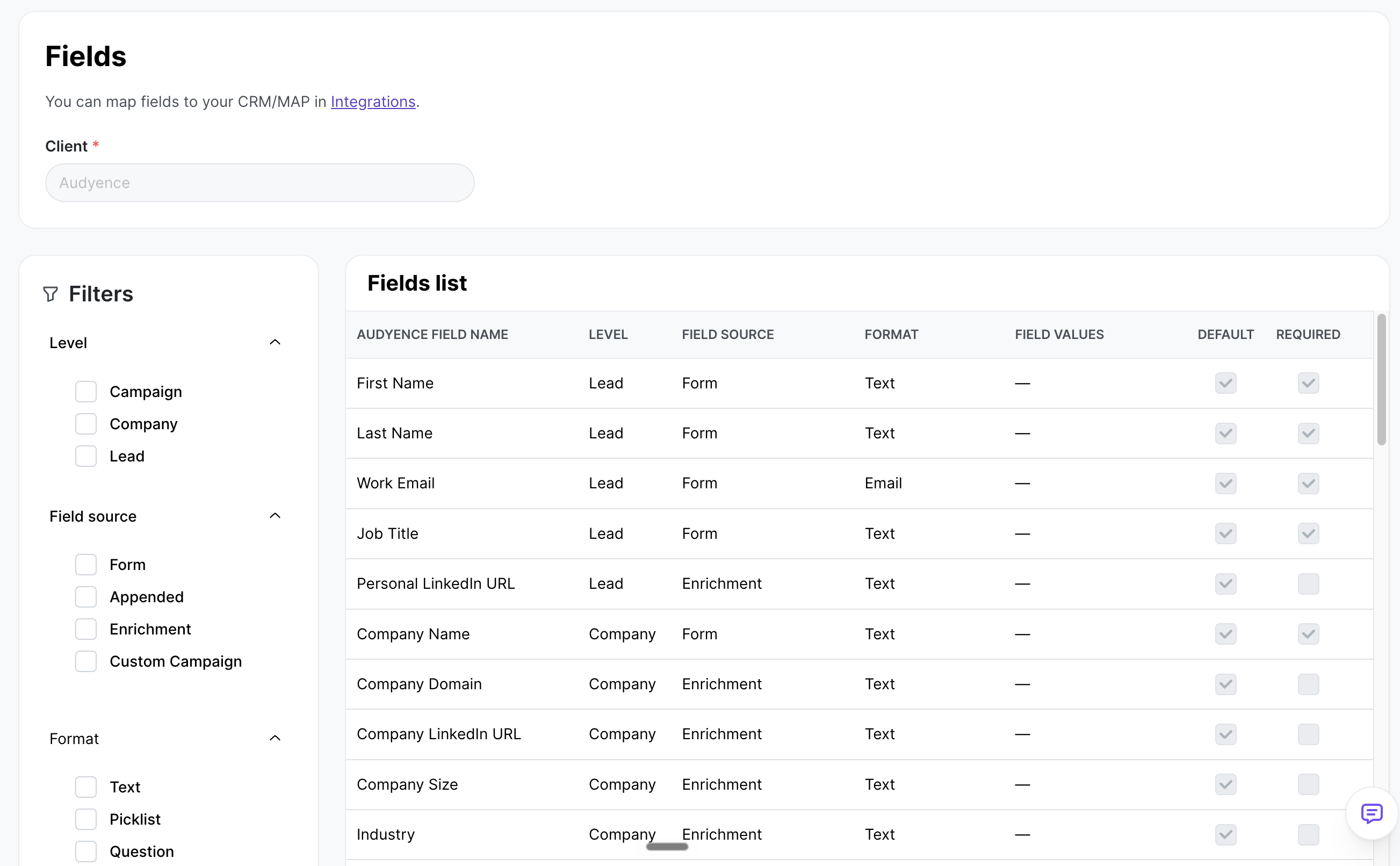
Field Management (Data > Fields) is where you choose the contact and company data you want with every lead. You set fields up once at the account level, and every campaign can use them.
Key takeaway: Set up your lead data once, before your first campaign. Everything you set here (fields, allowed values, qualifying questions) is checked automatically when publishers upload leads, so bad data is rejected before it reaches you.
The three building blocks
Building block | What it does | Where to learn more |
|---|---|---|
Form fields | The fields leads fill in on the publisher's landing page: standard fields (name, email, company) plus any custom fields you add. | This article |
Allowed values (pick lists) | Optional lists of accepted values for a field. Uploaded leads are checked strictly against them. | |
Qualifying questions | BANT-style or custom questions with qualifying or disqualifying answer options. Disqualified leads are rejected automatically. |
Field types
Every field has one of three sources. The source decides how the data is collected and whether you can edit the field.
Source | What it is | Can you edit it? |
|---|---|---|
Form | Fields on the landing page form. | Default system fields: no. Custom Form fields you create: yes. |
Appended | Custom fields for data the publisher sends with each lead, without adding it to the landing page form. | Yes. |
Enrichment | System-managed fields that Audyence fills in after a lead is approved. | No. They can't be edited or assigned. |
Form
These default system Form fields are on every campaign and can't be edited:
First Name
Last Name
Work Email
Job Title
Company Name
Any custom Form fields you create are fully editable.
Appended
Appended fields collect extra data from the publisher without adding it to the landing page form. Because they aren't on the form, they don't lower landing-page conversion.
Enrichment
Enrichment fields are system-managed:
Personal LinkedIn URL
Company Domain
Company Size
Company LinkedIn URL
Industry
Audyence fills them in through its enrichment process after a lead is approved. Publishers never provide these values.
Warning: Enrichment fields are available for US audiences only. If your campaign's Audience targets any non-US country, enrichment fields aren't available on the RFP. On Programmatic Guaranteed campaigns, each enrichment field you include is charged per lead.
Create a field
Go to Data > Fields.
Click + Add form field.
Choose the Field Source: Form or Appended. (You can't select Enrichment. It's reserved for system-managed fields.)
Choose the field type: a standard field, or Question for a qualifying question.
Name the field (or enter the question text) and set its values:
For pick-list fields, add allowed values.
For questions, add answer options and mark each one Qualifying or Disqualifying.
Save.
The field can now be added to any campaign.
Tip: You can also add fields to one campaign as you go in the RFP builder (Leads > Data to collect → + Add field), including creating a new qualifying question right there. To remove a field from a campaign form, click the X next to it.
Field mapping (CRM)
You can map each Audyence field to the field name on the Contact object in your CRM. For example, if your CRM stores first name as "first," map the form field to "first."
Lead files are then delivered with column headers that match your CRM's names, so you don't need to re-map anything when you import.
Mapping works the same for Salesforce, Marketo, HubSpot, and Pardot naming.
Appended and enrichment fields can be mapped the same way as form fields.
How fields flow through a campaign
You set up fields in Data > Fields (account level, shared by all campaigns).
You add fields to a campaign in the RFP builder (Leads > Data to collect). They're organized in three tabs: Campaign Form Fields, Lead Appended Fields, and Enrichment Fields. Default form fields are included. Add custom fields and questions as needed.
Publishers see your field requirements in the campaign brief. Form fields appear on their landing pages. Appended fields are sent with each lead without appearing on the form.
Uploaded leads are checked against your field rules: format checks, allowed values, and qualifying answers. Leads that fail are rejected and aren't billable.
Approved leads are enriched. Audyence fills in the enrichment fields you selected.
Accepted leads carry your fields into exports and CRM/MAP syncs, using your field mapping.
Good practices
Important: Set up fields before your first RFP. A campaign's field setup is locked once publishers accept it.
Keep form fields to a minimum. Every extra form field lowers landing-page conversion. Use appended and enrichment fields for data you can get without the form.
Use allowed values for fields you route on, such as territory, industry, or company size. That way CRM automation never breaks on an unexpected value.
Reuse qualifying questions across campaigns. One definition keeps answer options and qualification logic the same across programs.