HubSpot Integration Set Up Guide
Last updated: October 13, 2026
What this is
This guide shows you how to connect Audyence to HubSpot for the first time and turn on lead sync for a campaign.
Why it matters: once connected, approved leads flow into HubSpot automatically. You don't need to download and upload files.
Key takeaway: Connect HubSpot once (Part 1), then turn on lead sync for each campaign (Part 2). After that, approved leads from that campaign are sent to HubSpot automatically.
Words to know
Connected app: a ready-made HubSpot connection that Audyence provides. You just approve it. You don't need to build anything.
HubSpot portal: your company's HubSpot account.
Lead sync: Audyence automatically sends approved leads from a campaign to HubSpot.
What Audyence can do once connected
With the permissions you approve, Audyence can:
connect to HubSpot
read contact records
create or update contacts
load your HubSpot contact field definitions, so fields can be mapped
Before you start
You need:
a HubSpot account with Super Admin permissions
access to Audyence with permission to set up integrations
Tip: You do not need a HubSpot developer app, an API key, or your own client credentials. Installing the connected app is all that's required.
Part 1: Connect HubSpot
Tip: To find integrations in Audyence, go to Data → Integrations in the left navigation.
Log in to Audyence and open the integrations page.
Select HubSpot.
Click Connect HubSpot.
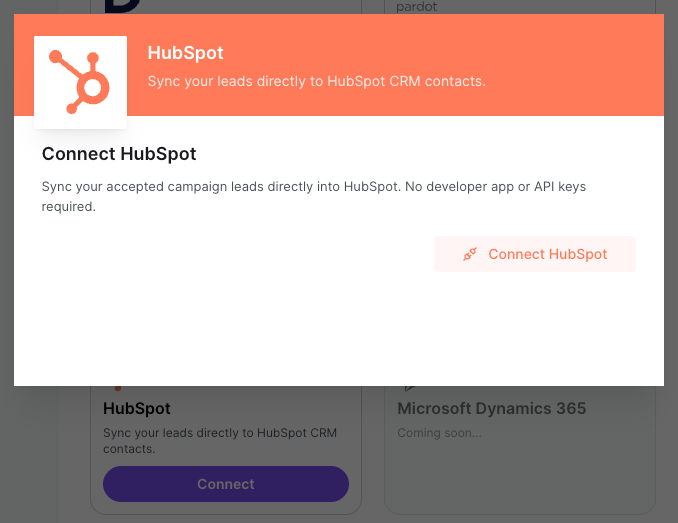
If this is your first time connecting, you'll be asked to create a new HubSpot account or sign in to an existing one.
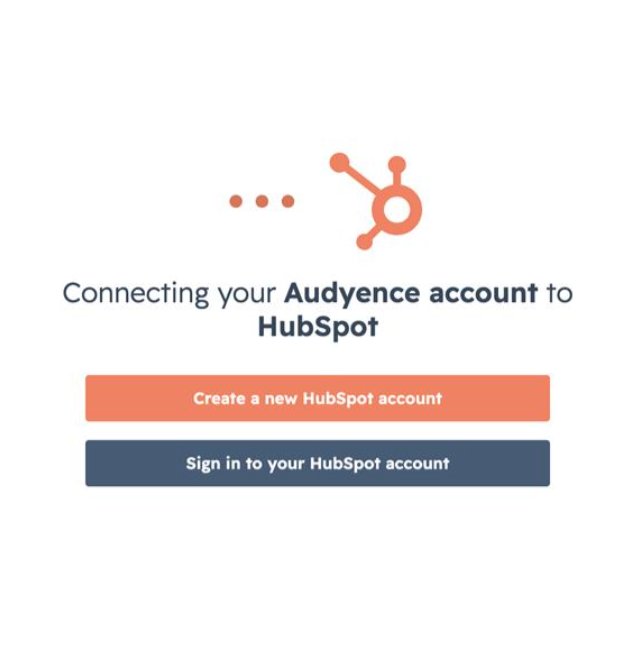
Click Sign in to your HubSpot account. Sign in as a user who has the App Marketplace Access permission. (Super Admins have it by default.)
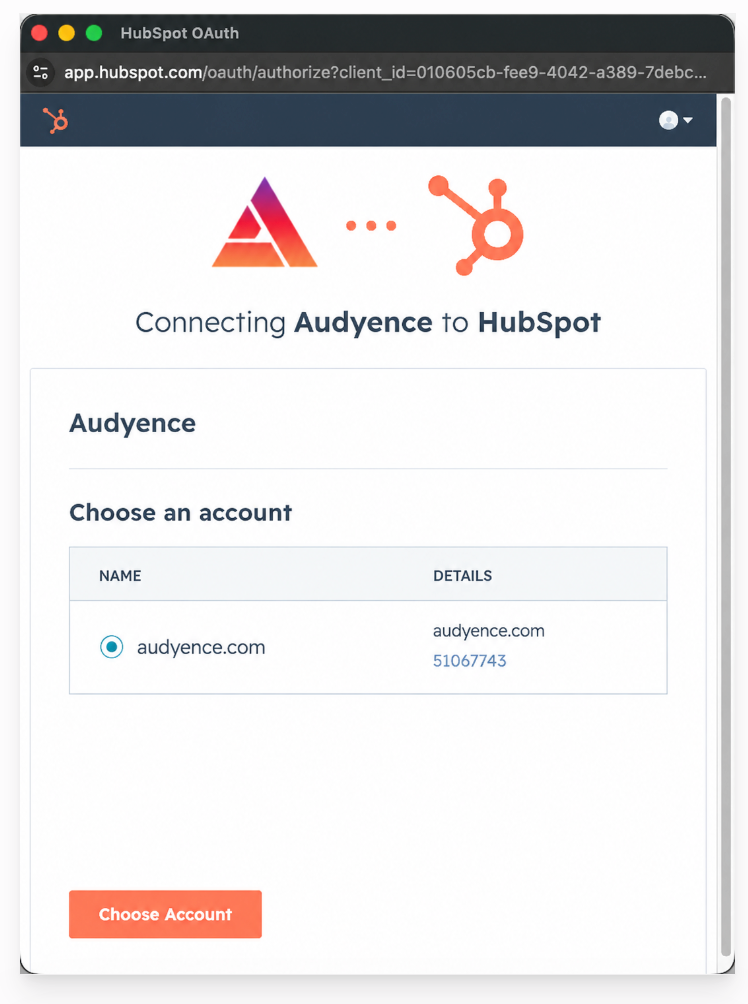
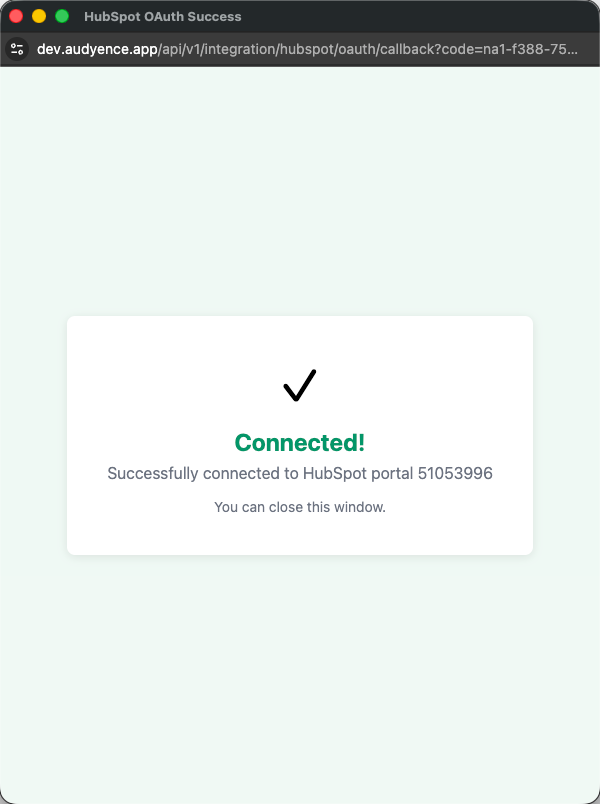
When the connection works, Audyence shows a Connected state with your HubSpot portal's name.
Part 2: Turn on lead sync for a campaign
Lead sync is turned on campaign by campaign:
Open the campaign in Audyence.
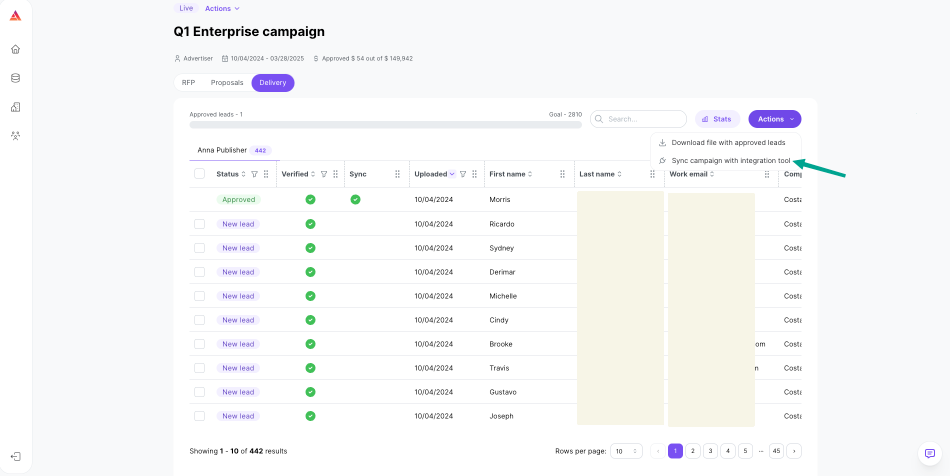
Click Actions.
Select Sync campaign with integration tool.
Turn on the integration toggle.
From then on, every lead you approve on that campaign is sent to your connected platform. Only approved leads are sent.
Check that it worked
Approve a lead in an Audyence campaign.
Wait 1–2 minutes.
Check that the lead shows up in HubSpot.
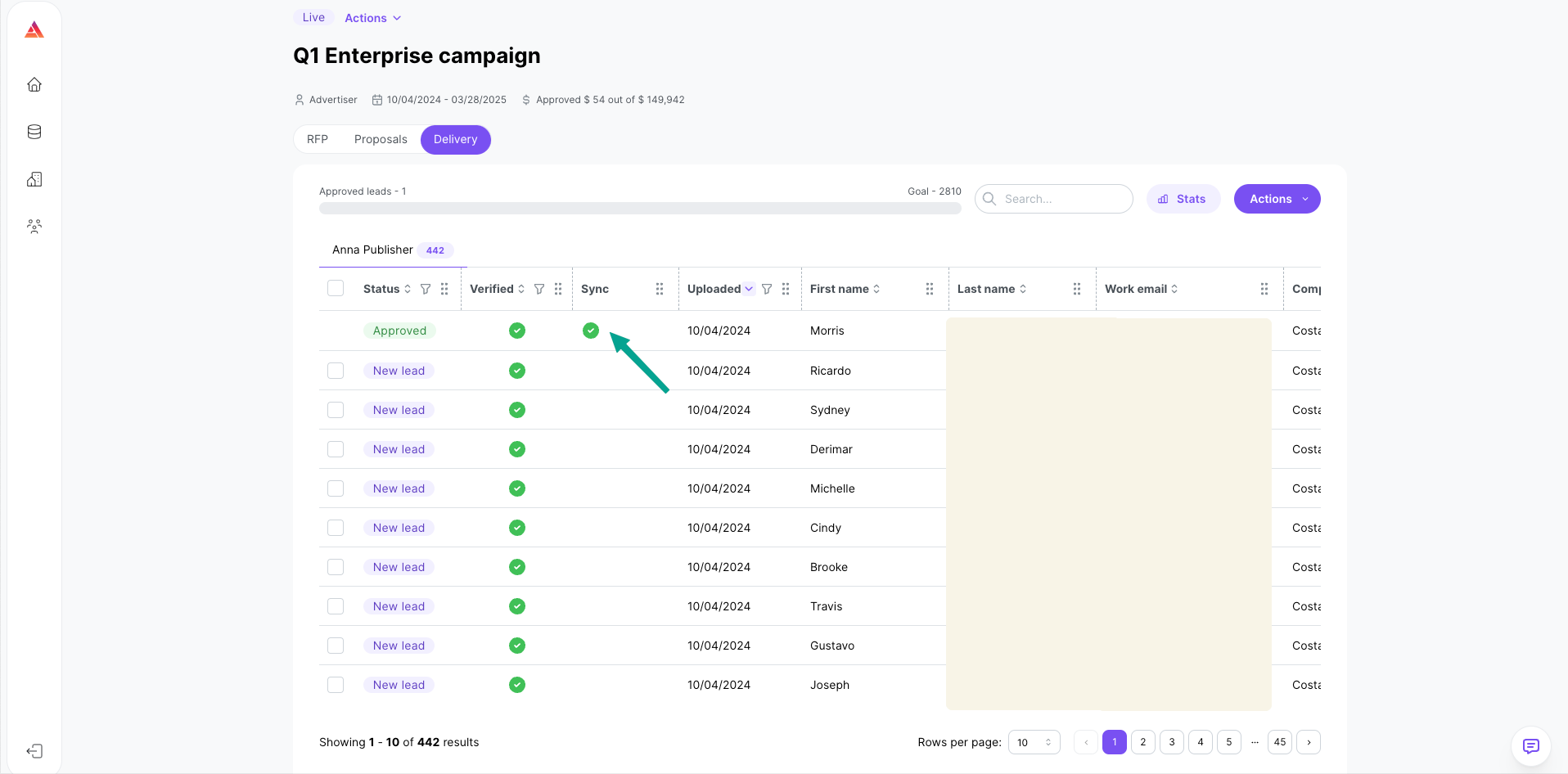
Note: In Audyence, open the campaign's lead delivery screen and check the Sync column. Each lead that synced shows a checkmark.
Note: If the lead already exists in HubSpot, the record is updated, not duplicated.