Demandbase Integration Setup
Last updated: October 13, 2026
What this is
The Demandbase integration connects your Demandbase account to Audyence, so target account lists you manage in Demandbase can shape your Audyence campaigns. Once set up, your Demandbase account lists (built from intent signals, company data, and journey stage) can be the targeting base for your Audyence lead generation campaigns.
Setup has two parts:
Generate an API token in Audyence.
Set up Demandbase to send your account list to Audyence.
Key takeaway: Generate a token in Data → Integrations → Demandbase and copy it right away (it's shown only once). Paste it into a new Audyence integration in Demandbase, then build a Demandbase Automation with Add List to Audyence. The synced list appears under Saved Audiences.
Step 1: Generate your API token in Audyence
Tip: To find integrations in Audyence, go to Data → Integrations in the left navigation.
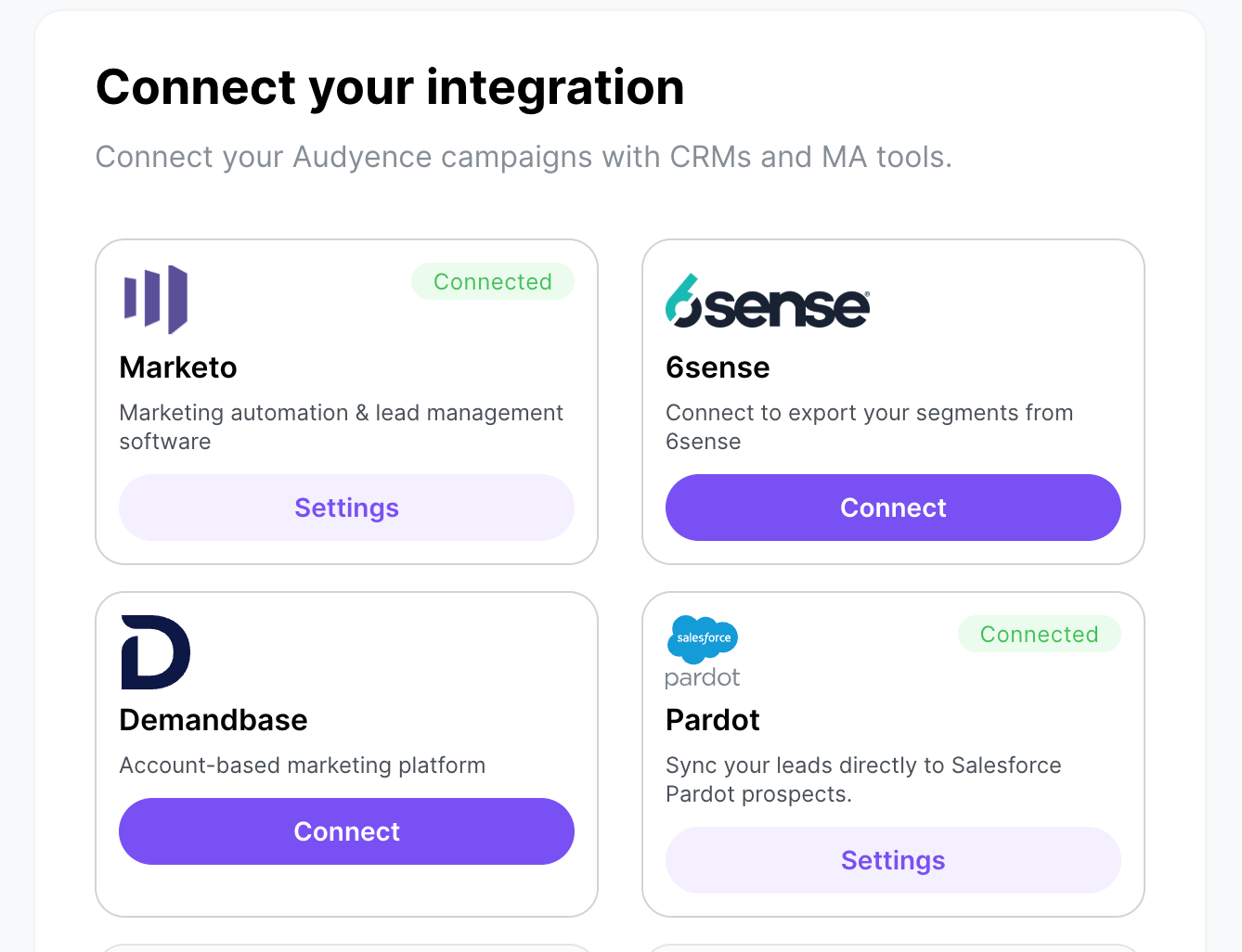
In Audyence, open the integrations page.
Find the Demandbase tile and click Connect.
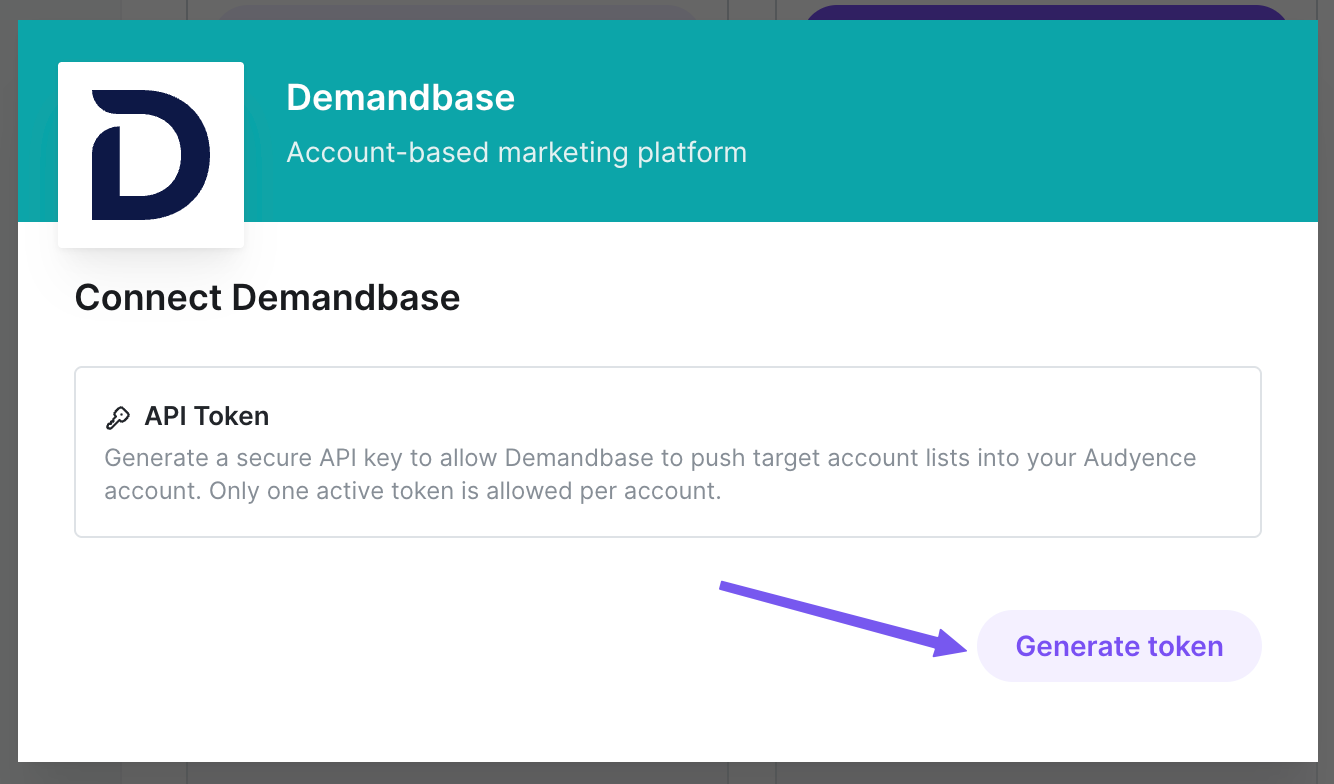
In the dialog, click Generate token.
Copy the token right away and store it somewhere secure (a password manager or your team's secrets vault).
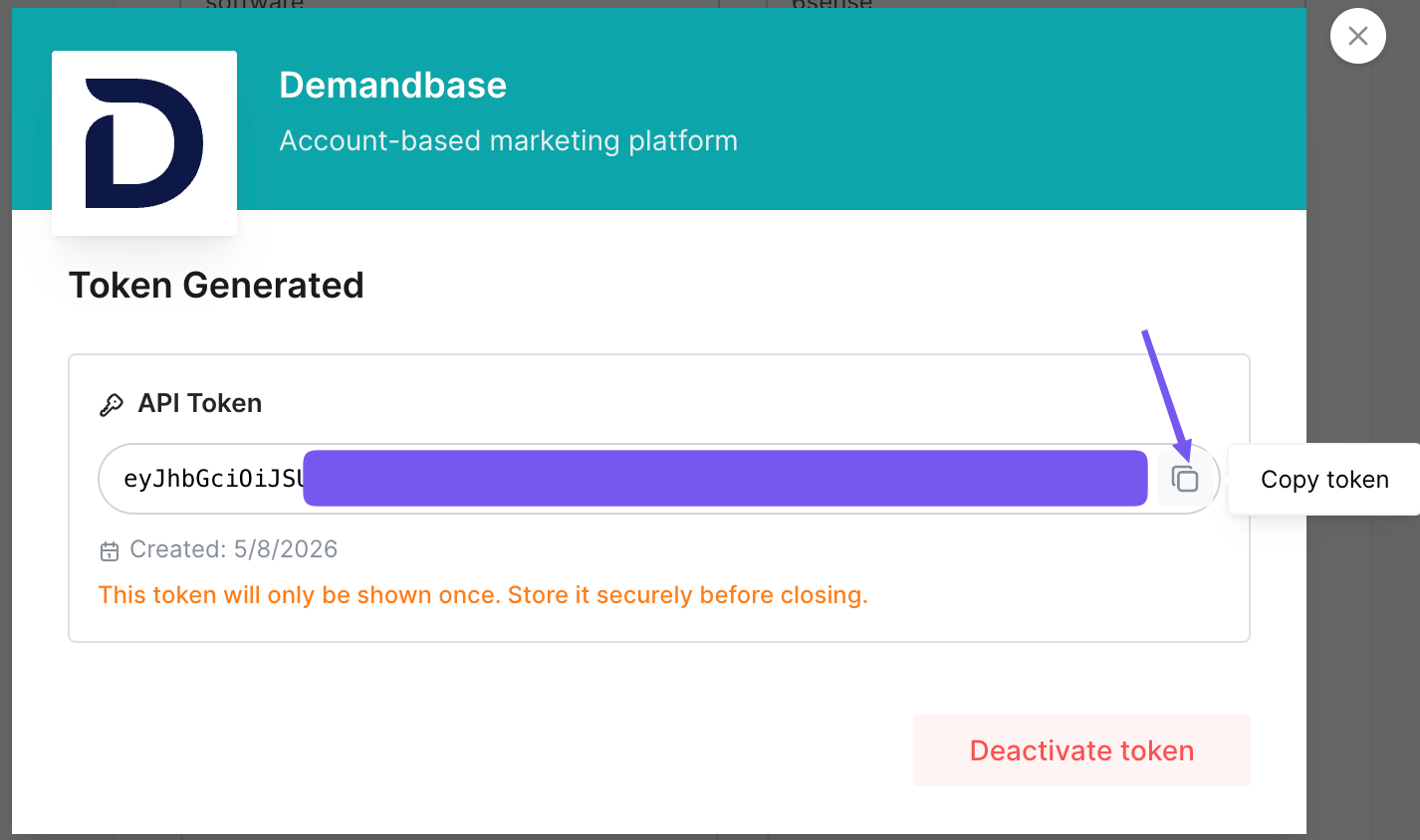
Warning: The token is shown only once. You can't get it back after you close the dialog.
Important: Only one active API token is allowed per Audyence account. To replace it, click Deactivate token to cancel the current one, then generate a new one. Any Demandbase destinations using the old token stop syncing until you update them with the new token.
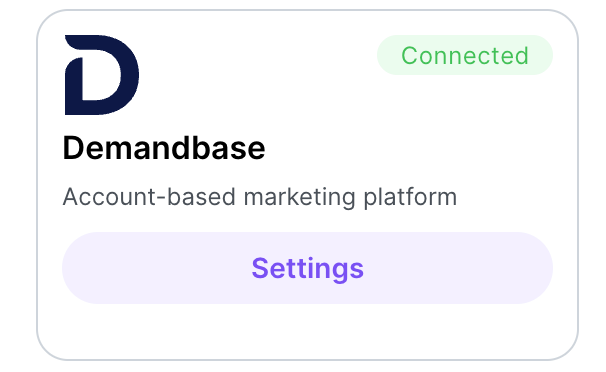
The status shows Connected once a token is generated. But to finish the integration, you still need to complete the steps below in Demandbase.
Step 2: Create a new integration in Demandbase
Tip: Need help connecting Audyence in Demandbase? See Demandbase's guide: Integrate Audyence with Demandbase.
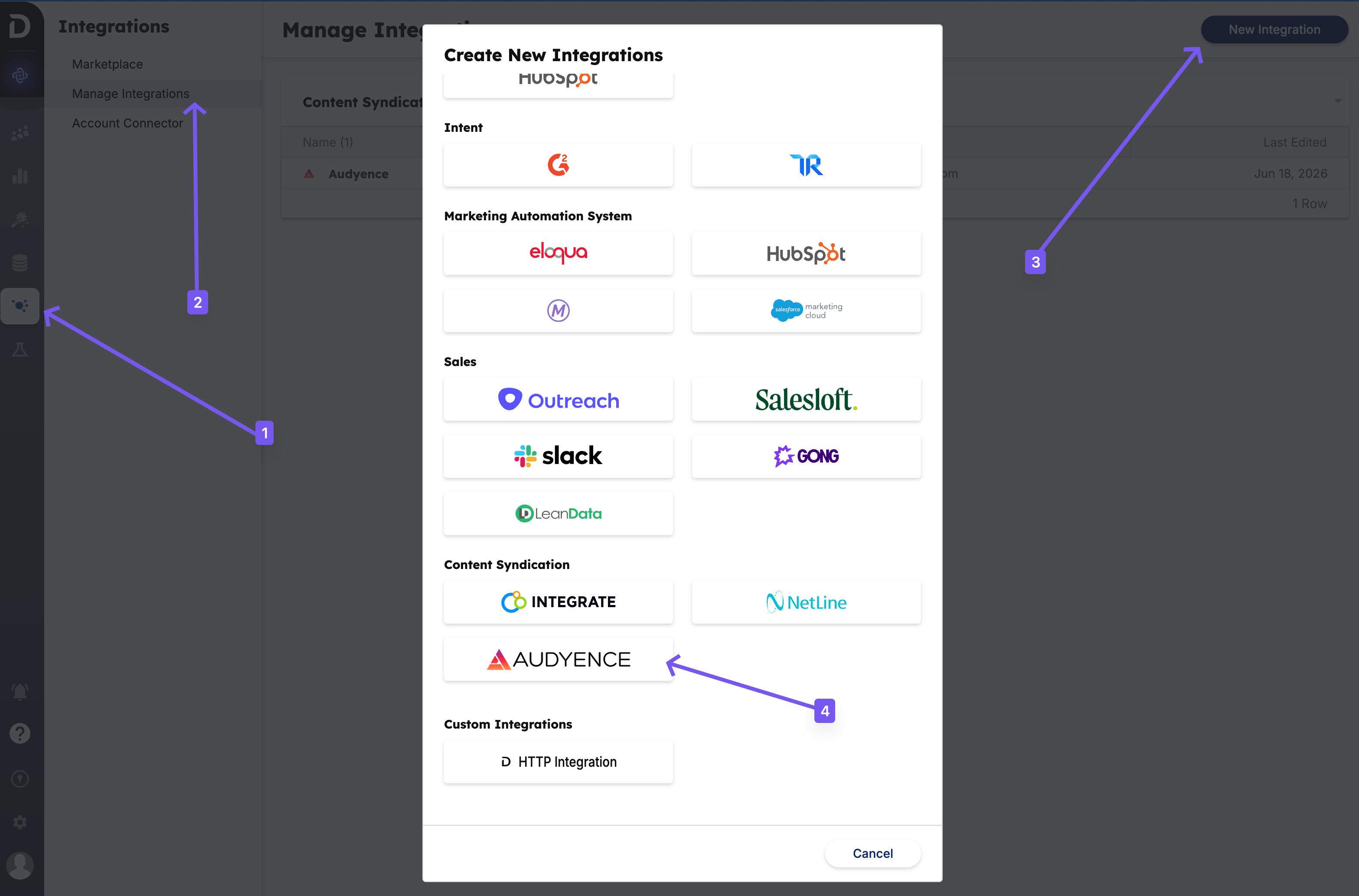
Go to Integrations.
Open Manage Integrations.
Click New Integration.
Select Audyence.
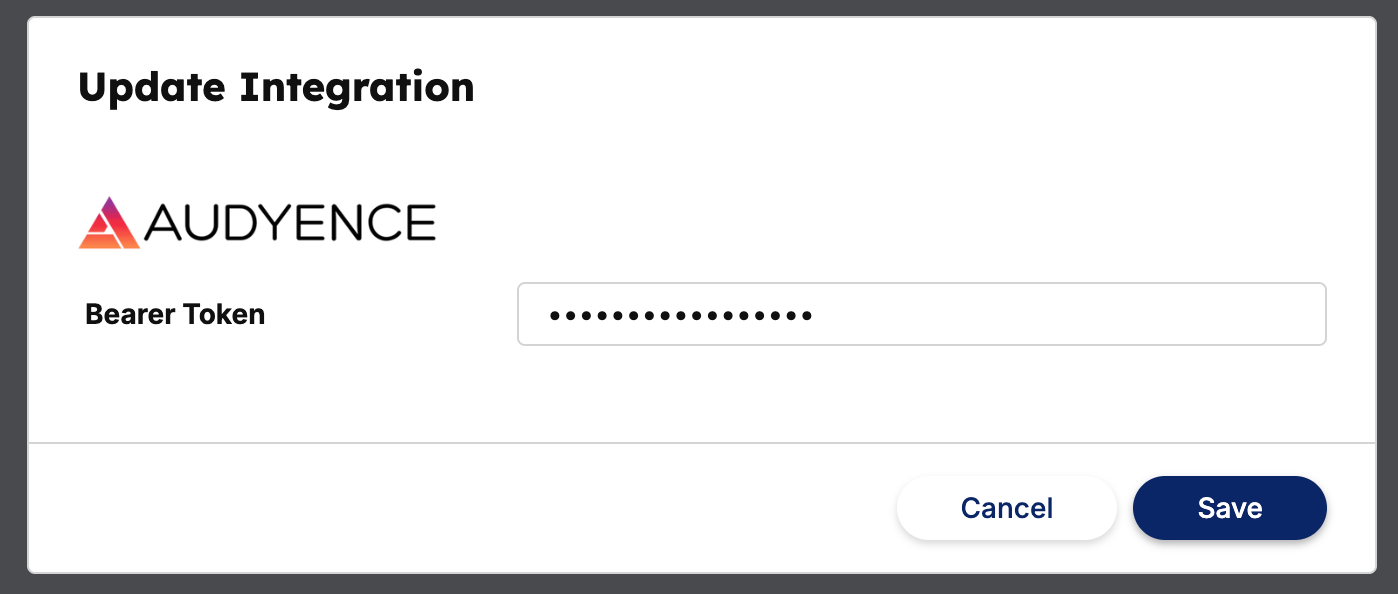
Paste the token you copied from Audyence into the connection window.
Step 3: Set up the sync in Demandbase
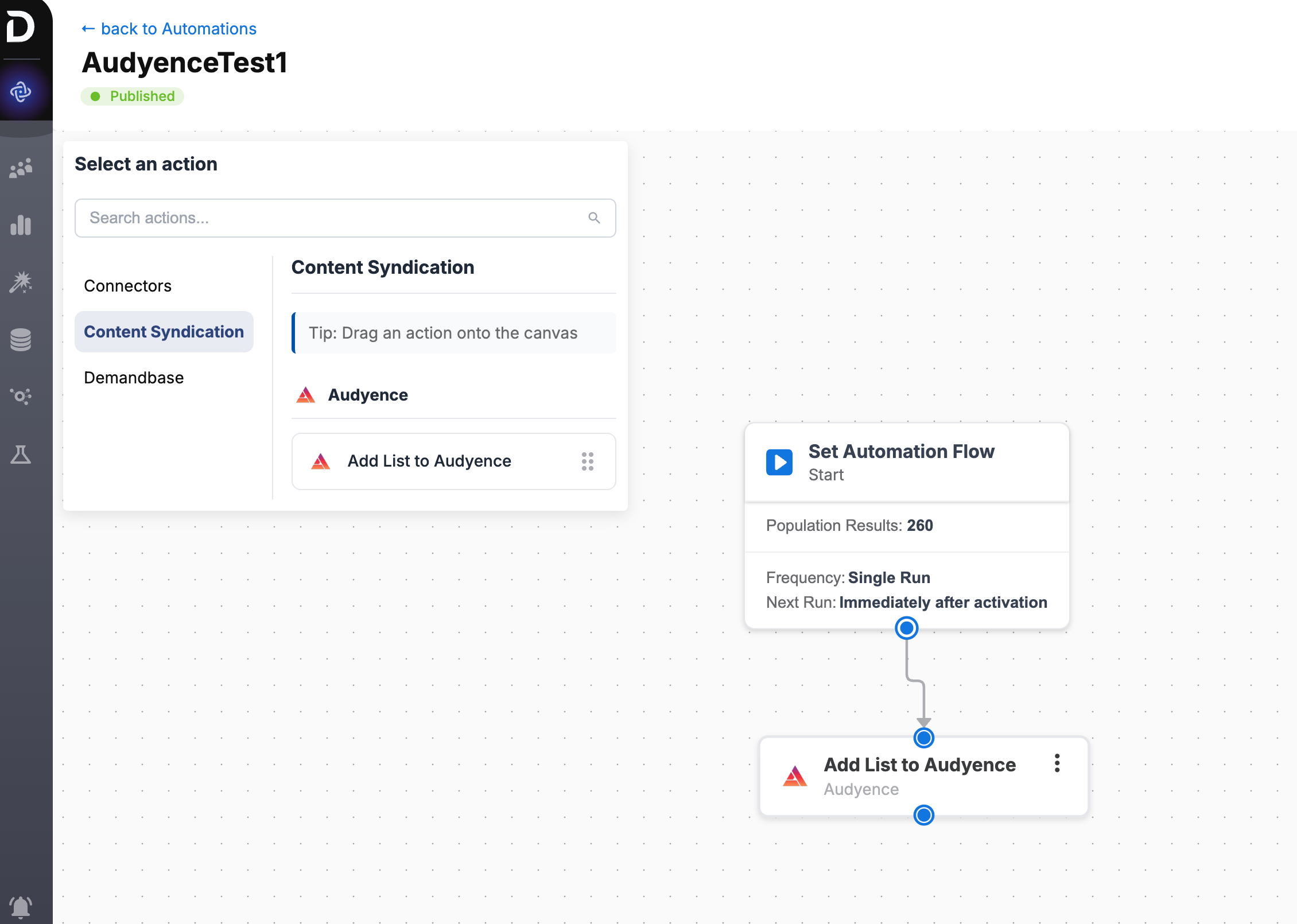
These steps set up a Demandbase Automation that syncs to Audyence. For more help, see Automation: Add List to Audyence.
Important: You need Admin rights or an Orchestration permission set in Demandbase for this step.
In the left navigation, go to Orchestration > Automations.
Create an Automation with the Account member type. (You can also edit an existing automation by clicking its name.)
In the main action panel on the left, select Content Syndication > Add List to Audyence.
In the sub-action panel on the right, select the Demandbase account list you want to send to Audyence.
Connect the sub-action node to the main action node.
Click Save Update.
Click Confirm.
What happens next
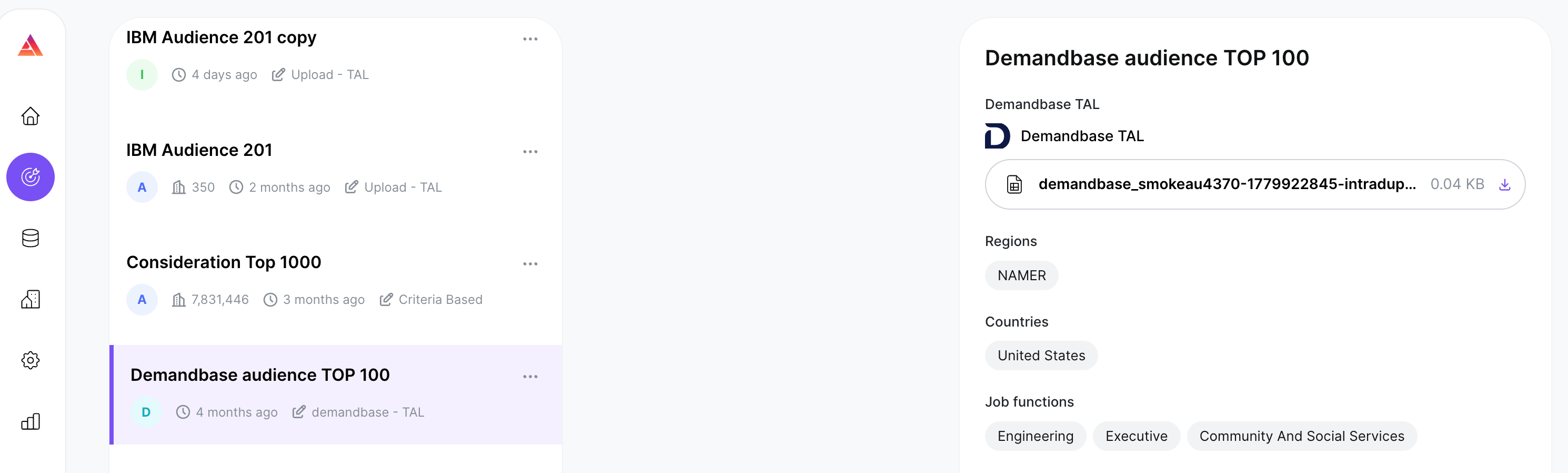
After setup, the target account list from Demandbase is available in your Audyence account for campaign targeting. Your Audyence account team can confirm the exact steps for attaching a synced list to a campaign.
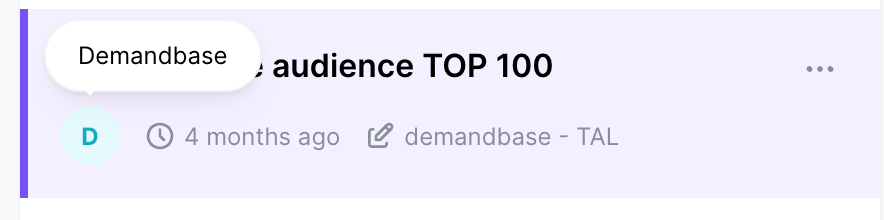
Once the audience syncs, it shows under Saved Audiences. Hover over the icon or the audience name to identify it.
Troubleshooting
Problem | What to check |
|---|---|
Demandbase won't accept the token | Make sure you copied the full token with no spaces at the end. Tokens are long JWT strings starting with |
The sync isn't sending updates | Check that the Audience scheduler is active in Demandbase and that the token hasn't been deactivated in Audyence. |
You lost the token before saving it | In Audyence, go back to Data > Integrations > Demandbase, deactivate the old token, and generate a new one. Update your Demandbase destination with the new token. |
You need a second active token | Only one token per Audyence account is supported at a time. |