Eloqua Integration Setup Guide
Last updated: October 13, 2026
What this is
The Eloqua integration delivers your approved Audyence leads straight into Oracle Eloqua as contacts, mapped to your own Eloqua contact fields, with a delivery status on every lead. No CSV exports or manual imports.
With Eloqua connected, your team can:
Deliver leads automatically: every approved lead from a synced campaign is written to Eloqua on its own.
Keep contact data clean: leads land in the Eloqua fields you choose, and existing contacts are updated instead of duplicated.
Follow up faster: leads reach your nurture and routing programs minutes after approval, not at the next export.
See what was delivered: each lead is marked synced or failed on the lead delivery screen.
Key takeaway: Get your app's Client ID and Client Secret from Eloqua, connect in Data → Integrations → Eloqua, map your fields (Email Address is required), then turn on syncing for each campaign. Only leads approved after that are sent, and only one way: Audyence to Eloqua.
Note: Availability: Eloqua is being rolled out to accounts in stages. If you don't see Eloqua on your Integrations screen, ask your Audyence account team to turn it on.
Before you start
Make sure you have:
an Oracle Eloqua account with access to Settings > AppCloud Developer, so you can get an app's Client ID and Client Secret
an Eloqua user who can authorize an app and has permission to create and update contacts
an Audyence account with permission to set up integrations (Advertiser, Brand, or Agency admin)
pop-ups allowed in your browser for the Audyence site, because the Eloqua sign-in opens in a pop-up window
How it works
The Eloqua integration is a built-in, direct API connection that uses OAuth 2.0:
You enter your Eloqua app credentials in Audyence and authorize Audyence in Eloqua.
Audyence detects your Eloqua account automatically and shows the integration as Connected.
You map each Audyence lead field to an Eloqua contact field. Email Address is required: it's how Audyence matches leads to contacts.
You turn the integration on for the campaigns you want to sync.
Approved leads are written to Eloqua as contacts, and each lead gets a delivery status in Audyence.
What | Detail |
|---|---|
What syncs | Approved leads only, from campaigns where the integration is turned on |
What's created in Eloqua | Contacts: created if new, updated if they already exist |
Match key | Email Address |
Direction | Audyence to Eloqua only |
Starting point | Leads approved after you connect. Earlier leads aren't sent. |
If delivery fails | Audyence retries the lead once, then marks it Sync failed with the error from Eloqua |
Step 1: Get your Eloqua app credentials
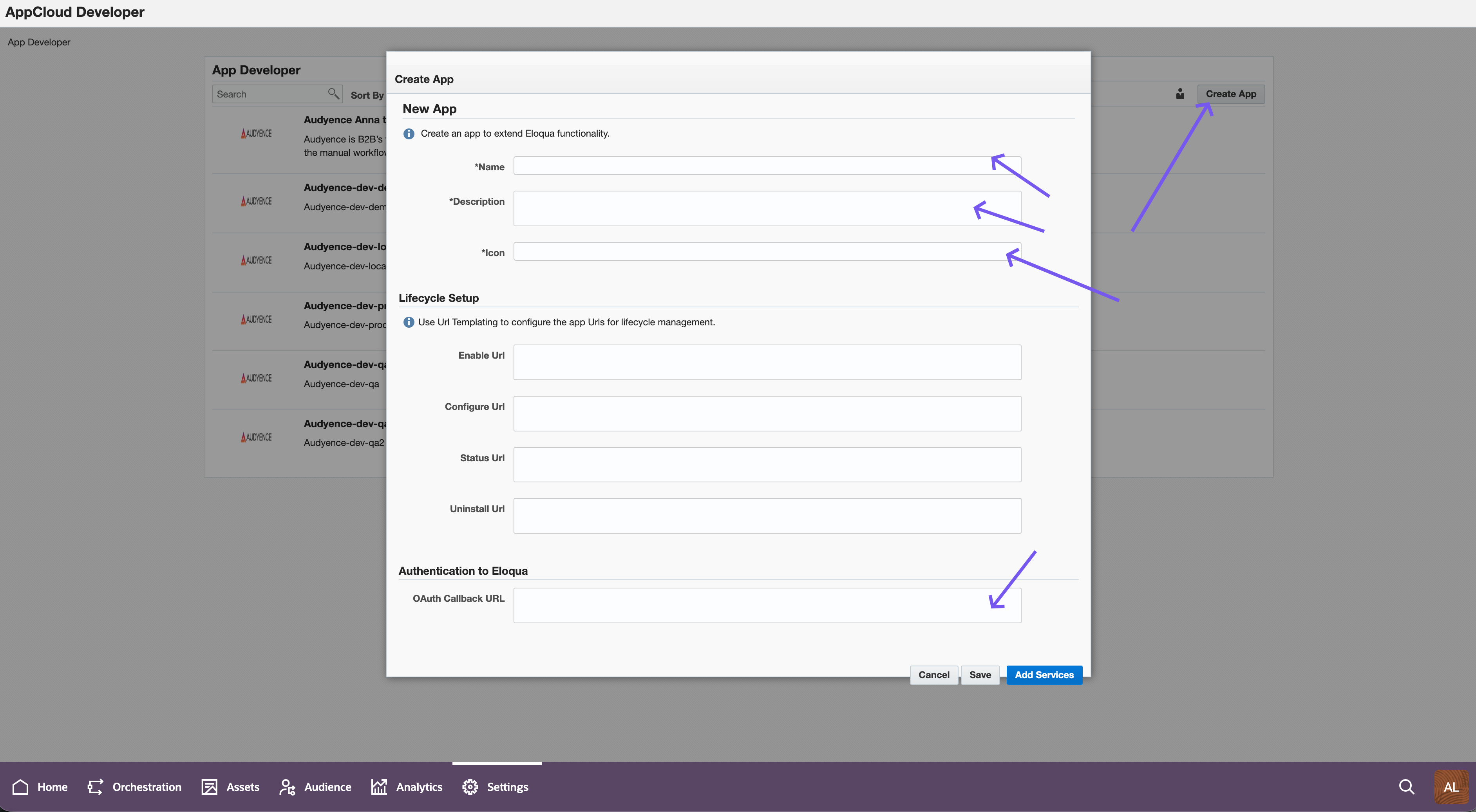
In Eloqua, go to Settings > AppCloud Developer and open the app you want Audyence to use. Copy its Client ID and Client Secret. You'll paste both into Audyence in the next step. See Oracle's documentation on authenticating apps for details.
If you're creating a new app for Audyence, use these details:
Name | Audyence |
Description | Audyence is B2B's first programmatic marketplace for cost-per-lead inventory. Buy from every publisher in one place, skip the manual workflows, and get lead gen campaigns live in days. |
Icon | |
OAuth Callback URL |
|
Step 2: Connect Eloqua
Tip: To find integrations in Audyence, go to Data → Integrations in the left navigation.
Log in to Audyence and open the integrations page.
Select Eloqua and click Connect.
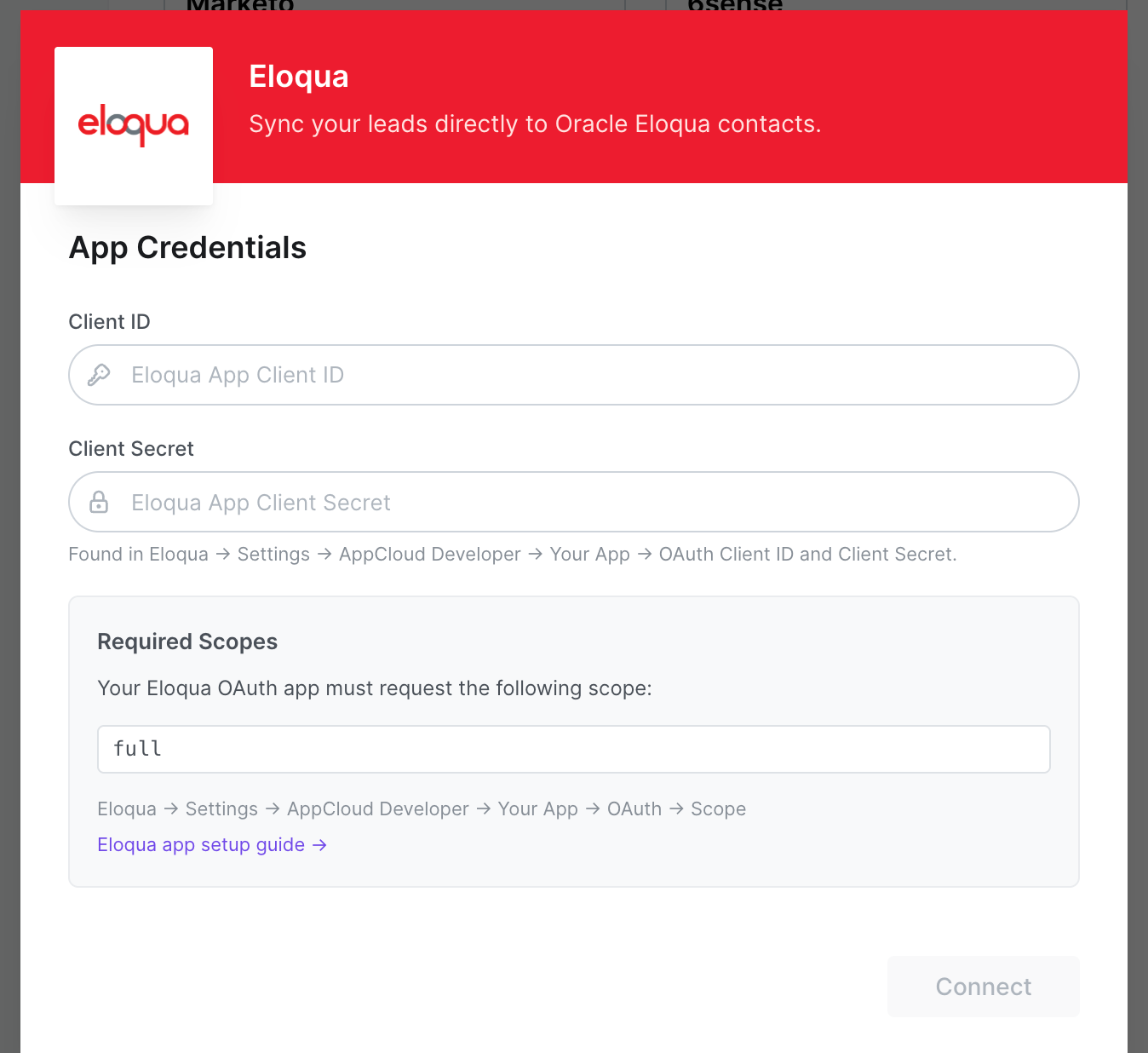
Enter your Client ID and Client Secret, then click Connect.
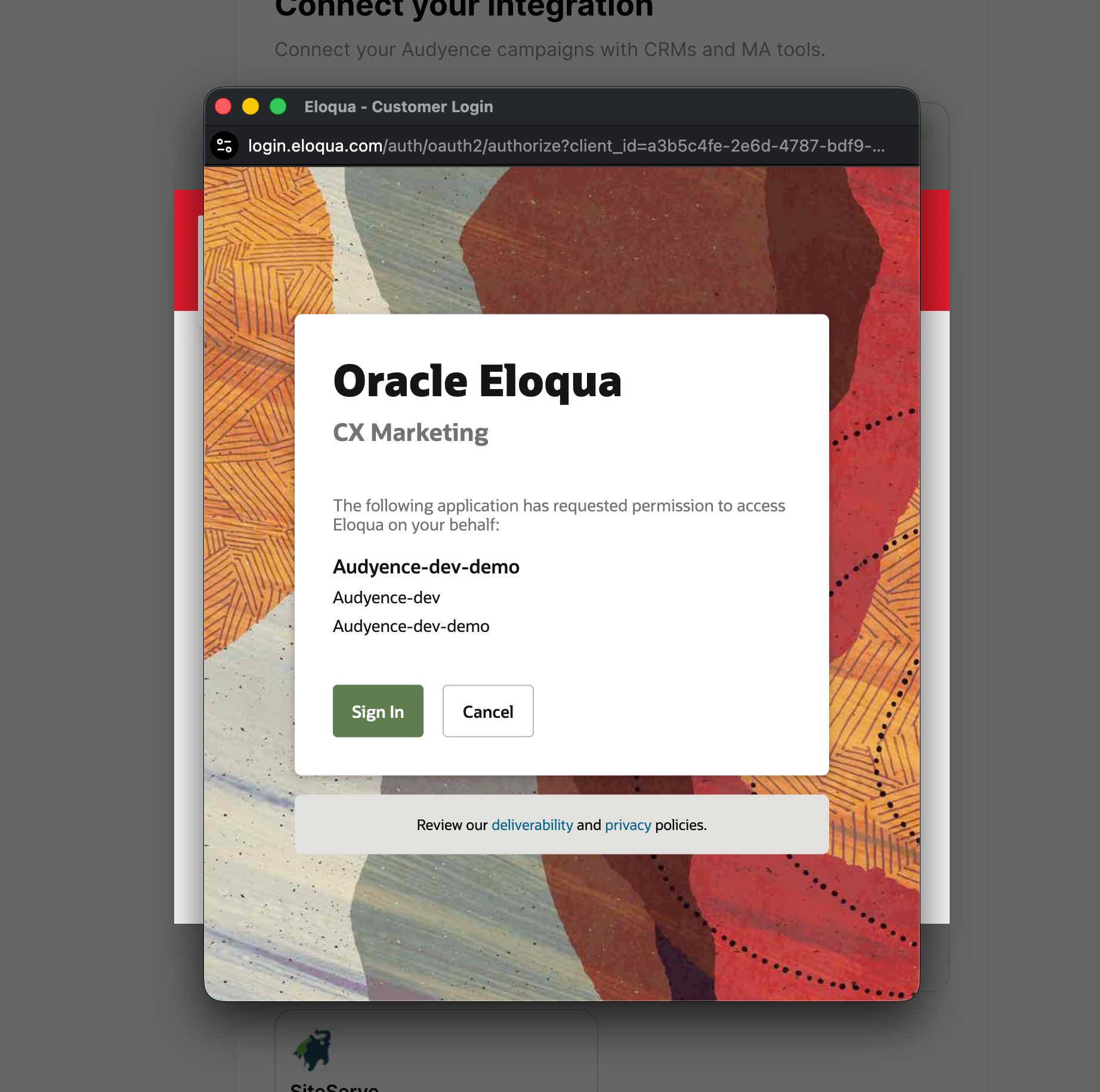
An Eloqua sign-in window opens. Sign in and grant access to Audyence.
The window closes and the integration shows Connected. Audyence detects your Eloqua account automatically, so there's nothing else to set up.
Note: Audyence keeps the connection alive on its own, so you won't be asked to sign in again for routine syncing.
Step 3: Map your lead fields
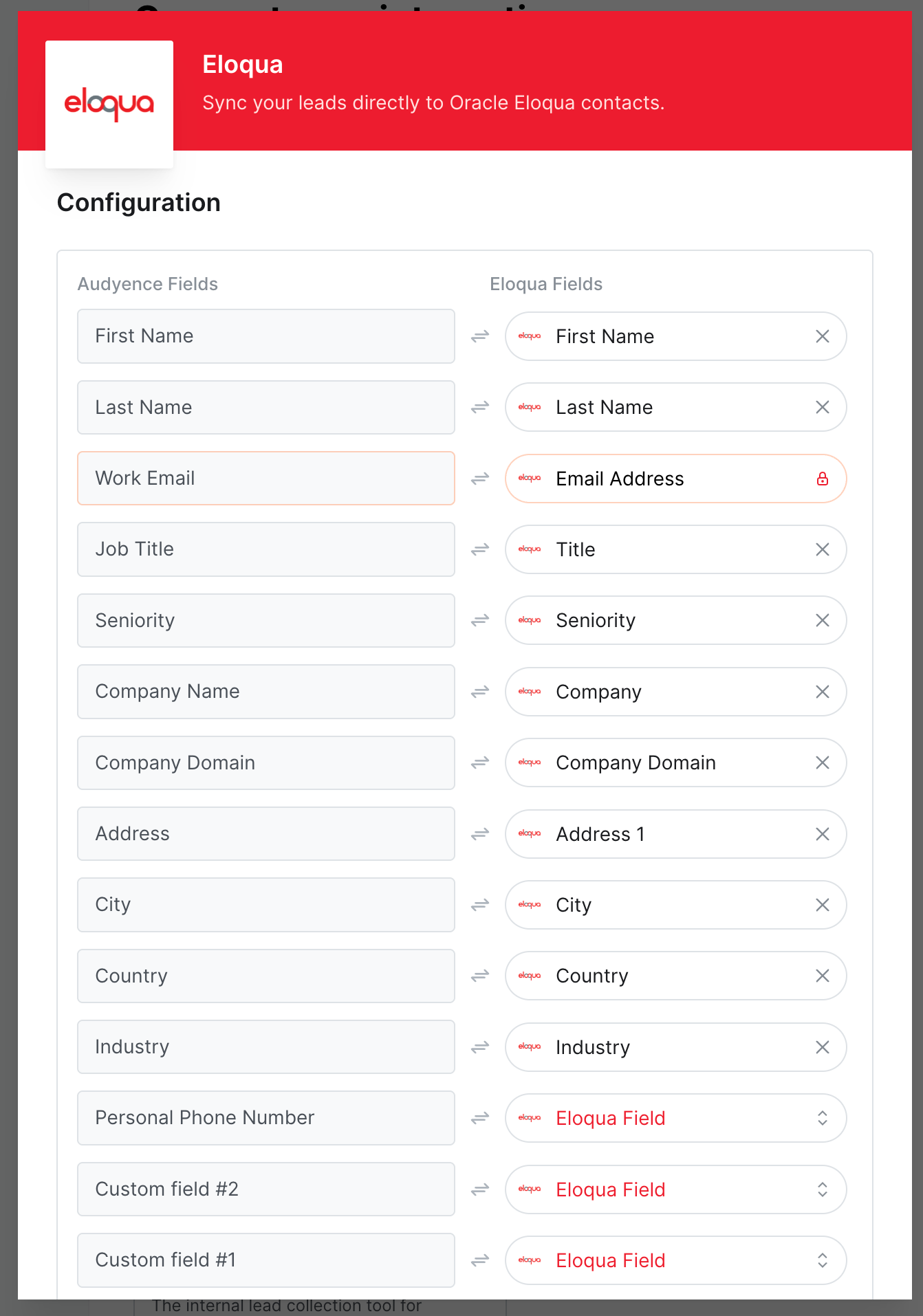
Once connected, open Integration settings to map your fields. Audyence reads the contact fields (standard and custom) straight from your Eloqua account, so the list you see is your own.
For each Audyence lead field on the left, pick the Eloqua contact field it should go to on the right. Use the search box to find a field quickly.
Email Address is required and locked. It's how Audyence finds an existing contact, so it can't be changed or cleared.
Each Eloqua field can be used once. A field already mapped to another row won't be offered again.
Changes save automatically and apply to the next lead that syncs.
Important: Until an email mapping is in place, you'll see an Email Mapping Required warning and you can't turn sync on.
Step 4: Turn on lead sync for a campaign
Connecting Eloqua doesn't start delivery by itself.
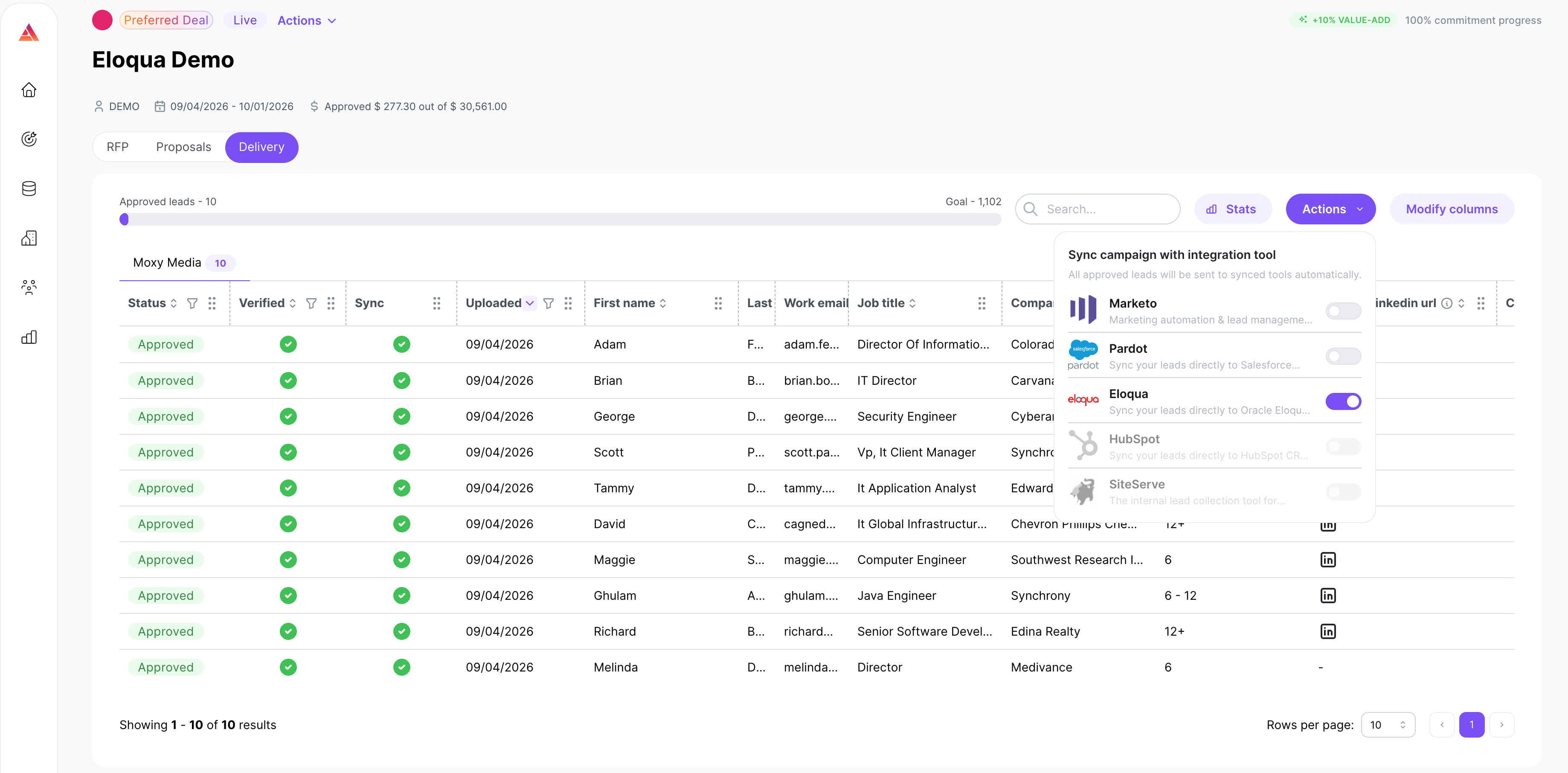
Lead sync is turned on campaign by campaign:
Open the campaign in Audyence.
Click Actions.
Select Sync campaign with integration tool.
Turn on the integration toggle.
From then on, every lead you approve on that campaign is sent to your connected platform. Only approved leads are sent.
Step 5: Check it worked
Approve a lead on a synced campaign.
Wait a few minutes. Bigger batches of approvals take longer.
Look up the contact in Eloqua by email address and check that your mapped fields are filled in.
Note: In Audyence, open the campaign's lead delivery screen and check the Sync column. Each lead that synced shows a checkmark.
Leads that couldn't be delivered are marked Sync failed.
Note: If the contact already existed in Eloqua, it's updated, not duplicated, and only the fields you mapped are touched. Everything else on that contact stays as it was.
Disconnecting Eloqua
To stop sending leads to Eloqua, click Disconnect on the Eloqua integration.
Warning: Lead delivery stops right away. Leads already queued or on their way aren't delivered, and leads approved while you're disconnected aren't sent later if you reconnect.
Audyence's access to your Eloqua account is revoked and your saved credentials are cleared.
Your field mappings are kept, so you don't have to set them up again if you reconnect.
Contacts already written to Eloqua stay there. Disconnecting stops future delivery. It doesn't undo past syncs.
Troubleshooting
Show troubleshooting table
What you see | What to do |
|---|---|
The Eloqua sign-in window never opens | Your browser blocked the pop-up. Allow pop-ups for the Audyence site and click Connect again. |
Connect fails or you return to Audyence still disconnected | The sign-in was cancelled, denied, or left open too long. Start Connect again and finish the Eloqua sign-in promptly. |
"Invalid credentials" when saving Client ID / Client Secret | Copy both values again from Settings > AppCloud Developer in Eloqua. Watch for spaces at the end. |
Email Mapping Required warning | Map your email lead field to Eloqua's Email Address. Sync can't be turned on without it. |
Connected, but no leads are arriving | Check that the sync toggle is on for that campaign, and that the leads are approved. Only approved leads are delivered. |
A lead is marked Sync failed | Audyence already retried it once. Check the error on the lead. Common causes are a value Eloqua rejected for that field, or Audyence's access being revoked in Eloqua. Once the cause is fixed, contact your Audyence account team about the affected leads. |
Sync failed on repeat engagements from one person | Engagements from the same email address approved at the same time aren't merged: the first is written and the rest are reported as failed. See How do multi-touch leads sync? below. |
A mapped field is empty on the Eloqua contact | Either the lead had no value for that field, or the field no longer exists in Eloqua. Check the field is still there and recheck the mapping. |
Leads stopped syncing after an Eloqua change | If the app was deleted, its credentials changed, or Audyence's access was revoked in Eloqua, reconnect the integration. |
Frequently asked questions
Does data sync both ways?
No. Delivery goes one way, from Audyence into Eloqua. Changes made in Eloqua aren't sent back to Audyence.
What does Audyence create in Eloqua?
Contacts. Custom data objects, campaign membership, and form submissions aren't part of this integration.
How do multi-touch leads sync?
Just like single-touch leads: one contact, written once per engagement, with the earlier sync updated with new data. The engagements that qualified the lead stay in Audyence. See Tactics: Multi-touch and Single-touch.
Will I get duplicate contacts?
No. Audyence matches on email address and updates the existing contact when it finds one.
Will syncing overwrite data already on a contact?
No. Only the fields you mapped are written. Every other value on that contact is kept.
Will leads I approved before connecting be sent?
No. Delivery starts from the moment you connect and turn on a campaign.
Can I change my field mappings later?
Yes, any time from Integration settings. Changes apply to leads synced after you make them.
How long does a lead take to reach Eloqua?
Usually a few minutes after approval. Large batches of approvals take longer.
Who can set up the integration?
Advertiser, Brand, and Agency admins with permission to set up integrations.
Is my Eloqua Client Secret safe?
Yes. It's encrypted when stored, never shown again after you save it, and cleared when you disconnect.
Related articles
Need help?
Tip: Contact support@audyence.com for campaign questions, platform feedback, or anything else.
If you run into a problem this guide doesn't cover, include the campaign name and, if relevant, the email address of the affected lead.