How to Download Leads from a Campaign
Last updated: October 14, 2026
What this is
How to export or download a file with the approved leads from a live campaign, right from the campaign's delivery screen.
Key takeaway: Open the live campaign to land on its delivery screen, click Actions, and select Download file with approved leads. The file holds only approved leads. Leads still waiting for your review and rejected leads aren't in it.
Download approved leads
Step 1: Open the campaign's delivery screen
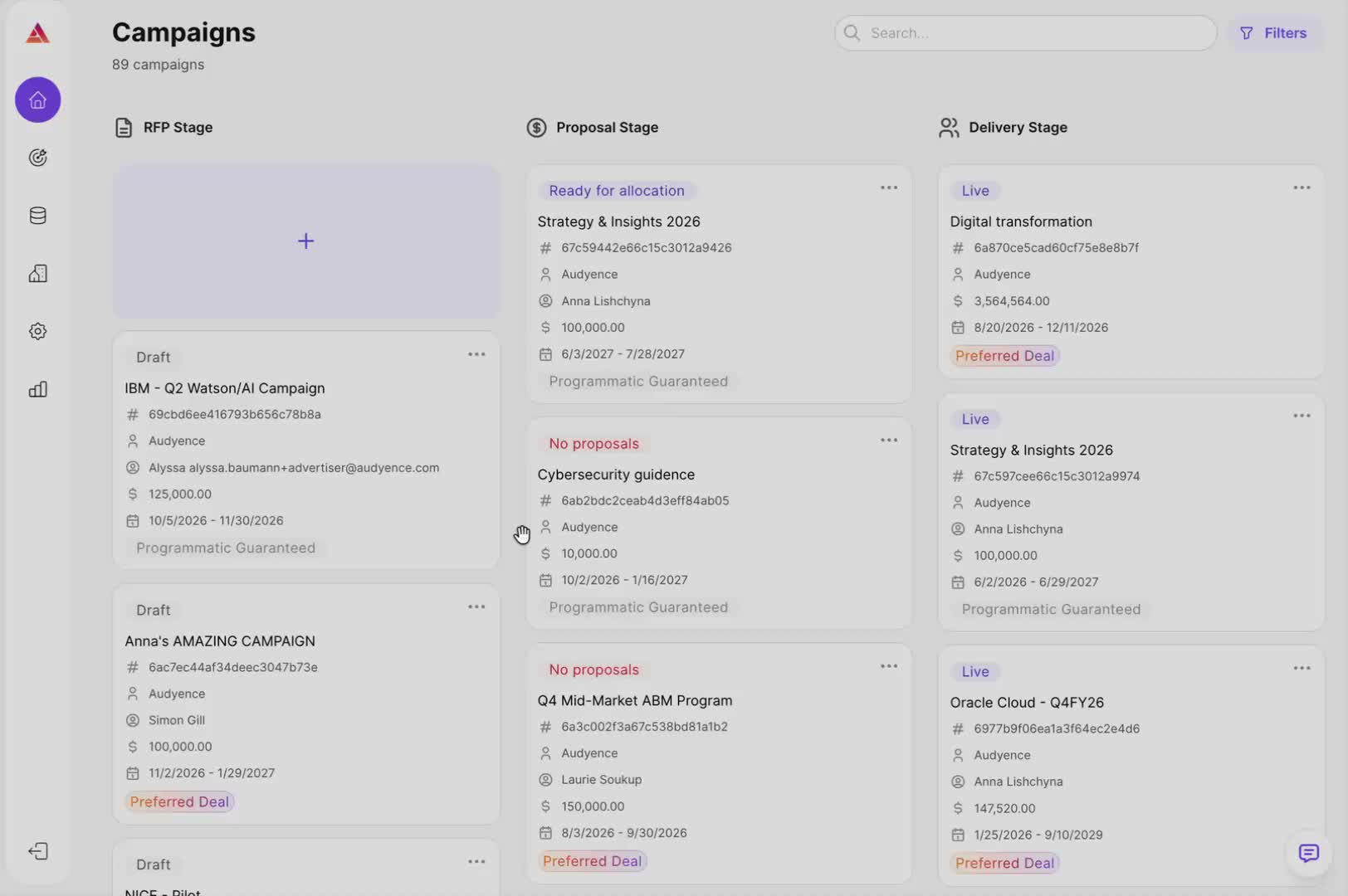
In Audyence, go to the Live Campaign you want. On the Campaigns dashboard, live campaigns have a Live label in the Delivery Stage column.
The campaign opens directly on its delivery screen (the Delivery tab), where the lead download options are.
Watch this step on Loom (0:00)
Step 2: Download the file
On the delivery screen, click Actions.
Select Download file with approved leads.
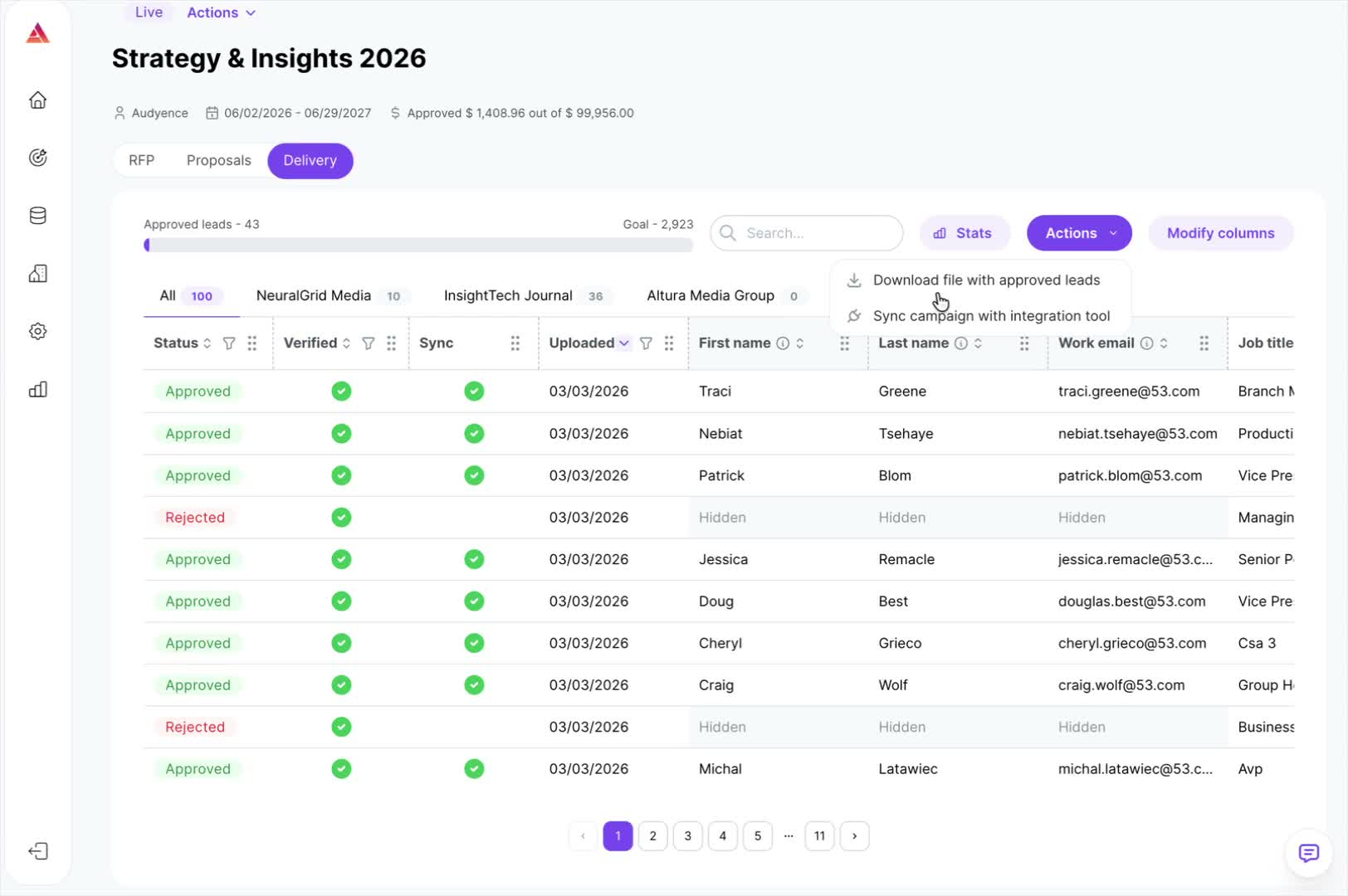
Audyence generates a file with the approved leads for that campaign.
Watch this step on Loom (0:00)
What's in the file
Important: The file includes only leads that are already approved. It doesn't include leads that are still waiting for your review, or rejected leads.
A lead shows up in the file only after you approve it. To see which leads are waiting for you, check their status. See Lead Statuses.
Watch this part on Loom (0:18)
Frequently asked questions
Why isn't a lead I expected in the file?
The file has approved leads only. If the lead is still waiting for your review, approve it first. Rejected leads failed validation and never reach your review, so they're never in the file. See Lead Quality and Rejection.
How else do approved leads reach me?
Approved leads can also flow to your connected systems. See How Leads Are Delivered.
Related articles
Lead Statuses: what each status means and when to act
How Leads Are Delivered: the full journey from generation to delivery
Lead Quality and Rejection: rejections, returns, and replacements