Save an Audience
Last updated: October 13, 2026
What this is
A saved audience lets you set up targeting once and reuse it across campaigns, instead of starting from scratch every time. A saved audience combines:
a target account list (an uploaded CSV or a 6sense TAL)
an optional suppression list
geographic targeting (region and country)
other targeting criteria (industry, company size, job function, and so on)
Key takeaway: Create a saved audience in Saved Audiences → + Create, then pick it when you build a campaign. Editing a saved audience changes only the next campaigns you create with it, not campaigns that are already running.
How to save an audience
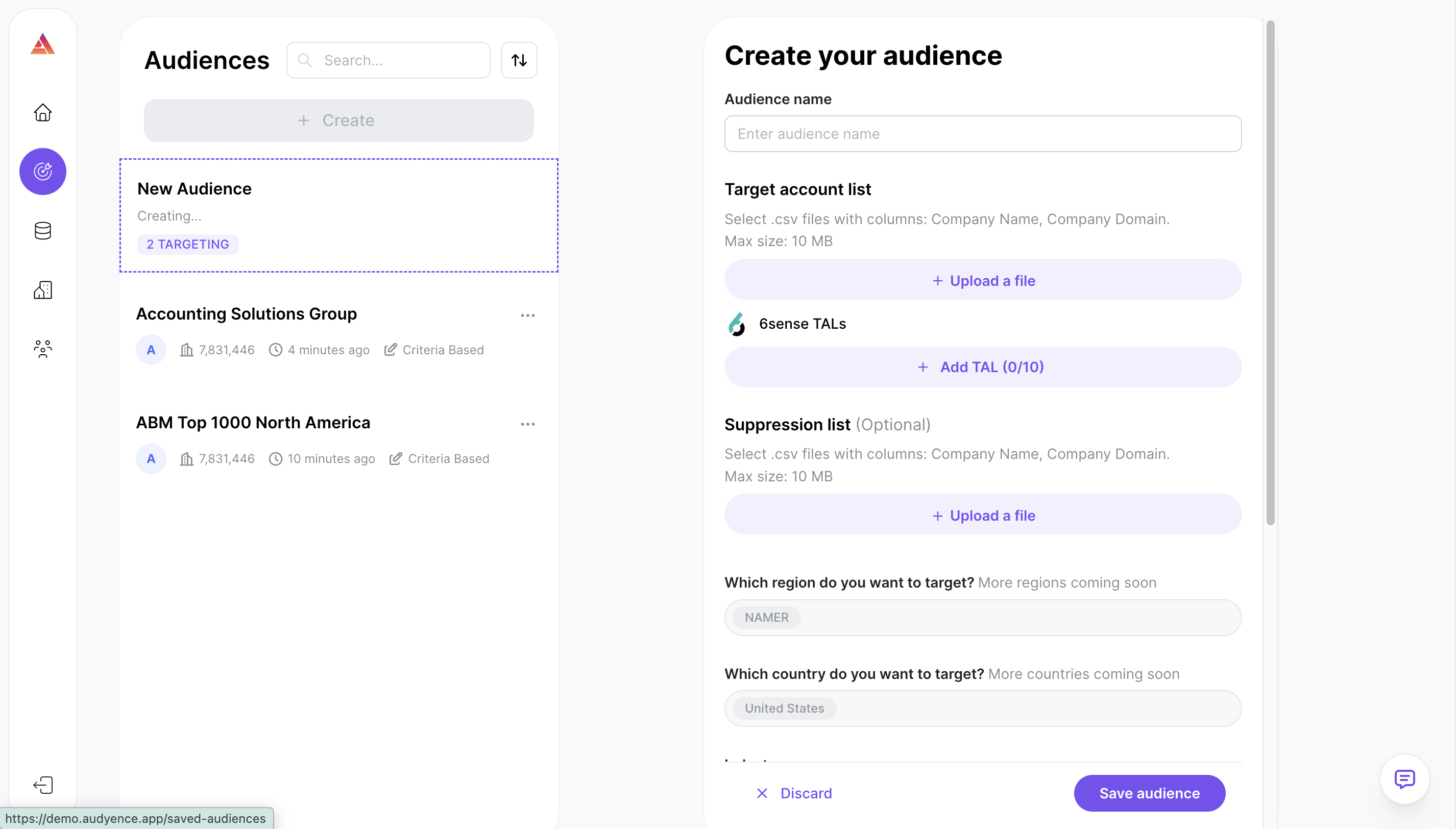
Step 1: Open the Audiences screen
In the left navigation, click the Saved Audiences icon (the target icon).
Your audiences appear in the left panel.
Click + Create to start a new audience.
Step 2: Name your audience
In the Audience name field, enter a descriptive name, for example ABM Top 1000 North America or Accounting Solutions Group. Pick a name that makes the audience easy to find when you apply it to campaigns later.
Step 3: Define your target audience
You have three options:
Option | How it works |
|---|---|
1. Target account lists (TALs) | Upload a .CSV file from your computer, match one from your preferred tool, or both. You can add up to 10 TALs per saved audience. |
2. Targeting attributes | Set geo, country, industry, company size, job function, job level, and intent signals. |
3. Both | Combine TALs and targeting attributes. |
If you upload a .csv file from your computer:
Required columns: Company Name, Company Domain
Maximum file size: 10 MB
Tip: You can also suppress accounts to remove specific companies from your audience, for example existing customers or disqualified accounts. The suppression file has the same rules: required columns Company Name and Company Domain, and a maximum size of 10 MB.
Note: More geographic filters are coming soon. You're not limited if you upload target account lists or match audiences from another tool.
Step 4: Save the audience
When everything is set, click Save audience in the bottom-right corner.
To throw away your changes without saving, click ✕ Discard.
Your new audience appears in the Saved Audiences list on the left.
Managing saved audiences
On the Audiences screen you can:
Search for an audience with the search bar at the top.
Sort the list with the sort icon (↕) next to the search bar.
View key details for each saved audience:
audience type (for example, Criteria Based)
approximate account reach (for example, 7,831,446)
time since last modified (for example, 4 minutes ago)
Edit your targeting attributes.
Important: Changes to a saved audience don't update your active campaigns. They apply to the next campaign you create with that audience. This keeps targeting consistent and delivery accurate. To change the audience on an active campaign, contact your customer experience manager, who will help.
Using a saved audience in a campaign
Go to the Campaigns screen.
Open an existing campaign or create a new one.
In the audience targeting section, select a saved audience from the list.
The saved targeting criteria are applied automatically.
Tips and best practices
Name audiences clearly. Use names that reflect the account list and goal (for example, region, industry, or program name) so they're easy to find later.
Use suppression lists early. Upload a suppression list of existing customers or disqualified accounts to make campaigns more efficient. Suppression works at the company level. Suppressing individual leads isn't supported yet.
Reuse audiences. Saved audiences are built for reuse, so avoid creating duplicates with the same settings.
Get the CSV format right. Include the correct column headers (
Company Name,Company Domain) to avoid import errors.
Frequently asked questions
Can I edit a saved audience after it's been created?
Yes. Click the ⋯ menu on any saved audience and select the edit option to update your audience attributes.
Will editing a saved audience affect active campaigns using it?
No. Edits to a saved audience aren't applied to your campaigns automatically. We plan to add this, and other dynamic audience targeting features, in the future.
How many audiences can I save?
As many as you like.
Can I add multiple TALs, and TALs from tools like 6sense?
Yes. You can add up to 10 TALs per audience.