Partner Management
Last updated: October 13, 2026
What this is
Partner Management lets you invite and manage outside organizations you co-run campaigns with on Audyence. Partners are assigned to specific campaigns and can see and manage only the campaigns you've assigned to them.
There are three partner types, each with its own default set of permissions:
Advertiser: another advertiser organization working with you on a campaign.
Agency: a media or marketing agency managing campaigns for your brand.
Channel Partner: a reseller, distributor, or indirect sales partner co-marketing with you.
Key takeaway: Add a partner in Team Members & Partners → Partners, then pick them in the Partner field on the first step of the RFP Builder. A partner gets full access to each campaign you assign them, and nothing else. One partner per campaign, and permissions come from the partner type.
Note: Partner access is per campaign. When you assign a partner to a campaign, they get full access to that campaign and everything related to it. They can't see your other campaigns, account settings, or any data outside what you've assigned them.
Who this is for
This feature is for Advertiser accounts only in this release. It's meant for:
advertiser users running co-marketing or channel partner programs
organization admins who invite partners and control their access
campaign managers who want to assign an outside partner to a specific campaign
Opening Partner Management
Tip: Where to find it: in the left navigation, open User Management. The Team Members & Partners page has two tabs: Team Members and Partners.
Log in to the Audyence platform.
Open User Management and select the Partners tab.
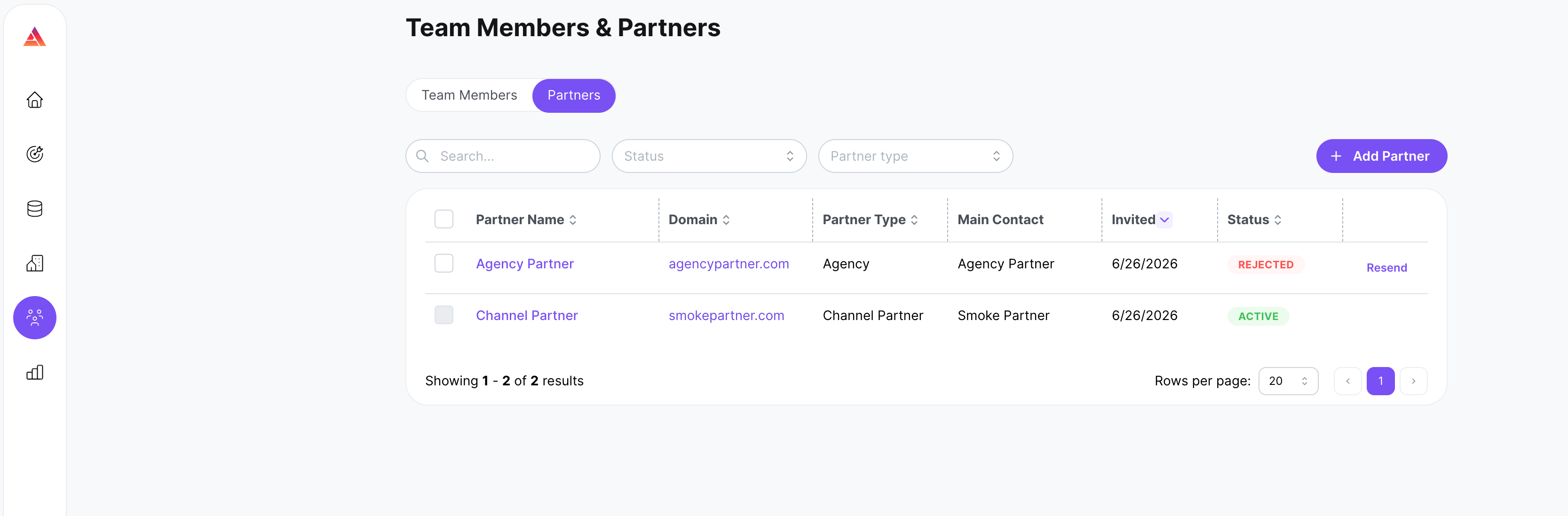
The Partners tab shows a table of all your partners, with their name, domain, partner type, main contact, invitation date, and campaign activity.
Adding a partner
On the Partners tab, click Add Partner.
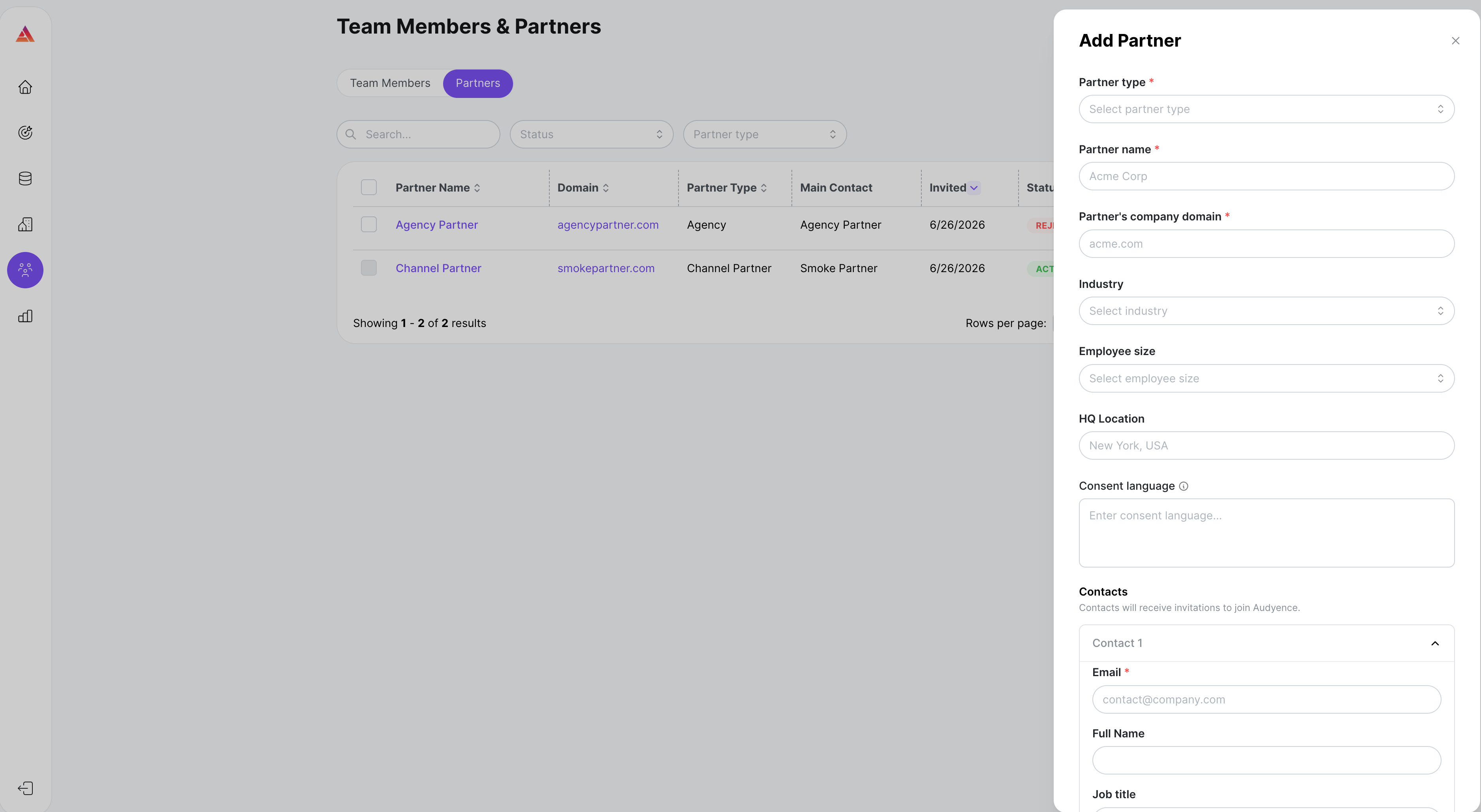
Select Add Manually. A panel opens on the right.
Fill in the fields:
Field | Required | Notes |
|---|---|---|
Partner Type | Yes | Advertiser, Agency, or Channel Partner. Sets the default permissions for this partner. |
Partner Name | Yes | Company or organization name. |
Company Domain | Yes | Main web domain (for example, acme.com). Must be unique per partner and a business domain. Personal email domains (gmail.com, yahoo.com, and so on) aren't accepted. |
Industry | No | Pick from the list. |
Employee Size | No | Pick from the list. |
Headquarter Location | No | Pick from the list. |
Consent Language | No | Sets the partner's default consent language for campaigns they're assigned to. See Consent language below. |
Contacts | Yes (at least 1) | Each contact needs a business email address. First and last name are optional. One contact must be the main contact. You can add up to 5 contacts. |
Click Add Partner to save.
Warning: When you save, the partner is created, shows in the partner table, and an invitation email goes to every contact you listed. Check the emails before you save.
How partners are invited
After you create a partner, invitation emails go out automatically to every contact. What the partner sees depends on whether they already have an Audyence account.
New users (no Audyence account)
The contact gets an email: "You have been invited to Audyence by [Your Company] to manage campaigns." The sign-up link opens a form asking for first name, last name, job title, and a password. Once registered, they land on their campaign dashboard, which shows only the campaigns assigned to them.
Existing users (already have an Audyence account)
The contact gets a "Review invitation to manage campaigns" email. The review screen shows your company name and the permissions they'll get based on their partner type. The partner can:
Accept: the partnership turns on and assigned campaigns show in their dashboard right away.
Reject: the partner must add a comment. The invitation is declined.
Invitation status
Track each invitation in the Partners table. The status column shows Invited, Active, or Rejected. Pending invitations show an envelope icon.
Tip: Invitations don't expire, so a partner can accept any time. To send it again, use the Resend action on the partner's row.
Partner detail view
Click a partner's name in the table to open their details. There are two tabs:
General Information: all company data, the contact list, partner type, and current status. You can edit partner details, update contacts, and change the partner type here.
Permissions: the permissions this partner gets based on their partner type. They're set automatically when you create the partner and can't be edited in this release.
Assigning a partner to a campaign
Open the RFP Builder and start creating or editing a campaign.
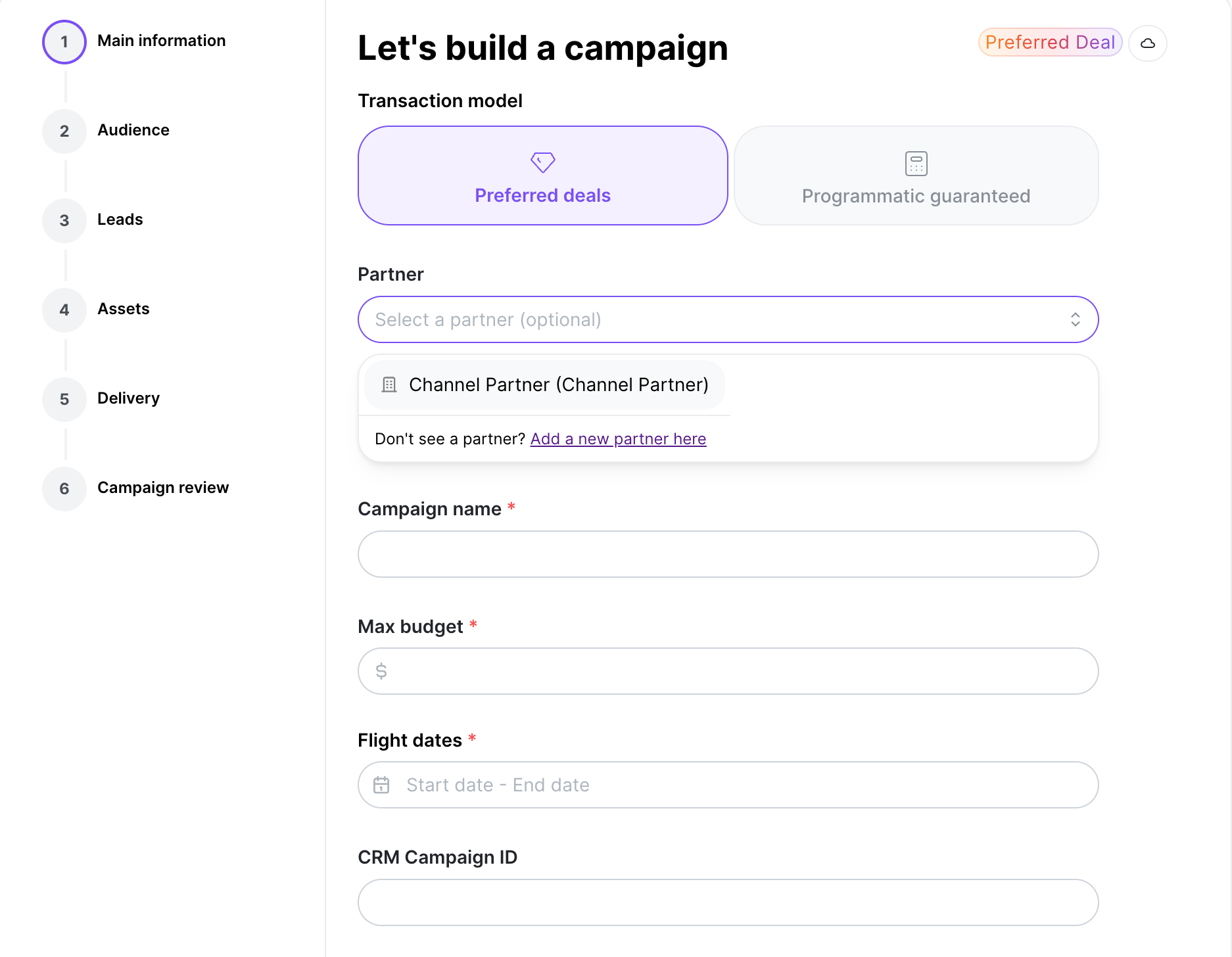
On the first step, just below the campaign type (Preferred Deal / Programmatic Guaranteed), find the Partner field.
Pick a partner from the dropdown. Only active partners are listed.
To remove the partner, click the X on the selected value.
The Partner field is optional. You can create and launch campaigns without a partner.
When you assign a partner, they're notified automatically: "{Your Company} assigned you to the campaign {Campaign Name}." You can notify them again any time with the Notify Partner button on the campaign review screen.
Tip: Don't see a partner in the dropdown? Use the link at the bottom of the Partner field, "Don't see a partner? Add a new partner here", to go straight to the Partners tab.
Important: One partner per campaign. You can assign only one partner to each campaign in this release.
Partner permissions
Each partner type has a default set of permissions that's applied automatically when you create the partner. In this release you can't customize permissions for an individual partner. They're set only by the partner type you choose.
Partner access to reports
Partners can see reports for any campaign they're assigned to. Their view is limited automatically: they see the same metrics you do (impressions, leads delivered, lead quality signals, campaign performance over time), but only for their assigned campaigns. They can't see reports for other campaigns.
In this release, partners can export reports one campaign at a time. Combined exports across several campaigns aren't available for partner users yet.
Consent language
When you assign a partner to a campaign, the campaign's consent language is updated to cover both your organization and the partner. The platform picks the consent language in this order:
The partner's consent language: if the partner has one on their profile, it wins.
Your account's default consent language: used if the partner has none.
System default text: used if neither of you has set one.
You can view and edit the consent language on the RFP any time before the campaign goes live. Edits on a campaign apply to that campaign only. They don't change the partner's or your account's defaults.
Frequently asked questions
Can I add a partner who isn't on Audyence yet?
Yes. When you add a partner and enter their contact email, they get an invitation to sign up. If they don't have an Audyence account, they're asked to create one as part of the invitation.
What can a partner see once added to a campaign?
Partners get full access to the campaign they're assigned to, including all campaign details, leads, and reporting. It's limited to that campaign. They can't see your other campaigns, account settings, or any data outside their assigned campaigns.
Can I assign the same partner to several campaigns?
Yes. An active partner can be assigned to as many campaigns as you need. Each assignment is separate.
What's the difference between the three partner types?
Partner type sets the partner's default permissions. Advertiser, Agency, and Channel Partner each get different default access, suited to how those organizations usually work with you. You can't edit permissions for an individual partner in this release: they're locked to the type picked at creation.
Can I edit a partner's details after creating them?
Yes. Open the partner's details and click edit to update company data, contacts, or partner type. Changing the partner type updates their permissions to match.
Can several team members manage partners?
Yes. Any team member with the right permissions can see and manage partners.