Organizing Your Account with Departments
Last updated: October 13, 2026
What this is
Departments let you organize your company's Audyence account the way your team is organized, so people and campaigns line up with regions, product lines, or business units.
Key takeaway: An Organization Owner creates department names and assigns them to team members. Each campaign is tagged with one department when it's created. Team members then see only the campaigns, analytics, and reporting for their departments. If you don't create extra departments, nothing changes: everyone keeps seeing the whole account.
Who this is for
Departments are available on advertiser and agency accounts. They're useful when:
your team is split by region (for example NAMER, EMEA, APAC)
your team is split by product line or business unit
leadership should see the whole account, while regional or product owners should see only their own campaigns
If everyone on your team should see every campaign, you don't need to set anything up. Your account already has a shared default, and nothing changes.
What a department is
A department is a label you create inside one Audyence account. Departments let you organize the account with a parent-child relationship. Typical names match how you budget (geography or product line), not your full org chart.
Term | What it means |
|---|---|
Department | A unit within your company's account that needs its own workspace and budget center, usually split by geography, business unit, or product line. People can belong to one or more departments. Each campaign is tagged with one department when it's created. |
All | A default department created automatically for every advertiser and agency account. Organization Owners can see it and use it for account-wide access. Team members don't see it in dropdowns. While everyone stays on All, the whole team sees all campaigns. |
Organization Owner | The account admin. Owners always see every department and every campaign. They create department names and can assign anyone. |
Who can do what
Action | Organization Owner | Team Member |
|---|---|---|
Create a department | Yes: type a new name in the Departments dropdown | No |
Assign departments to people | Yes: any department in the account | Yes: only departments that person already belongs to |
See all campaigns and reporting | Always | Only for assigned departments |
Choose a department when creating a campaign | Yes | Yes: from their own departments |
Rename or delete a department | No: email support@audyence.com | No |
Important: Departments control what people see. They don't change what people can do (create a campaign, approve leads, and so on).
Create departments and assign them to people
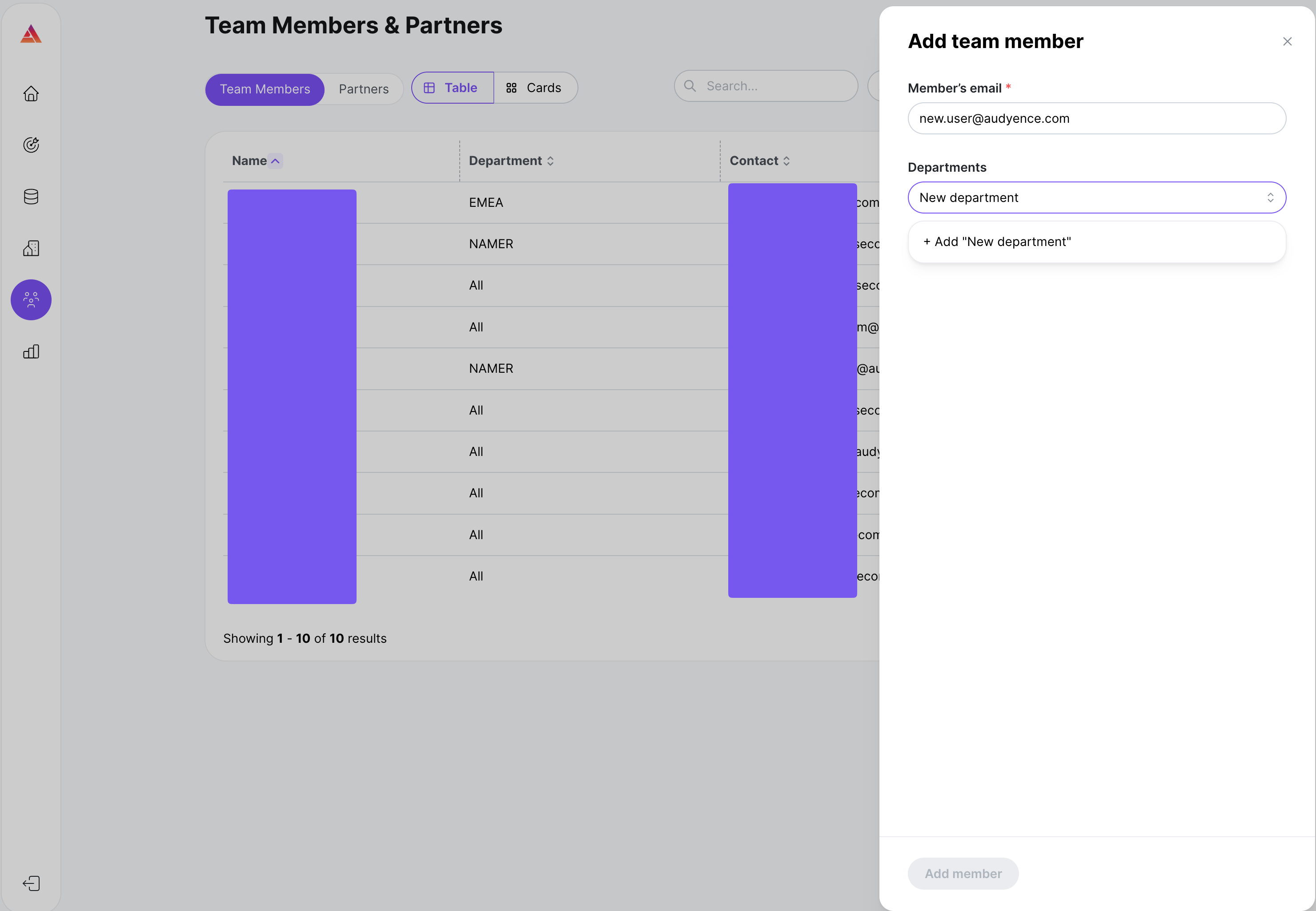
There's no separate "Manage Departments" page. You create names while adding or editing a team member.
Tip: Where to find it: in the left navigation, open User Management. The Team Members & Partners page has two tabs: Team Members and Partners.
Go to User Management > Team Members.
Click Add Team Member, or open an existing member to edit.
In Departments, type a name. If it's new, choose + Add "[name]".
Assign one or more departments to the person, then save.
Rules for department names:
Must be unique in your account (EMEA and emea count as the same name).
Letters, numbers, spaces, hyphens, and ampersands only.
1 to 100 characters.
Important: Every advertiser and agency user, including the Organization Owner, must belong to at least one department. You can't remove someone's last department.
A person can belong to several departments. For example, a channel marketer who covers both EMEA and NAMER can have both.
The Team Members table has a Departments column. Organization Owners can sort and filter the table by department.
Campaigns and departments
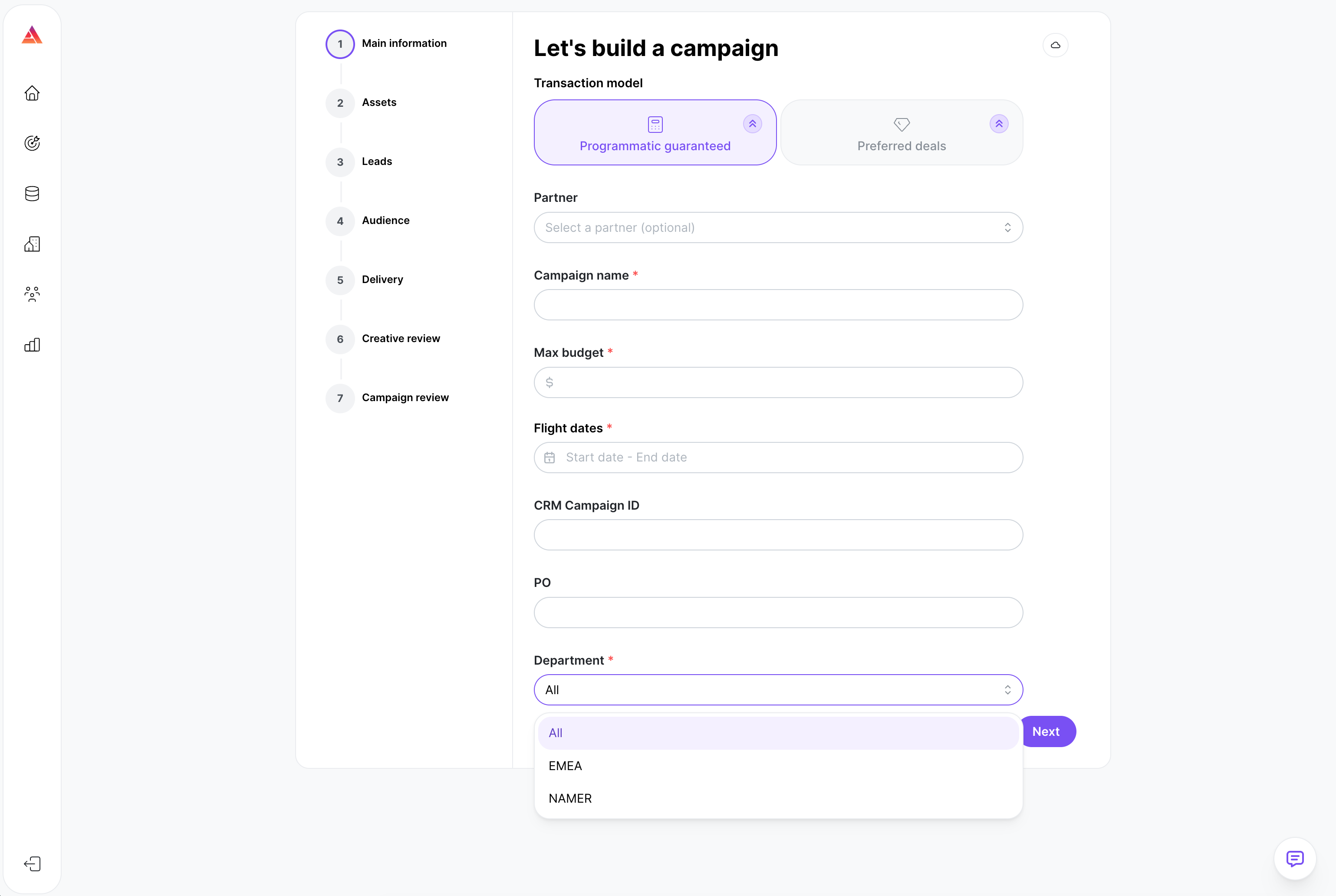
When you create a campaign, it's tagged with one department. That tag stays on the campaign and doesn't move if the creator later changes teams.
If you belong to one department, it's filled in for you.
If you belong to more than one, you choose the campaign's department before you continue.
If your account has only the default All department, the field is hidden and the campaign is tagged All automatically, as before.
Warning: You can't change a campaign's department after it's created. To retag a campaign, email support@audyence.com.
Important: Campaigns created before you started using named departments stay in All. If you then assign a teammate only to EMEA, they won't see those older All campaigns unless you ask support to retag them, or you leave that person on All.
What each person sees
Visibility is enforced in the product, not just in the menus. Opening a campaign link outside your departments shows: You do not have access to this campaign.
Person | Campaigns, analytics, and reporting they see |
|---|---|
Organization Owner | Everything in the account, even if they also have department tags. |
Team member on All (or only the default) | Everything in the account. |
Team member on named departments (for example EMEA) | Only campaigns tagged with those departments, plus analytics and reporting for those campaigns. |
Team member on several departments | All of those departments combined. |
Preferred-deal campaigns follow the same department rules as other campaigns. The commitment banner on the campaign dashboard (spent vs. committed) is still an account-level number.
Note: User Management, account settings, billing, field definitions, and marketing-automation integrations stay at the organization level. They aren't split by department. Partners you invite still see only the campaigns you assign them: partner access isn't based on departments.
Filter by department
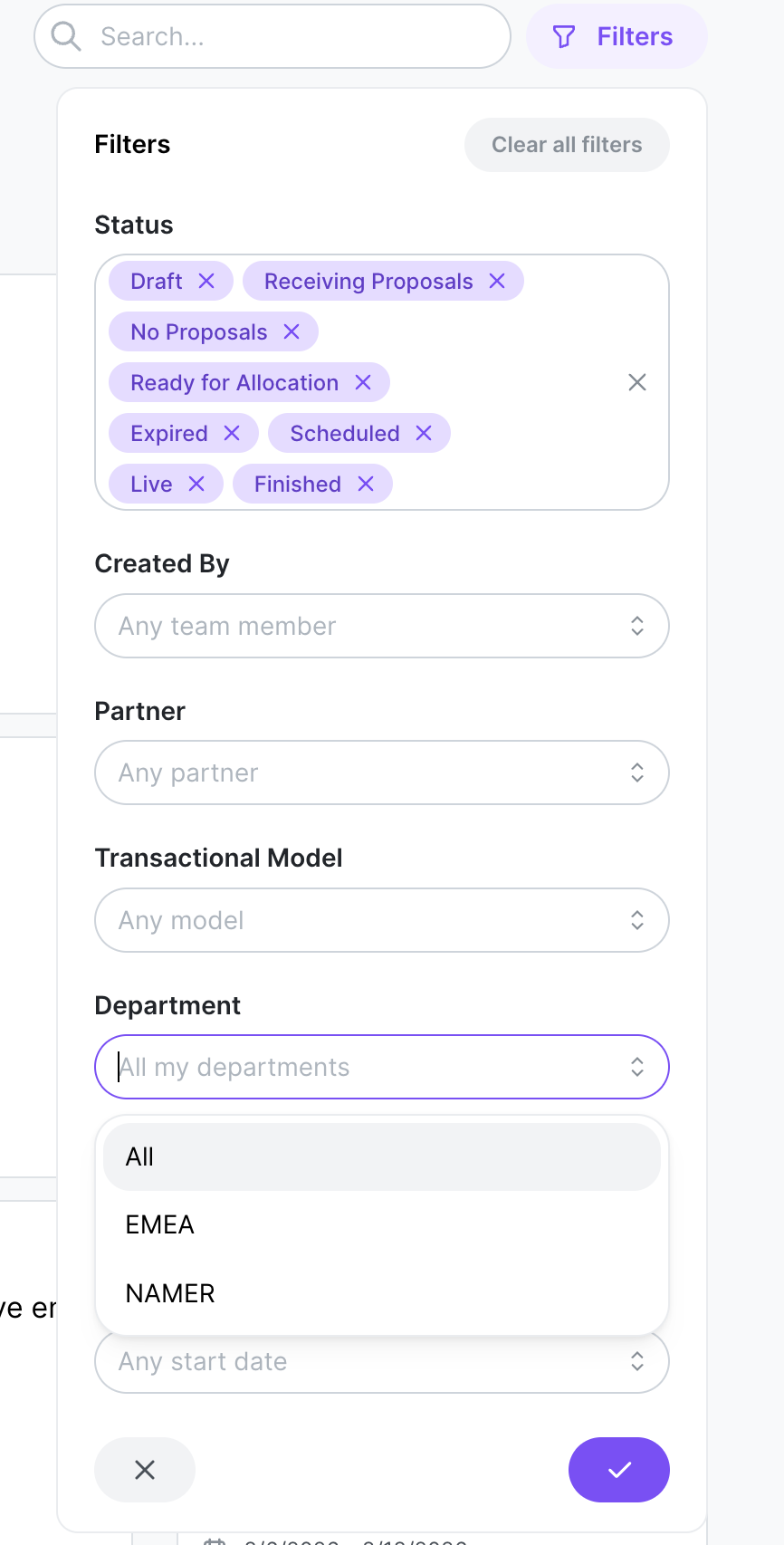
On the campaign dashboard, analytics, and reporting, a Department filter appears when you have access to more than one department.
Default: All my departments (everything you're allowed to see).
Choose one department to narrow the view.
Organization Owners also see All as an option for the full account.
You can't filter into a department you don't belong to.
If you have only one department, the filter is hidden because the view is already limited.
Tip: The selected filter is saved in the page URL, so you can bookmark or share that view.
Combining more than one Audyence account
If your company already runs separate Audyence accounts (for example, one per region), we can combine them so people log in once and owners see every region in one account. Each former account becomes a department.
This is optional, done with your team, and only after you sign off. Your contract and billing don't change.
If you want this, talk to your Audyence contact or email support@audyence.com. You can't do it yourself in the product.
What this doesn't change
Contracts, invoices, and budget authority stay as they are. Departments organize visibility. They don't merge legal entities.
What people can do is still set by their role. Departments only limit what they see.
Partners are still assigned per campaign, not per department.
Custom fields and MAP integrations (Marketo, Eloqua, HubSpot, Pardot) stay shared across the organization.
Tips
Name departments after budget centers (regions or product lines) rather than copying your HR org chart.
Assign departments before you take people off All. A teammate limited to EMEA won't see campaigns still tagged All.
Ask support to retag older campaigns when you start using named departments, so reporting matches how the team actually works.
Keep at least two Organization Owners so account admin is never blocked.
To rename or delete a department, email support@audyence.com. Those actions aren't in the product yet.
Frequently asked questions
Will anything change if we do nothing?
No. Until you create named departments and move people off All, everyone keeps seeing the whole account.
Can we limit what users can do, not just see?
Not in this release. Departments control visibility only. Role-based permissions are coming later.
Can a person or a campaign belong to several departments?
A person can. A campaign is tagged with exactly one department when it's created.
Who keeps admin access if we combine accounts?
There's one Organization Owner on the combined account. We'll agree on that person with you before anything is combined. Other former account owners become regular team members.
Does this affect our contract or billing?
No. Contracts and billing stay outside the product and don't change.
Can we rename or delete a department?
Not in the product yet. Email support@audyence.com.
How should we choose our departments?
Mirror how you allocate budget: geography (NAMER / APAC / EMEA) or product lines.