Generate Landing Pages for Your Campaigns
Last updated: October 13, 2026
What this is
Your landing page is where prospects learn about your offer and share their details to get it. Instead of each publisher building their own version, Audyence generates the landing page for you from your campaign assets. Every publisher hosts the same branded, professionally designed page, so your campaign looks the same everywhere it runs.
This article explains how landing pages are generated, how to choose and edit a template, and what publishers receive.
Key takeaway: Upload your gated content and a thumbnail, and Audyence generates three landing page variants per asset plus a thank-you page. You must select a template (or ask Audyence to prepare the page) before you can send your RFP. What you approve is exactly what publishers run.
How landing page generation works
Landing pages are built automatically from what you provide on the Campaign assets step:
Upload your gated content (.pdf, .mp4, or .mov).
Upload a thumbnail image (.png or .jpg) for each asset. It becomes the main visual on the page.
Audyence generates three landing page variants per asset, plus a matching thank-you page.
Tip: Generation runs in the background, so you can keep filling in the rest of your campaign while your pages are created. At least one asset must be uploaded before landing pages can be generated.
What your landing page includes
Each page is built from your campaign setup:
Your content: the gated asset and its thumbnail as the featured offer.
Your lead form: every field you set on the Leads data to collect step, including dropdowns, multi-selects, and their allowed values.
Your consent language: shown with the form, including any links you added (links are clickable on the live page).
Your branding: your logo on the page and your favicon in the browser tab.
Pages are fully responsive, with desktop, tablet, and mobile layouts. The thank-you page lets leads get the gated content after they submit the form. Generated pages contain no tracking scripts or third-party tags.
Note: Landing pages are generated with Audyence AI. If your organization restricts AI-generated content, contact your Audyence team about other options.
Choosing a template
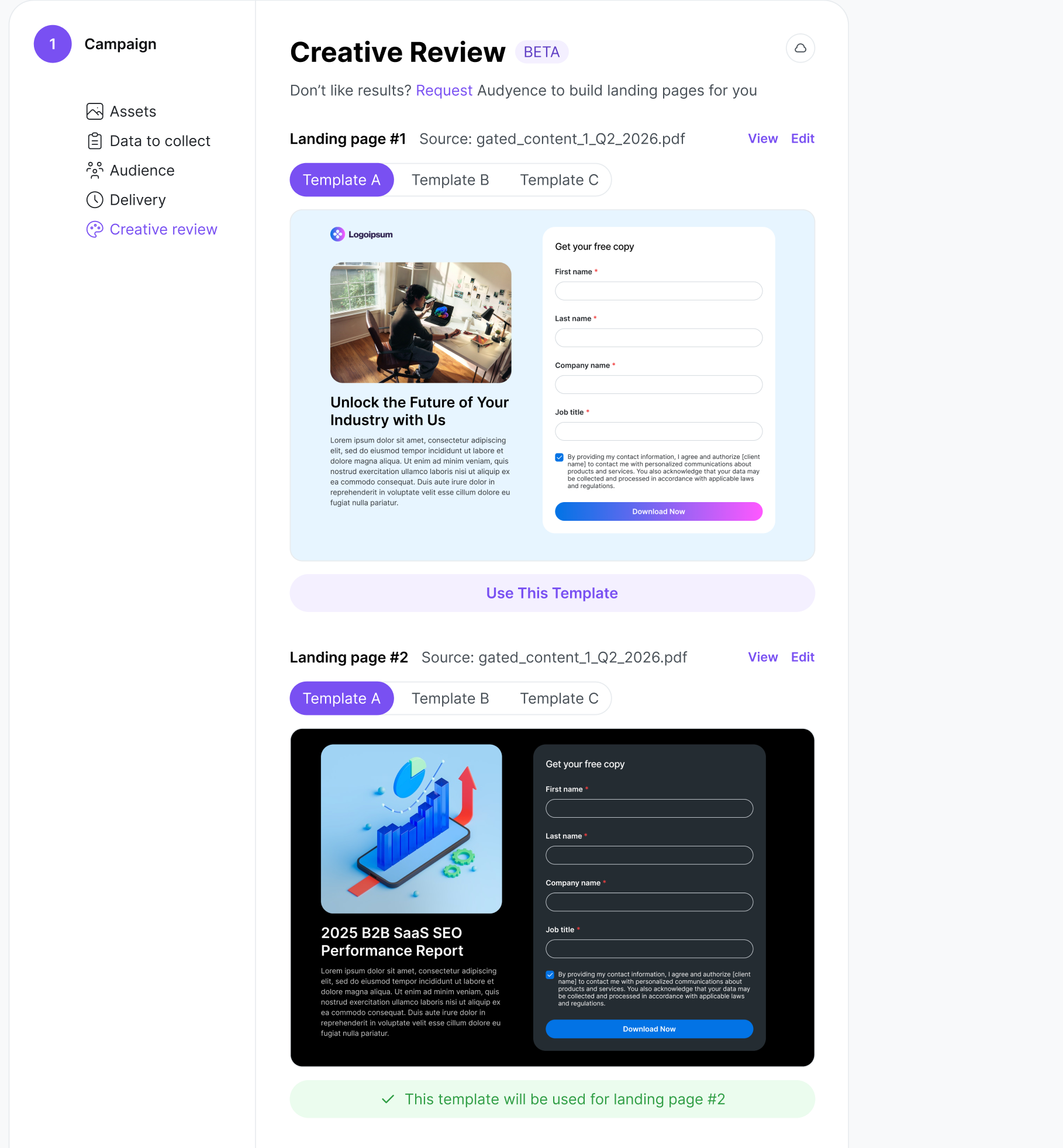
When generation finishes, your template variants appear as preview cards, grouped by source asset. For each template you can:
View: open a full preview in a new window.
Edit: open the page in edit mode (see below).
Select: choose the template for your campaign. You can select one template per asset.
Important: You must select a template before you can send your RFP. If none of the variants fit, you can choose to have Audyence prepare the landing page for you, or submit the RFP without a template.
Editing a landing page
In edit mode you can review and refine the page before it goes to publishers:
Preview both the landing page and the thank-you page.
Switch between desktop, tablet, and mobile views.
Switch between templates to compare them.
Hover over any element and click Replace to ask for a change to that element. The page regenerates with your update.
Adding assets after allocation
If you didn't upload assets when you created the RFP, the Provide Creative Assets step appears in the campaign's Delivery tab once budget is allocated:
Upload gated content: add your asset file(s) and a thumbnail for each.
Finalize landing pages: review the generated variants, grouped by asset, and select your template.
You can add more assets at any time with Upload Additional Content Assets. Each new asset generates its own group of template variants.
Important: The campaign can't go live until a template is selected or a custom landing page is requested.
Updating landing pages on a live campaign
To refresh your creative mid-flight:
Open the campaign and go to Actions → Optimize → Landing Pages.
Upload the new asset and thumbnail. New template variants are generated next to your existing ones.
Select and save a new template.
When you save a new template:
A new version of your landing page is created.
Publishers running your campaign are emailed a link to the updated page.
Publishers download the updated page and deploy it. Your previous page stays live until each publisher finishes the switch.
Warning: Removing a gated content asset from your campaign also removes the landing pages generated from it. You'll be asked to confirm before anything is deleted.
What publishers receive
After allocation, publishers can preview your selected landing page exactly as leads will see it, with form fields, consent language, and branding. They can download a ready-to-host bundle with:
the landing page
the thank-you page
a README with deployment instructions and download links for your gated content
The lead form is already connected to Audyence, so submissions flow into the platform automatically.
The publisher view is read-only. Publishers host the page on their own systems but can't change its design or content. What you approve is what runs.
Tips
Upload a sharp, high-resolution thumbnail. It's the main visual on your page and in template previews.
Finalize your form fields and consent language before generating. The page is built from them.
Use View to check the full page, including the thank-you page, before you select a template.
Group mid-flight creative changes where you can. Each new version means publishers must redeploy.