How to Update Dates on a Live Campaign
Last updated: November 11, 2026
What this is
How to change the end date of a campaign that's already live, for example to give it two more weeks. You do it on the campaign's Delivery page, then save and confirm.
Why it matters: a longer or shorter flight changes when your leads arrive. Weekly batches are added or removed to match, so check the pacing before you save.
Key takeaway: Open the campaign, go to the RFP tab, and open the Delivery page. Change the End date, check the batches and pacing, and click Save changes. Then click Yes, change the campaign. All publishers are notified, and they don't need to accept.
Words to know
Flight dates: your campaign's delivery window, from the start date to the end date.
Live campaign: a campaign that is currently running and delivering leads.
Batch: one weekly delivery of leads, used when the campaign delivers in Weekly batches.
Upload percentage: the share of your total lead volume delivered in one batch.
Pacing: how fast leads are delivered, either near-real-time or weekly.
Before you start
The campaign is Live or Scheduled. A Finished campaign can't be edited.
You know the new end date you want.
You know how the campaign delivers: Near real-time or Weekly batches. Only weekly batches have a pacing table to check.
Steps
Step 1: Open the campaign's RFP tab
On the home screen, click the campaign you want to update.
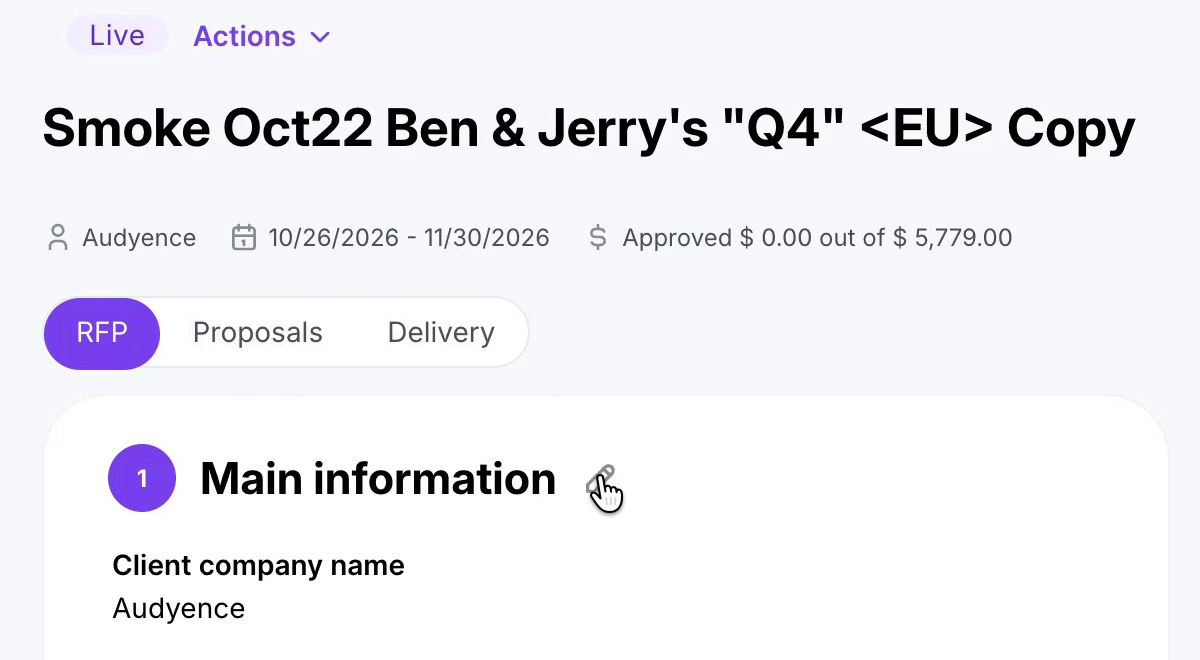
Click the RFP tab at the top.
You'll see the campaign brief, starting with Main information.
Watch this step on Loom (0:04)
Step 2: Go to the Delivery page
There are two ways to get there. Use either one.
From Main information:
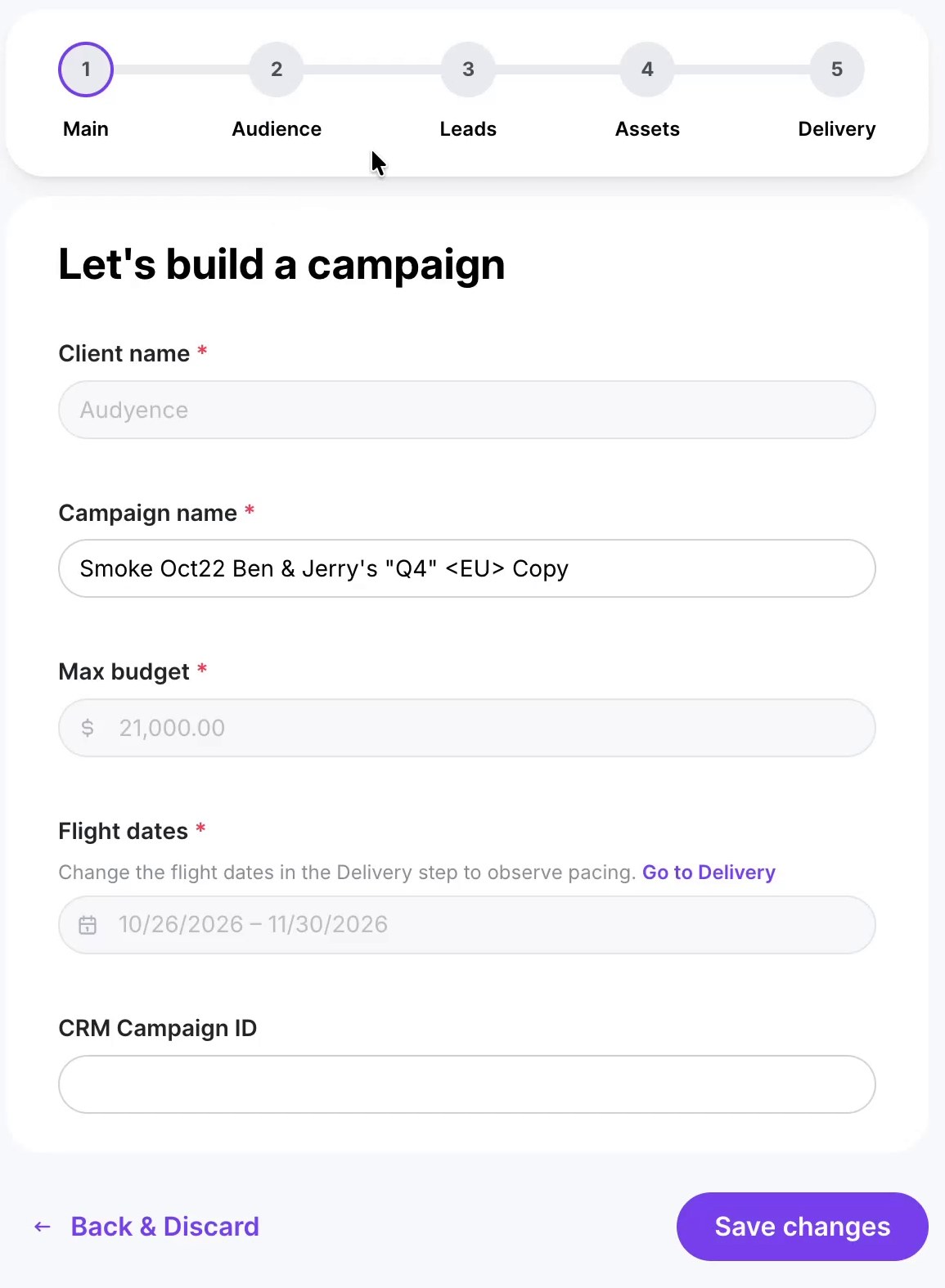
Click the pencil icon next to Main information.
Under Flight dates, click Go to Delivery.
The Flight dates field is grayed out here. The page says: "Change the flight dates in the Delivery step to observe pacing."
From the Delivery section:
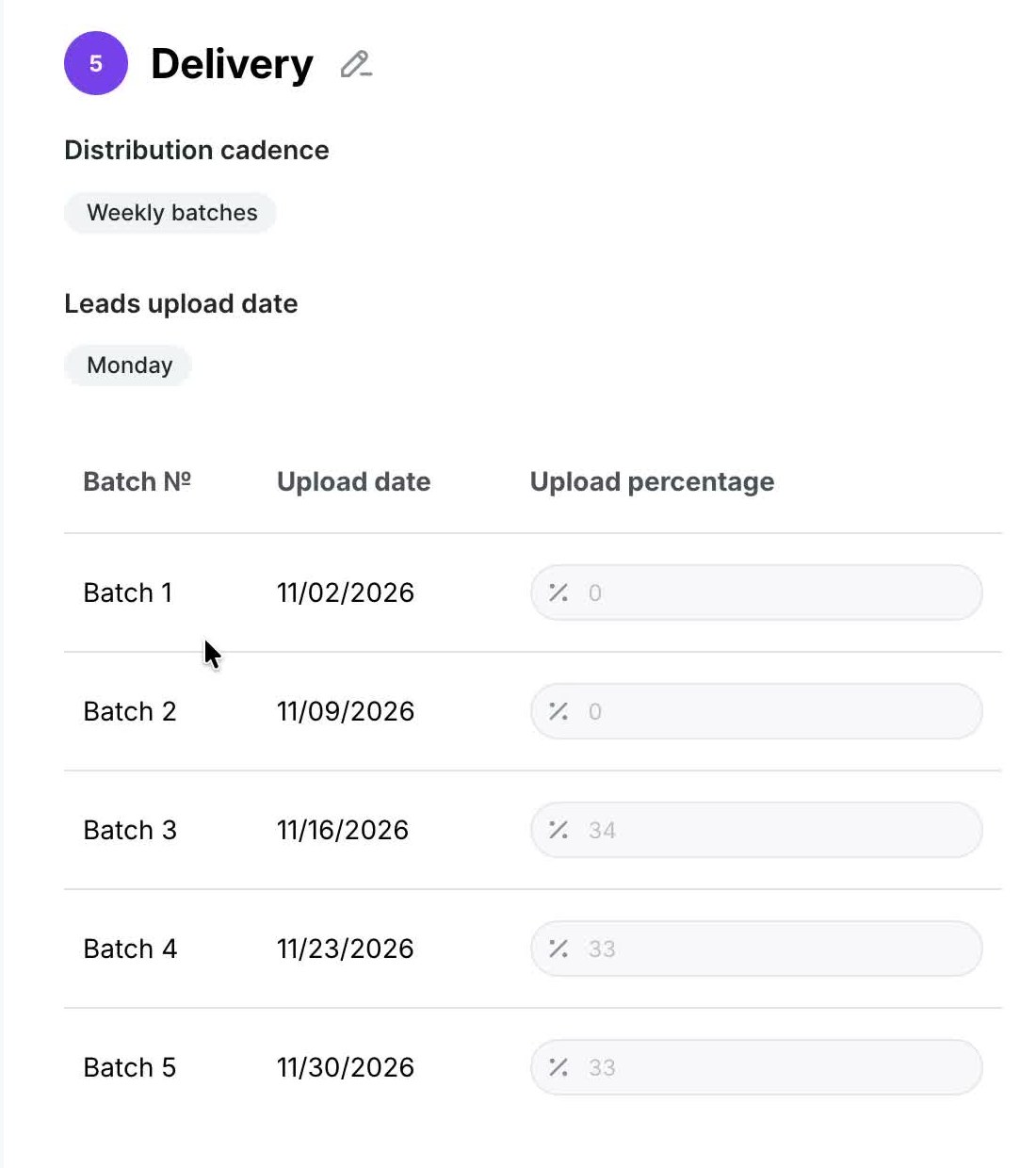
On the RFP tab, scroll down to Delivery. It shows your batches and their upload dates.
Click the pencil icon next to Delivery.
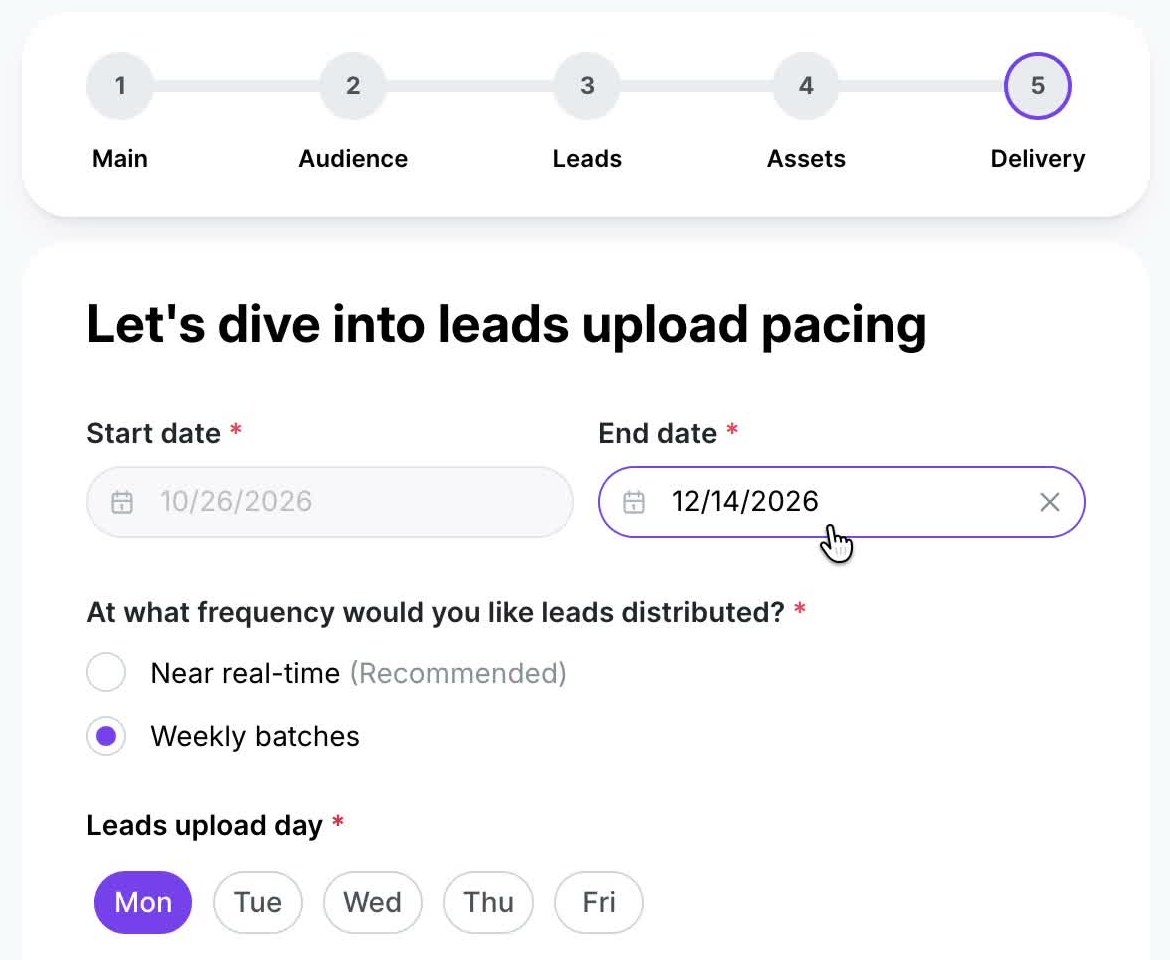
Either way, you'll see the Delivery page, titled Let's dive into leads upload pacing.
Step 3: Change the end date
Click End date.
Pick the new end date in the calendar. For example, move it two weeks later.
Watch this step on Loom (0:36)
Note: On a live campaign, the Start date is grayed out. Delivery has already begun, so it can't move. On a Scheduled campaign, the same steps work, and you can change the Start date here too.
Step 4: Check the batches and pacing
This step is for campaigns that use Weekly batches. With Near real-time, there are no batches, so go to Step 5.
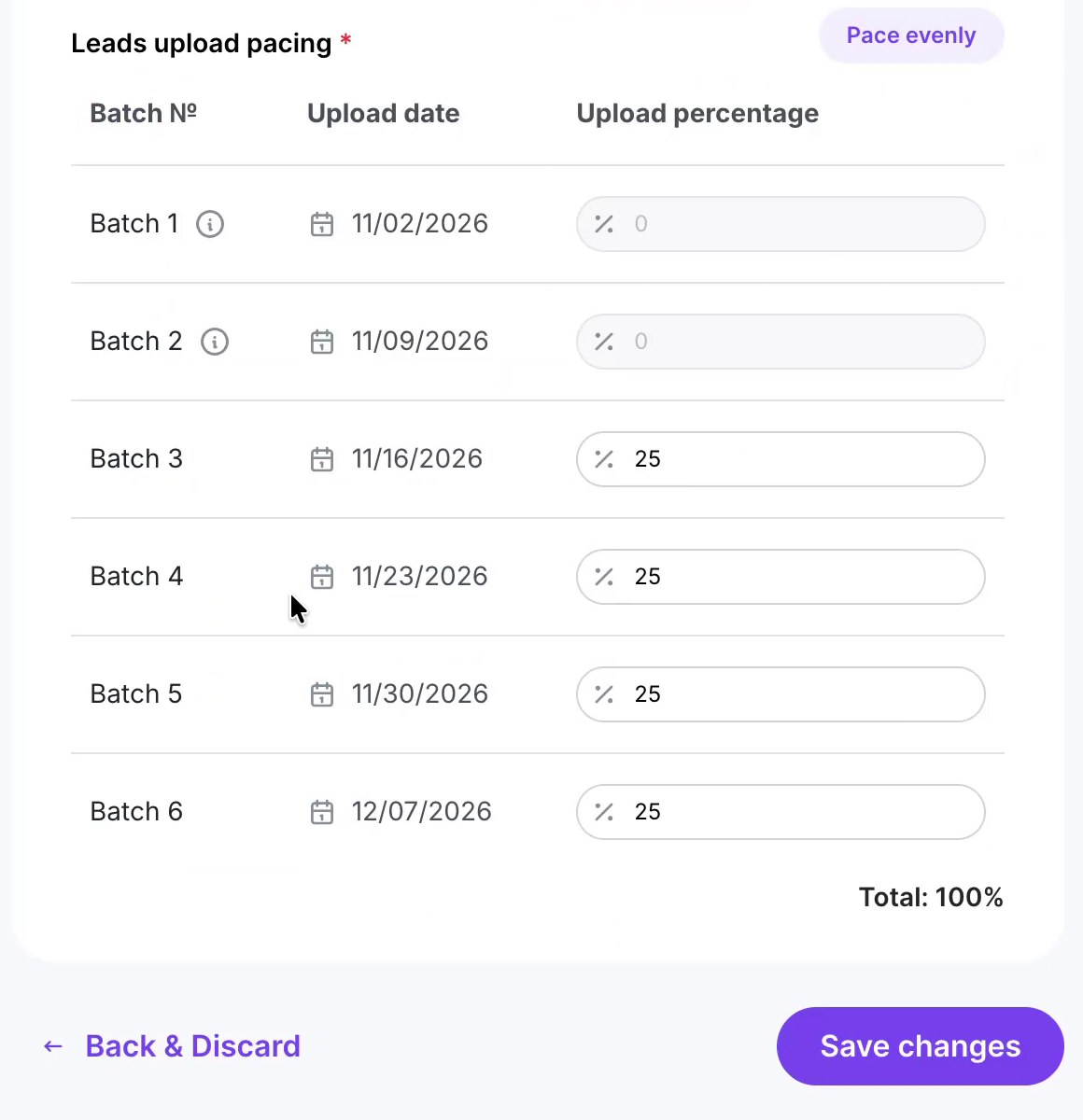
Scroll down to Leads upload pacing.
Check the new batches. A later end date adds batches, and the Upload percentage spreads evenly across them on its own.
To change the split, type your own percentage for any batch before you save. To go back to an equal split, click Pace evenly.
Check that Total shows 100%.
Watch this step on Loom (0:42)
Step 5: Save and confirm the change
Click Save changes.
Read the Summary of changes. It lists each field, the action (Updated or Added), and the old and new values.
Click Yes, change the campaign. To go back and edit more, click Back.
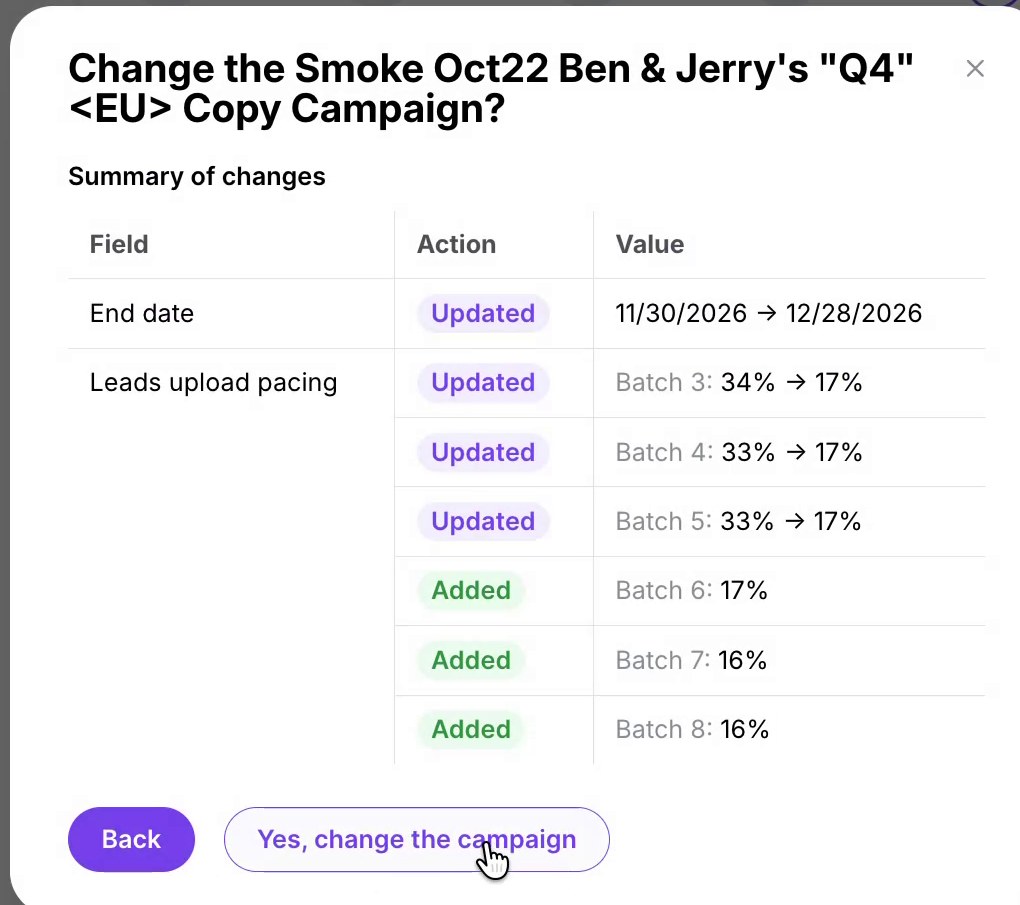
You'll see the message RFP is changed: "All publishers were notified of changes." The new flight dates show at the top of the campaign.
Publishers are only notified. They don't need to accept the new dates.
Watch this step on Loom (0:54)
Warning: Yes, change the campaign notifies all publishers on the campaign right away. Check the new end date and the batches before you confirm.
Rules and limits
If you want to… | What to know |
|---|---|
Extend the end date | Follow the steps above. There's no latest end date. On weekly batches, new batches are added. |
Shorten the end date | Fine if you need the campaign to end sooner. On a Weekly batches campaign, also switch to Near real-time, so publishers can speed up and still deliver in full. |
Move the start date | Only while the campaign is Scheduled. Once it's Live, the start date is locked. |
Add budget | A later end date doesn't add budget or lead goal. Adding budget is a separate step with the Add Budget action. See Adding Budget Mid-Flight. |
A longer flight spreads your lead volume thinner each week. A shorter flight concentrates it.
Important: A big change to the end date significantly earlier can affect delivery. Move it only as far as you need, and check the new batches before you save.
Frequently asked questions
Can I change the start date of a live campaign?
No. Once a campaign is Live, the start date is locked. You can change it only while the campaign is Scheduled.
Do these steps work for a Scheduled campaign?
Yes. Use the same steps. On a Scheduled campaign, you can also change the Start date on the Delivery page.
How do I end my campaign sooner?
Pick an earlier End date on the Delivery page. If the campaign uses Weekly batches, also choose Near real-time under At what frequency would you like leads distributed? Publishers can then speed up and still deliver in full in less time.
Why can't I edit the dates in Main information?
The Flight dates field there is read-only. Click Go to Delivery and change the End date on the Delivery page.
Do publishers find out about the new dates?
Yes. When you click Yes, change the campaign, all publishers on the campaign are notified. They don't need to accept the new dates.
Does a later end date add budget or leads?
No. A later end date doesn't add budget or lead goal. Adding budget is a separate step. See Adding Budget Mid-Flight.
My save was held and I was asked to refresh. What happened?
Someone else changed the campaign after you opened it. Reload the campaign and make your change again, so you don't overwrite theirs.
Related articles
Editing a Live Campaign: what you can and can't change once a campaign is live
Delivery Pacing: near-real-time vs. weekly paced: how batches, upload days, and pacing work
Campaign Statuses: what Scheduled, Live, and Finished mean
Adding Budget Mid-Flight: add budget to a running campaign
How to Upload an Asset to an Existing Live Campaign: add new content to a live campaign
Need help?
Tip: Contact support@audyence.com for campaign questions, platform feedback, or anything else.
Include the campaign name and the new end date you want in your email.