Adding Budget Mid-Flight
Last updated: November 13, 2026
What this is
Add Budget lets you increase the total budget of an active campaign in the Audyence platform. When you add budget, the platform recalculates lead targets and publisher allocations automatically, and notifies the publishers affected.
Key takeaway: Open Add Budget, enter the new total campaign budget in the Change Max Budget popup, then increase allocations for current publishers or add new ones. You can only increase allocations here. Each publisher's total must be at least $5,000 or the value of leads already approved, pending, or queued, whichever is higher.
Before you start
Important: You can add or reallocate budget only when a campaign is LIVE or SCHEDULED.
Also check that:
the new total budget is greater than the current max budget
on a Strategies (bid-mode) campaign, the campaign has more than one strategy
Add Budget works on both near-real-time and weekly-paced campaigns.
Important: Add Budget isn't available for campaigns that are Draft, Finished, or Cancelled. If you don't see it on a Live or Scheduled campaign, contact your account team.
Step 1: Open the Add Budget flow
There are three ways to start:
Where | How |
|---|---|
Proposals tab | Hover over a publisher row to show the pencil icon, then click it. A tooltip reads Add Budget. |
Campaign page | Click Add Budget in the Actions menu in the page header. This takes you to the Proposals tab and opens the flow automatically. |
Campaign dashboard | In card view, click the three-dot (⋯) menu on the campaign card. In table view, click the $ icon in the Actions column (its tooltip reads Campaign actions). Then select Add Budget. |
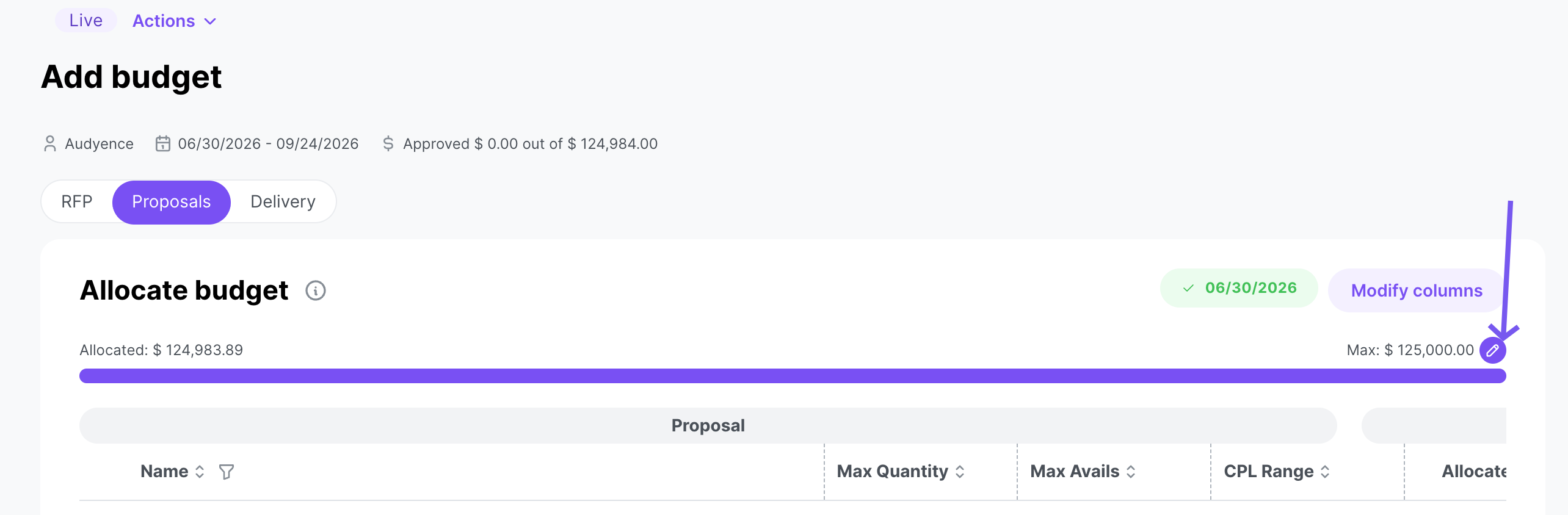
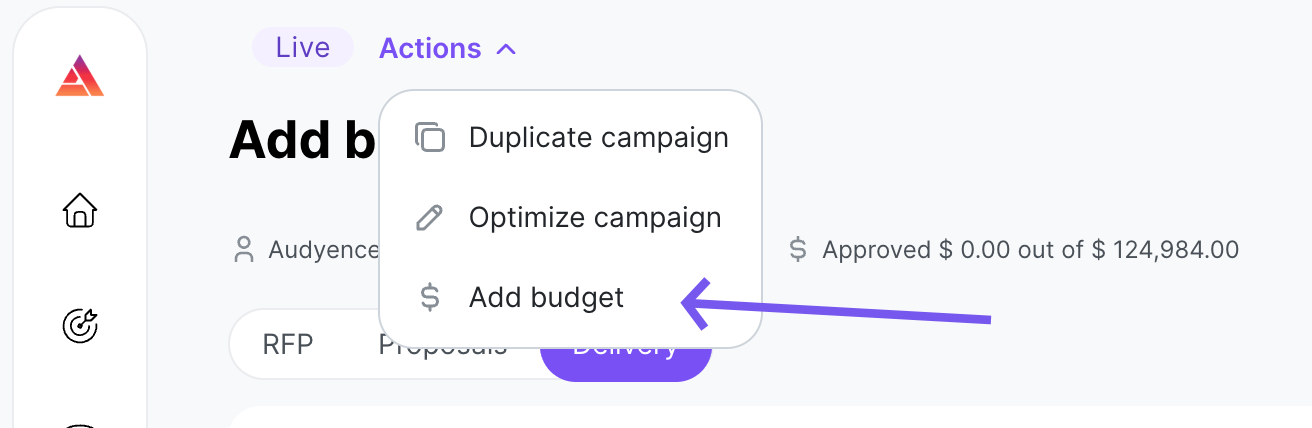
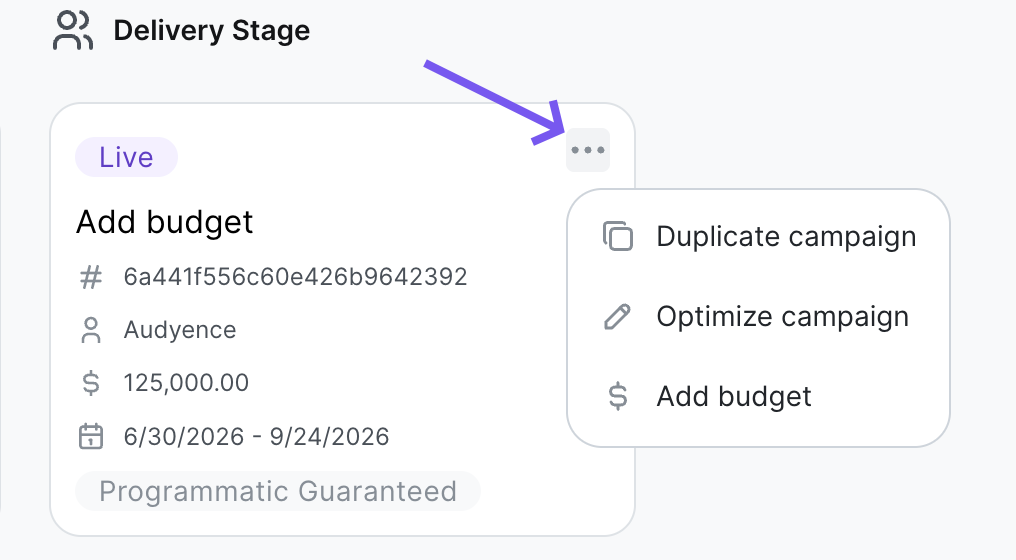
All three open the same Change Max Budget popup.
Step 2: Set a new total budget
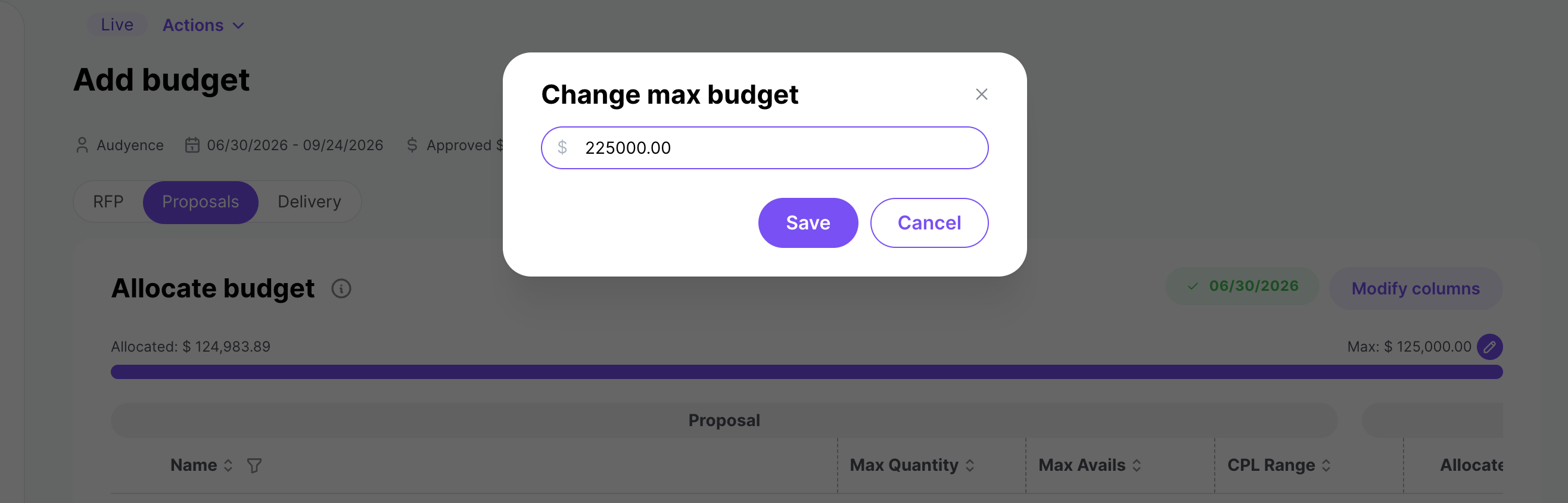
In the Change Max Budget popup:
Check the current max budget shown under the input field.
Enter the new total campaign budget (the full new amount, not the amount you're adding).
Click Save.
The new amount must be higher than the current max budget. If the value isn't valid, a message next to the field explains what to fix.
Step 3: Split the budget across publishers
After you save the new max budget, the publisher allocation fields on the Proposals tab become editable. You can:
Increase allocation for publishers already on your campaign (top section of the list).
Add a new publisher by selecting one from the unallocated publishers section (bottom of the list) and entering a budget amount.
As you edit each publisher's budget, a live preview shows their updated lead count and your updated budget.
Important: Allocation rules for each publisher:
You can only increase a publisher's allocation. Lowering it isn't allowed in this flow.
Maximum: a publisher's total allocation can't be more than their available capacity. You'll see a message if you go over.
Important: Minimum budget per publisher: $5,000, or the value of leads already approved, pending, or queued for that publisher, whichever is higher.
Step 4: Confirm and apply
Click Save (or Apply) to commit all changes.
A confirmation banner appears: "Budget increased successfully. Publishers have been notified."
Warning: Publishers are notified as soon as you confirm. To throw away all edits without saving, click Cancel or Discard Changes any time before you confirm.
What happens next
Publisher notifications: each publisher whose allocation went up gets an email with their own updated lead target and budget.
Your confirmation: you get an email summarizing all publisher changes made in this session.
Frequently asked questions
Can I reduce a publisher's budget using this flow?
No. Add Budget only increases allocations. To lower one publisher's budget and move it to another, use Re-allocating Budget Between Publishers. Your total campaign budget stays the same when you reallocate.
Can I change the CPL (cost per lead) when adding budget?
No. The cost per lead is fixed for the whole campaign and can't be changed through Add Budget.
What if my campaign is Finished or Cancelled?
Add Budget is only available for Live and Scheduled campaigns. For other statuses, the option doesn't appear.
Will publishers see the changes right away?
Yes. Publisher dashboards and lead targets update as soon as you confirm the increase. Publishers also get an email when you confirm.
What if a budget doesn't divide evenly into whole leads?
If the budget you enter for a publisher doesn't divide into a whole number of leads at the campaign's or publisher's CPL, the platform rounds down to the nearest whole lead.