Re-allocating Budget Between Publishers
Last updated: November 13, 2026
What this is
Reallocate budget lets you move unspent budget from one publisher to another on a live campaign. You don't need to contact your Audyence account team, and your total campaign budget never changes.
Why it matters: if a publisher is delivering slowly, falling behind schedule, or just isn't the right fit, you can move their remaining budget to publishers who are performing. When you apply the change, the platform automatically recalculates each affected publisher's lead goal and budget, and notifies the publishers involved.
Key takeaway: Reallocation is zero-sum. It only moves budget you've already committed. Your total campaign budget stays the same. Only the split between publishers changes. To add new budget instead, see Adding Budget Mid-Flight.
Words to know
Allocated budget: a publisher's current budget on the campaign. This is the number you change.
Remaining budget: the part of a publisher's allocation that isn't spent or tied to leads yet. Only this part can be moved.
Lead goal: the number of leads a publisher must deliver.
CPL (cost per lead): the price of one lead for that publisher, including all fees.
Withdraw: remove a publisher from active delivery by setting their budget to $0.
Before you start
Important: You can add or reallocate budget only when a campaign is LIVE or SCHEDULED.
Also check that:
at least one publisher has remaining (unspent) budget to move
you have permission to edit the campaign
Reallocation works on both near-real-time and weekly-paced campaigns.
Important: Reallocate budget is not available for campaigns that are Draft, Finished, or Cancelled. If you don't see it on a Live or Scheduled campaign, contact your account team. If no publisher has remaining budget, the window opens with the message: No publishers have remaining budget to reallocate.
How remaining budget is calculated
You can only move a publisher's remaining budget.
Note: Remaining budget = Allocated budget − (leads already approved, pending, or queued × cost per lead)
Budget that's already tied to delivered or in-progress leads stays with that publisher. This protects work in progress. It's also why an allocation can never go below the value of leads already approved, pending, or queued.
Steps
Step 1: Open the Reallocate budget window
You can start in any of three places:
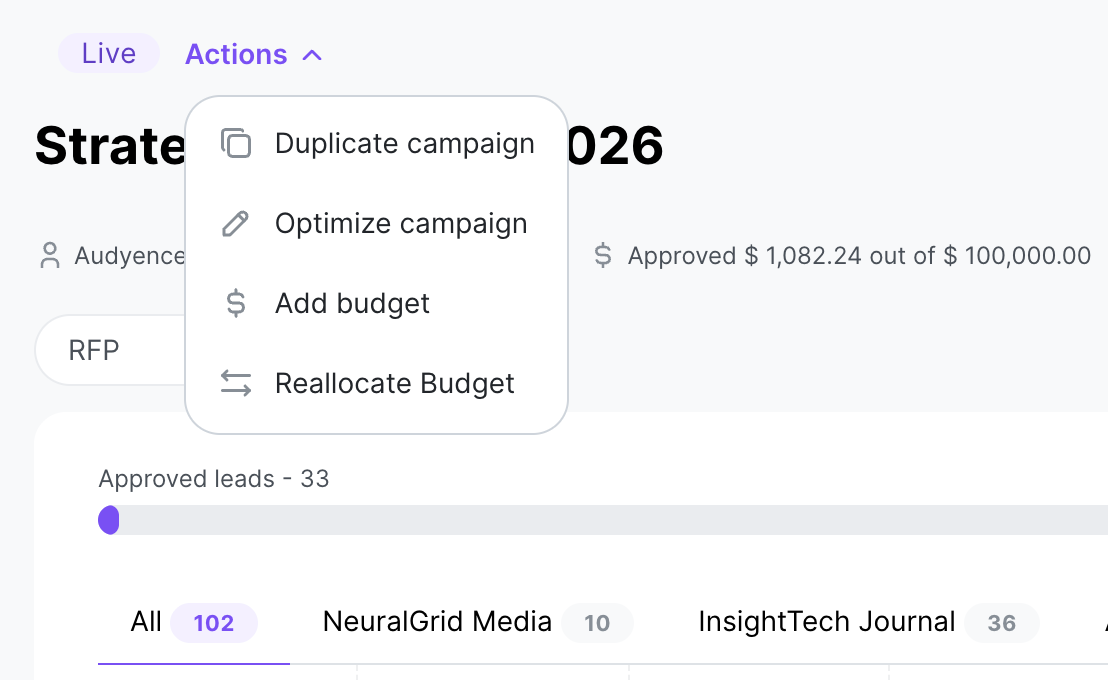
From the campaign page: open the Actions menu and select Reallocate budget.
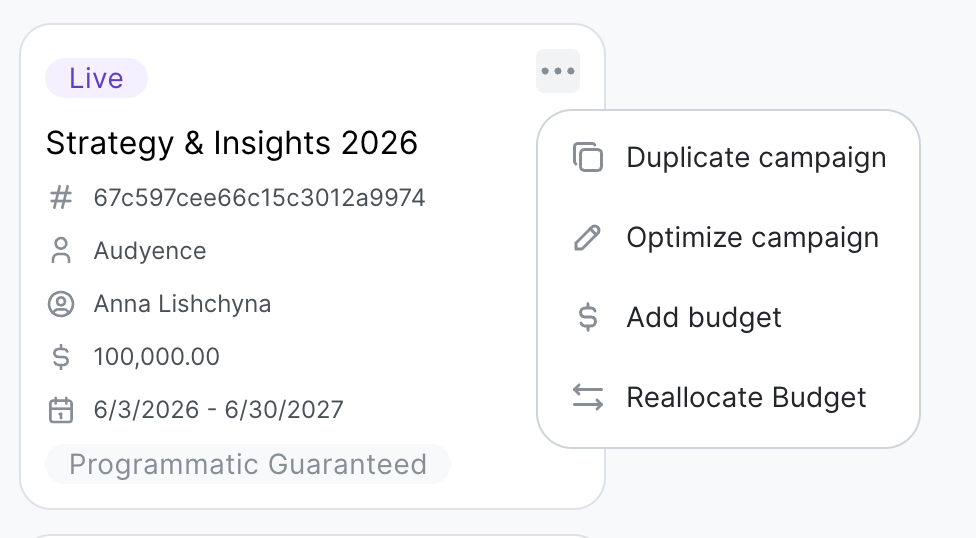
From the campaign dashboard, card view: click the three-dot (⋯) menu on the campaign card and select Reallocate budget.
From the campaign dashboard, table view: click the $ icon in the Actions column (its tooltip reads Campaign actions) and select Reallocate budget.
All three open the Reallocate remaining budget window for that campaign.
Step 2: Review your publishers
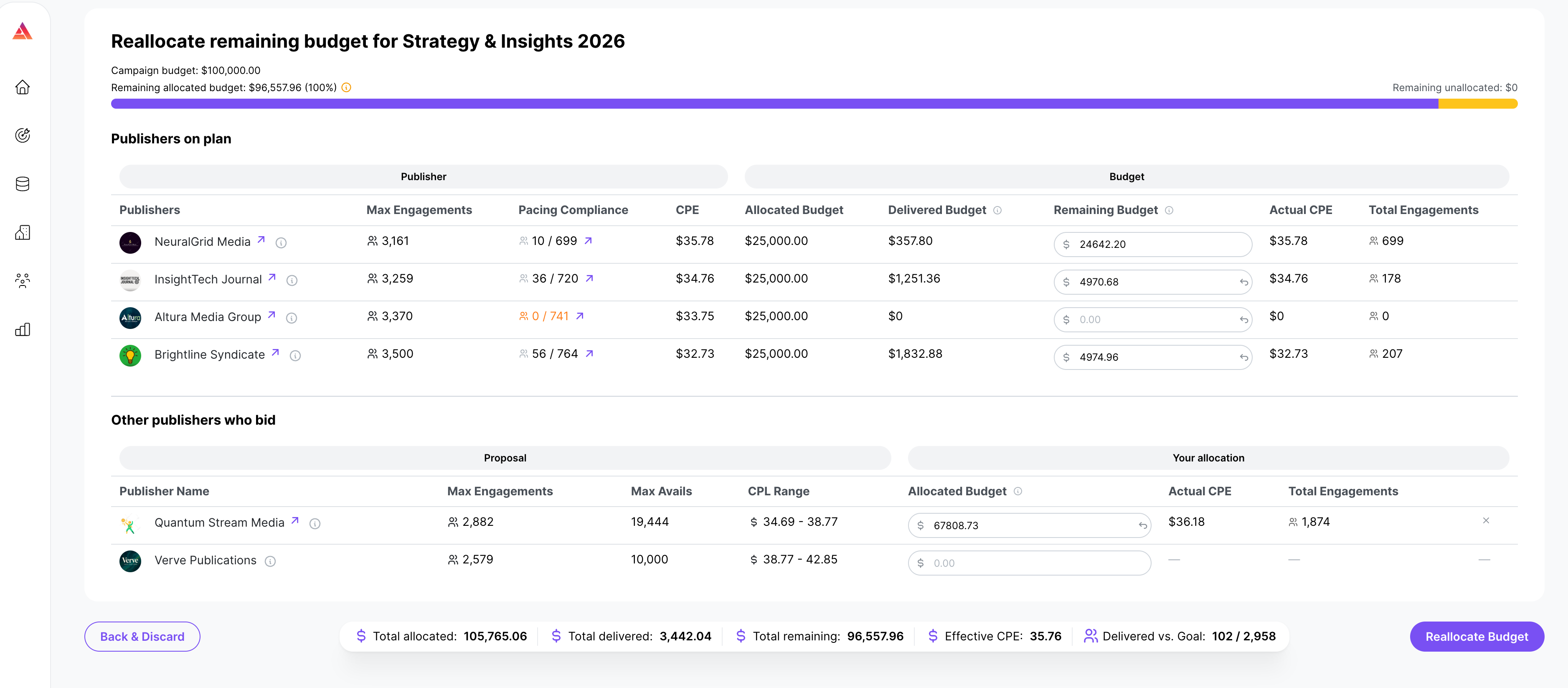
The window lists every publisher on the campaign in two sections:
Publishers with allocations (top): publishers getting budget now. For each one you'll see pricing compliance, cost per lead, minimum budget, allocated budget, lead budget, remaining budget, and remaining lead goal.
Publishers without allocations (bottom): publishers who bid on (or accepted a deal for) this campaign but didn't get budget at first. You can add one using freed-up budget (see Step 3).
Each column is explained in What the numbers mean below.
Step 3: Move budget between publishers
Change the Allocated budget field for any publisher. As you type, a live preview updates each affected publisher's remaining budget and lead goal, and a summary bar at the bottom keeps a running total.
You can:
Lower a publisher's budget to free up money for others. You can't go below the minimum budget (see below).
Withdraw a publisher completely by setting their Allocated budget to $0. The minimum-budget rule doesn't apply when you withdraw a publisher completely.
Raise a publisher's budget by giving freed-up money to a publisher who's performing. Their total can't be more than they can deliver (their maximum availability). You'll see a message if you go over.
Add a publisher from the proposal pool: click Add to allocation next to a publisher in the Publishers without allocations section, then enter a budget at or above their minimum.
Important: Minimum budget per publisher: $5,000, or the value of leads already approved, pending, or queued for that publisher, whichever is higher.
Important: If you leave budget unassigned, you'll get a warning that it will go unspent. If you go over the total, you can't continue until it balances.
Note: Just like the first allocation, budgets are rounded down to the nearest whole lead at each publisher's cost per lead.
Step 4: Confirm the changes
When your allocations balance, click Reallocate budget.
If you're lowering or withdrawing any publisher, you'll first see a reminder that you can add budget to lower-performing publishers without taking it from others. Click Back to keep editing, or Yes, reallocate to continue.
Review the Changes due to budget reallocation summary. It shows every change as old value → new value: allocated budget and lead goal for each affected publisher, any publishers being withdrawn, and the new campaign lead goal.
(Optional) Add a withdrawal reason (for example: Lost Budget, Strategy/Priority Changes, Underperformance) and a short note. The affected publisher sees this in their notification.
Click Yes, reallocate to apply, or Back to keep editing.
Warning: Publishers are emailed as soon as you confirm, and a reallocation can't be undone quietly. Review the Changes due to budget reallocation summary before you click Yes, reallocate.
Tip: To close the window without saving, click Back to Record at any point before you confirm.
Step 5: Done
Note: You'll see a confirmation banner: Budget reallocated successfully. Publishers have been notified. Your campaign view updates right away. You don't need to refresh.
What happens next
Publishers who lost budget or were withdrawn get an email with their new allocation and lead goal, including any reason you gave. They also see an alert on their campaign view.
Publishers who gained budget (including any newly added publisher) get an email with their new allocation and lead goal. Their dashboard and targets update right away.
You get a confirmation email summarizing every change.
Leads already in the queue: if you lower a publisher's budget, queued leads that would put them over their new allocation are held, not delivered. Leads already approved or delivered aren't affected.
Pacing: near-real-time publishers see their new targets right away. Weekly paced publishers see them at their next batch run.
What the numbers mean
Column definitions
Column | What it means |
|---|---|
Pricing compliance | A two-part pacing score that compares the leads the publisher has actually sent with the leads expected by today, based on their pacing schedule. Shows N/A for weekly paced (batch) campaigns. |
CPL (cost per lead) | The price per lead for that publisher, including all fees. It stays the same for the whole campaign. Reallocation doesn't change it. |
Min budget | The lowest the publisher's allocation can go: $5,000, or the value of leads already approved, pending, or queued for them, whichever is higher. |
Allocated budget | The publisher's current budget on the campaign. This is the field you change. |
Lead budget | How many leads the allocated budget buys at that publisher's CPL (rounded down to a whole lead). |
Remaining budget | The unspent part of the allocation that you can move: allocated budget minus the value of leads already approved, pending, or queued. If this is $0, the publisher has nothing to move. |
Remaining lead goal | Leads still to be delivered: lead budget minus leads already approved, pending, or queued. |
Frequently asked questions
Does reallocation change my total campaign budget?
No. Reallocation only moves budget you've already committed. Only the split between publishers changes. To add new budget, use Adding Budget Mid-Flight.
Can I lower a publisher's budget to zero?
Yes. Setting a publisher's allocated budget to $0 fully withdraws them from active delivery on the campaign. Budget already tied to their delivered leads isn't affected.
Why can't I lower a publisher below a certain amount?
Budget already committed to leads a publisher has approved, pending, or queued can't be taken back.
Can I change a publisher's cost per lead here?
No. CPL stays the same for the whole campaign and can't be changed by reallocating.
Can I add a publisher who wasn't originally on the campaign?
Yes, as long as they bid on (or accepted a deal for) this campaign. They appear in the Publishers without allocations section, and you can add them using freed-up budget.
Do publishers know when I move their budget?
Yes. Publishers who lose budget, gain budget, or are withdrawn get an email as soon as you confirm, and they see the change on their campaign view. A reallocation can't be undone quietly, so review the change summary before you confirm.
What happens to leads a publisher already sent me?
They stay. Reallocation only affects unspent budget. A publisher may still replace pending leads you reject, even after their budget changes.