Pardot Integration Install Guide
Last updated: October 13, 2026
What this is
The Pardot integration lets Audyence send approved leads straight to Salesforce Pardot, using OAuth sign-in through the API.
To turn it on, you create a Salesforce Connected App, get its credentials, and enter them in Audyence. After that, campaigns can sync approved leads to Pardot automatically. Teams usually use this to push leads from Audyence campaigns into Pardot for nurture and sales follow-up.
Key takeaway: Create a Salesforce Connected App, copy its Consumer Key, Consumer Secret, and your Pardot Business Unit ID into Data → Integrations → Pardot in Audyence, map your fields, then turn on syncing for each campaign. Approved leads show up in Pardot in about 1–2 minutes.
Who this is for
Salesforce administrators
Marketing operations
CRM integration engineers
Permissions you need:
Salesforce Admin access
Access to Salesforce Setup
Pardot Admin permissions
Access to the Audyence Integrations screen
Before you start
Make sure you have:
Salesforce Admin access
Access to Salesforce Setup
Pardot Admin permissions
Access to Audyence Integrations
A Salesforce Connected App set up with OAuth (Step 1 below)
These credentials:
Connected App Consumer Key
Connected App Consumer Secret
Pardot Business Unit ID
Salesforce user login with Pardot admin access
You need these credentials so Audyence and Pardot can securely talk to each other.
How it works
The integration uses Salesforce OAuth sign-in:
You create a Salesforce Connected App.
Salesforce generates OAuth credentials (Consumer Key and Secret).
You enter these credentials in Audyence Integrations.
A Pardot Business Unit ID points Audyence at the right Pardot instance.
When you approve leads in Audyence, they sync to Pardot automatically.
Note: If a lead already exists in Pardot, the record is updated instead of duplicated.
Step 1: Create a Salesforce Connected App
In Salesforce, click the gear icon.
Select Setup.
In the search bar, type External Client App Manager.
Click New External Client App.
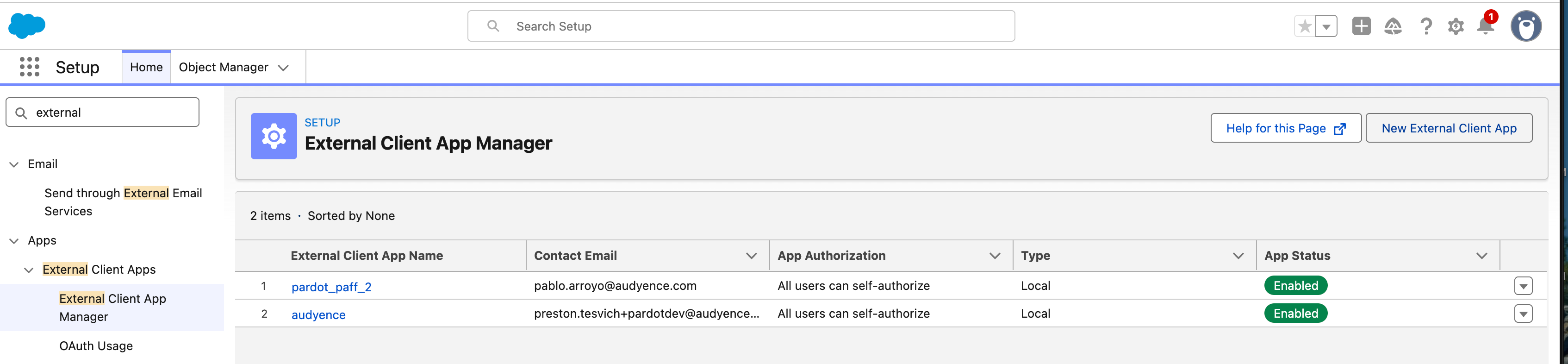
Then set up the app, section by section:
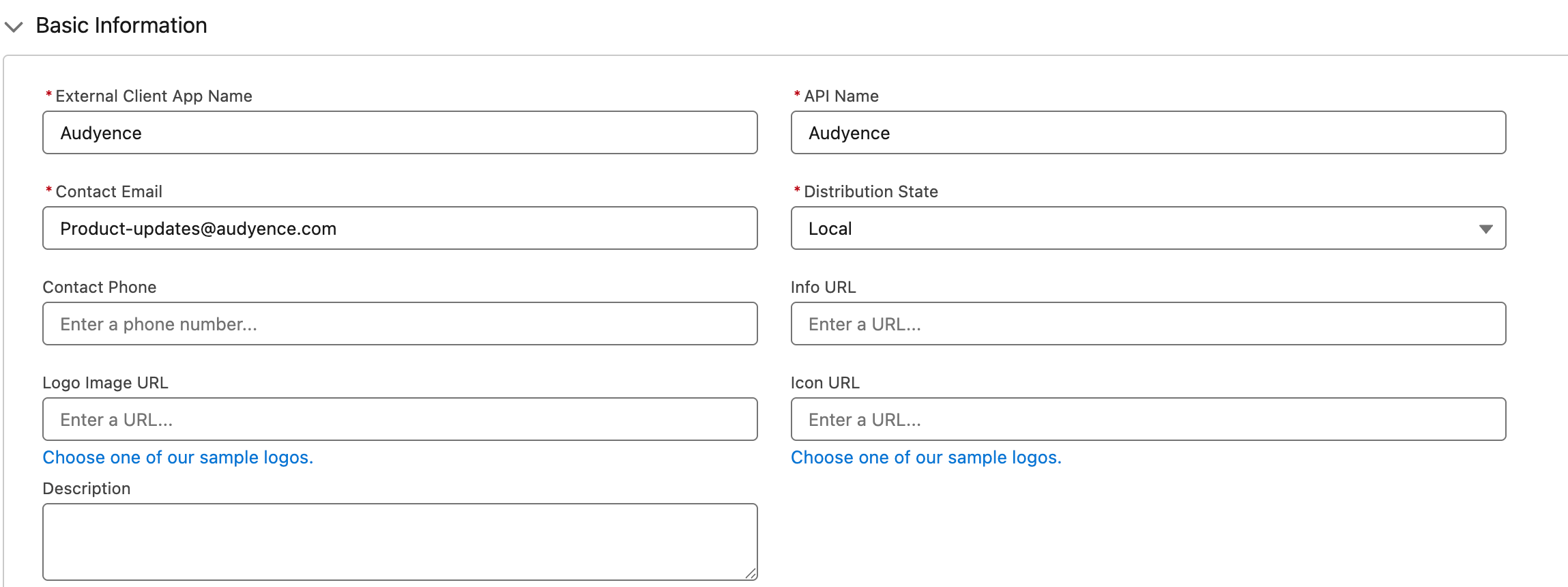
Basic Information
External Client App Name: Audyence
Contact Email: your email address
Distribution State: local
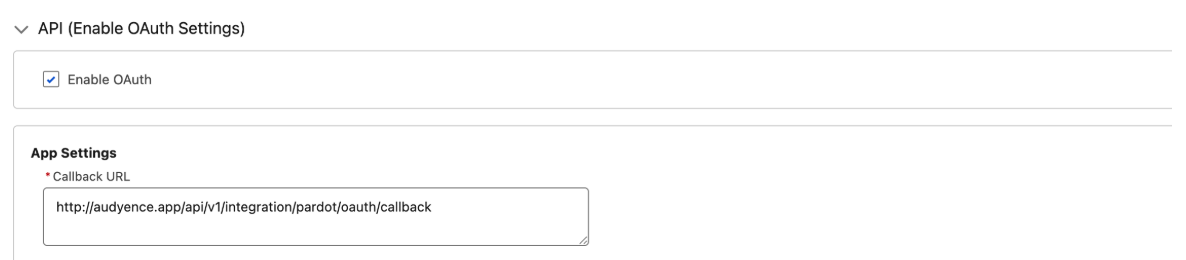
API (Enable OAuth Settings)
Select Enable OAuth.
Add this Callback URL:
https://audyence.app/api/v1/integration/pardot/oauth/callback
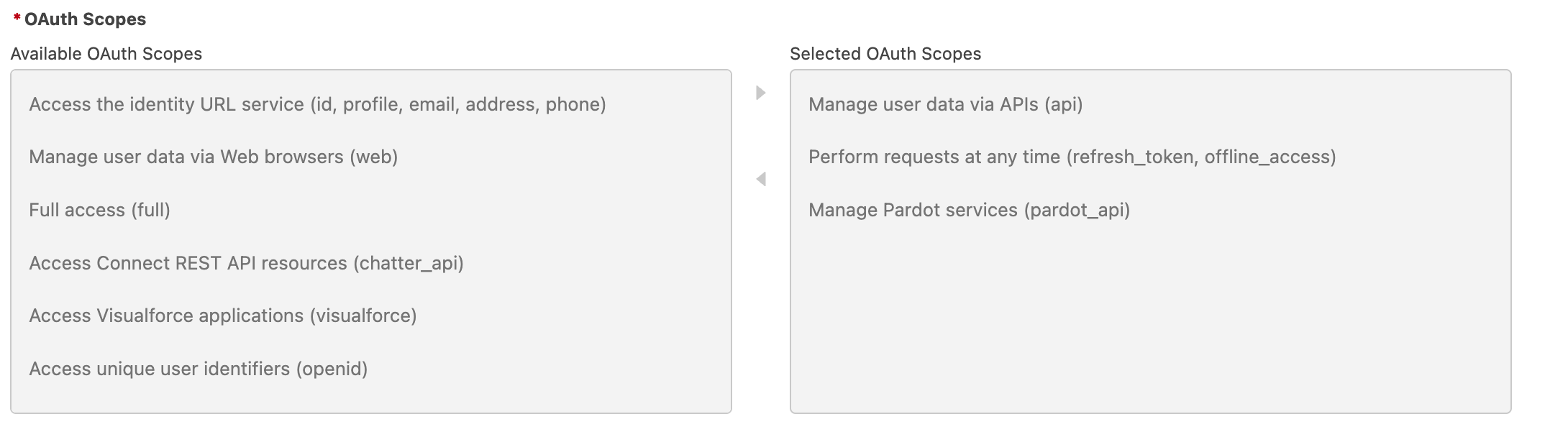
OAuth Scopes
Select:
Perform requests at any time (refresh_token, offline_access)
Manage Pardot services (pardot_api)
Manage user data via APIs (api)
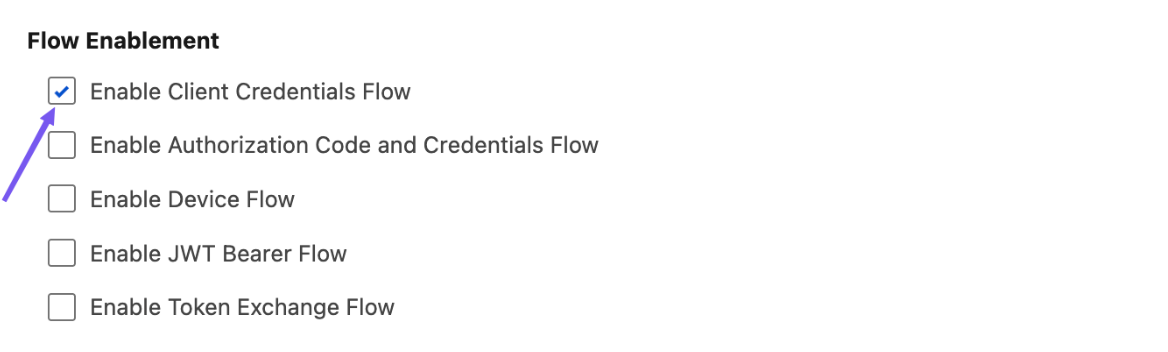
Flow Enablement
Select Enable Client Credential Flow.
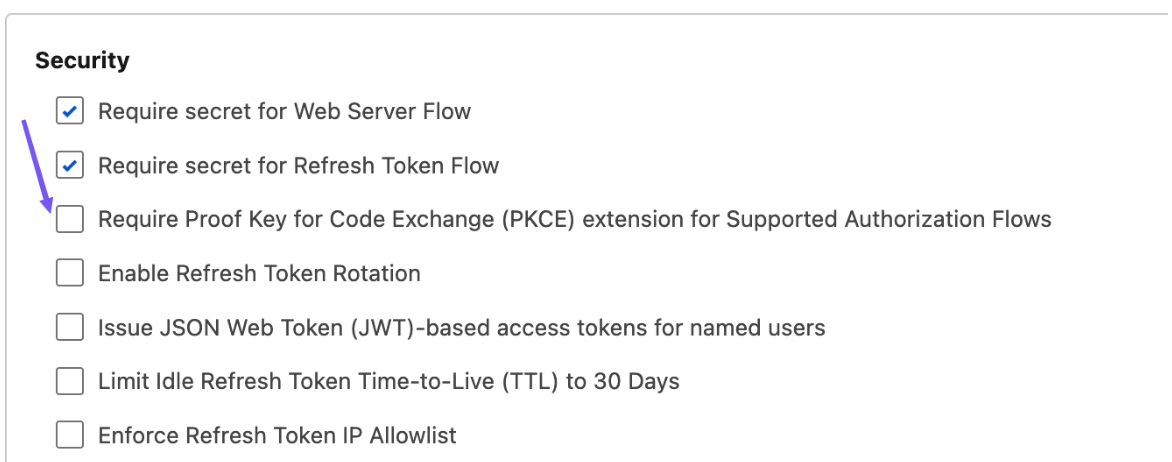
Security
Clear Require Proof Key for Code Exchange (PKCE) extension for Supported Authorization Flows.
Click Save.
Important: Use the callback URL exactly as shown, and remember to clear the PKCE option. Either one set wrong stops Audyence from connecting.
Step 2: Get the Consumer Key and Consumer Secret
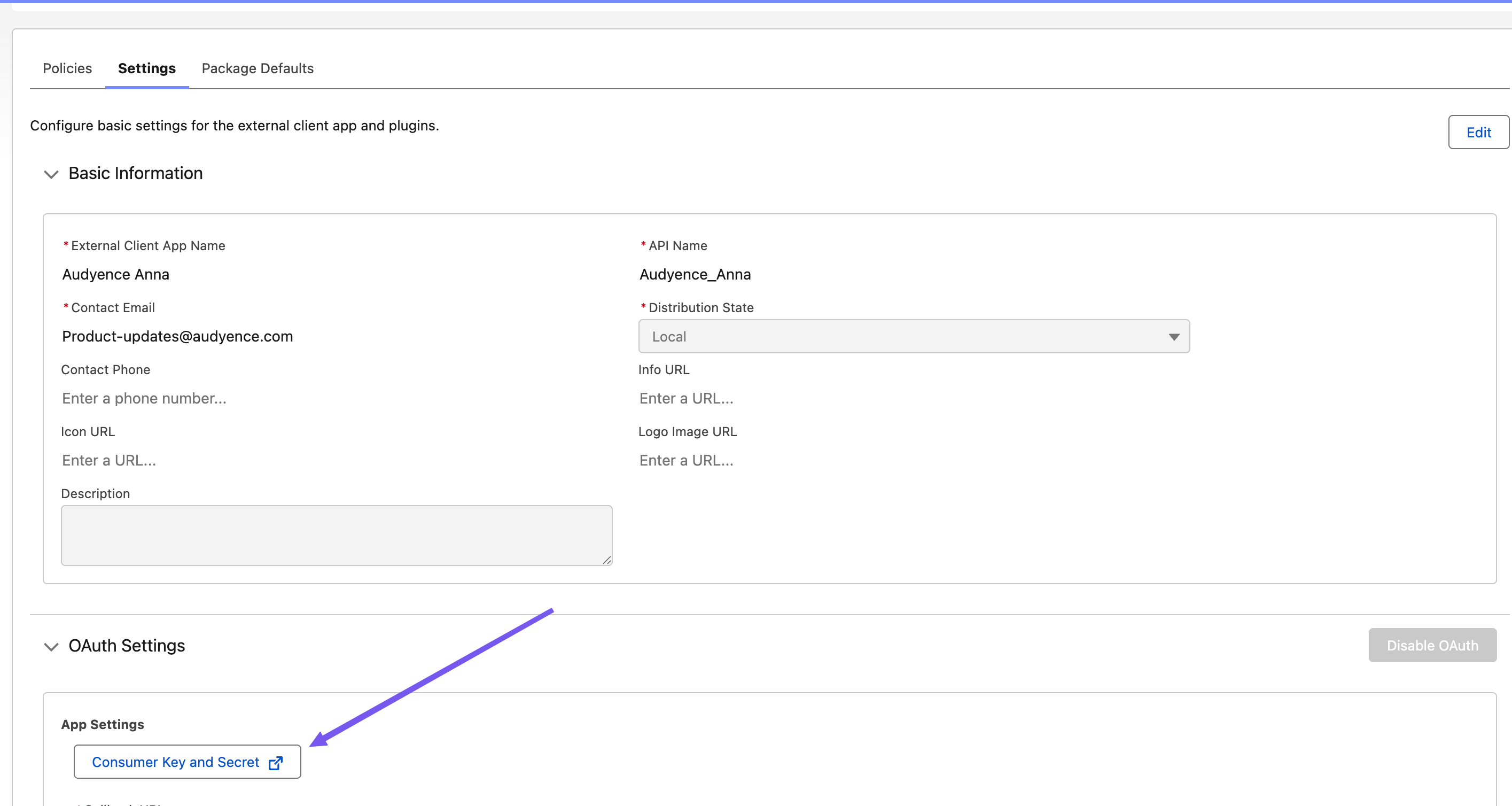
Click the app's name to open it.
Open the Settings tab.
Expand OAuth Settings.
Under App Settings, click Consumer Key and Secret to show the credentials.
Copy the Consumer Key and Consumer Secret.
Store both somewhere secure.
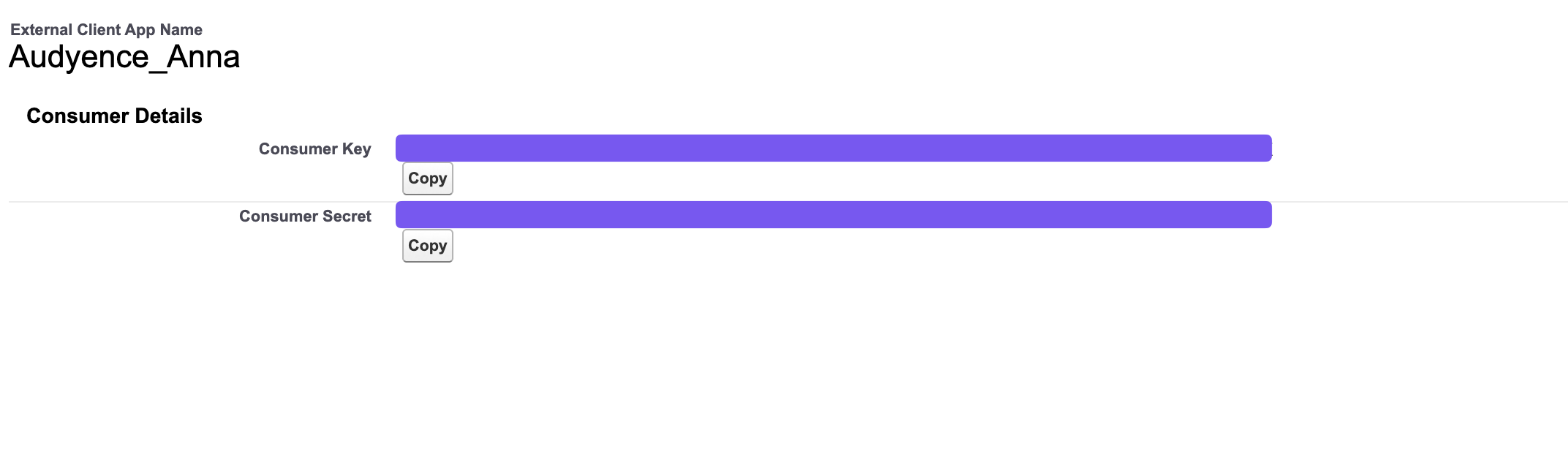
Warning: The Consumer Secret gives access to your Salesforce data. Keep it in a password manager and enter it only in Audyence.
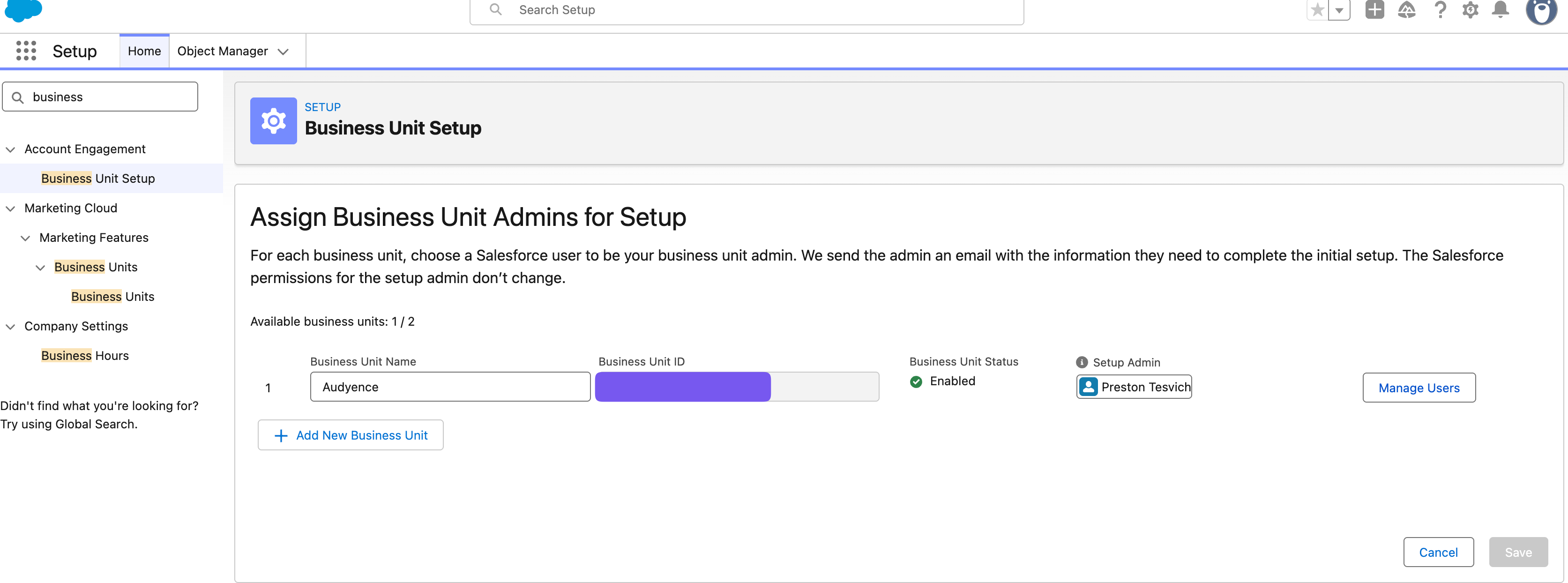
Step 3: Get the Pardot Business Unit ID
Go to Setup in Salesforce.
Search for Pardot Account Setup.
Open Pardot Account Setup.
Find and copy the Business Unit ID.
This ID makes sure Audyence talks to the right Pardot instance.
Step 4: Connect Pardot in Audyence
Log in to Audyence.
Go to Data → Integrations.
Select Pardot.
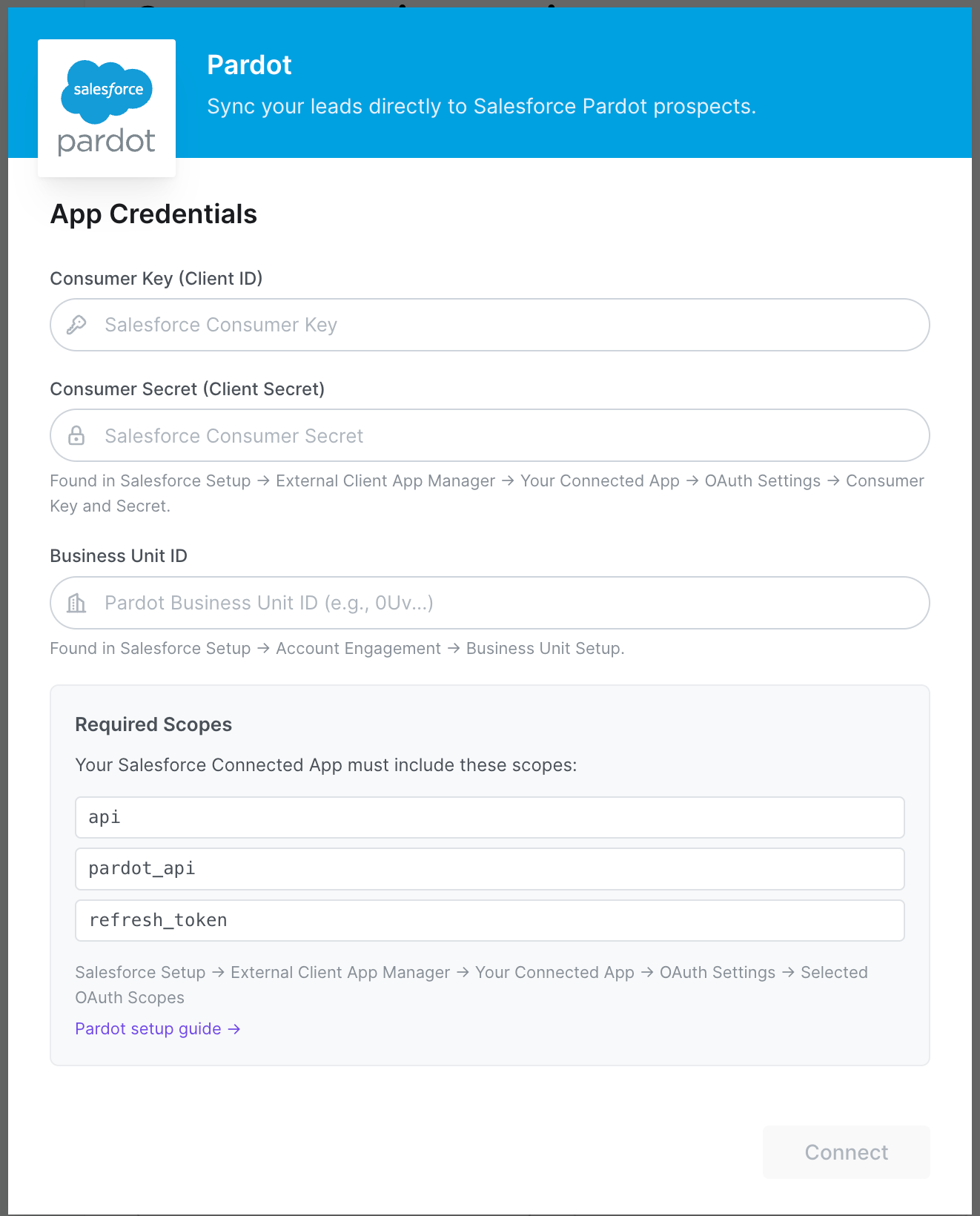
Enter: - Consumer Key - Consumer Secret - Business Unit ID
Save.
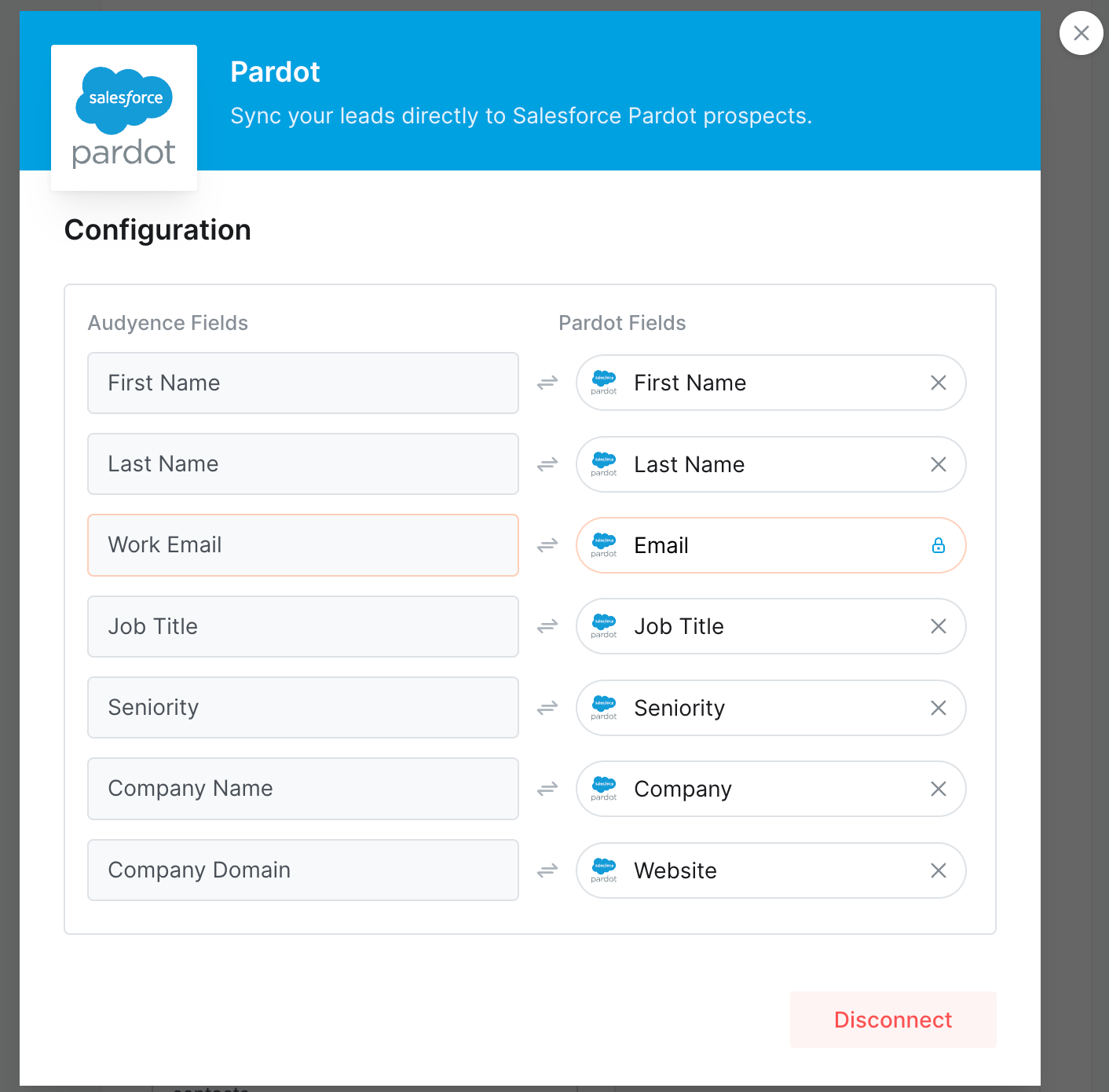
Then map your fields.
Step 5: Turn on lead sync for a campaign
Lead sync is turned on campaign by campaign:
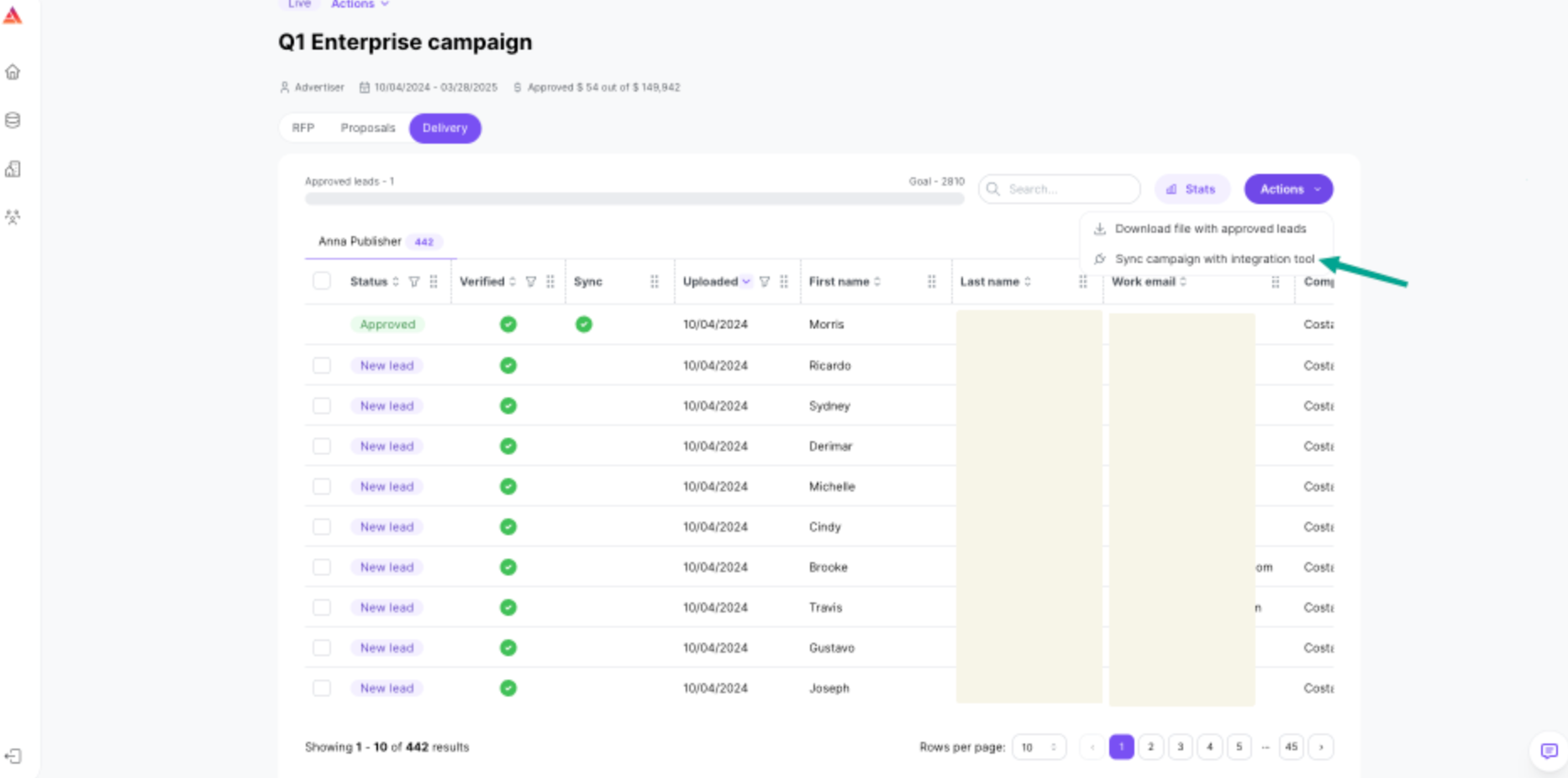
Open the campaign in Audyence.
Click Actions.
Select Sync campaign with integration tool.
Turn on the integration toggle.
From then on, every lead you approve on that campaign is sent to your connected platform. Only approved leads are sent.
How to check it worked
Approve a lead in an Audyence campaign.
Wait 1–2 minutes.
Check that the lead shows up in Pardot.
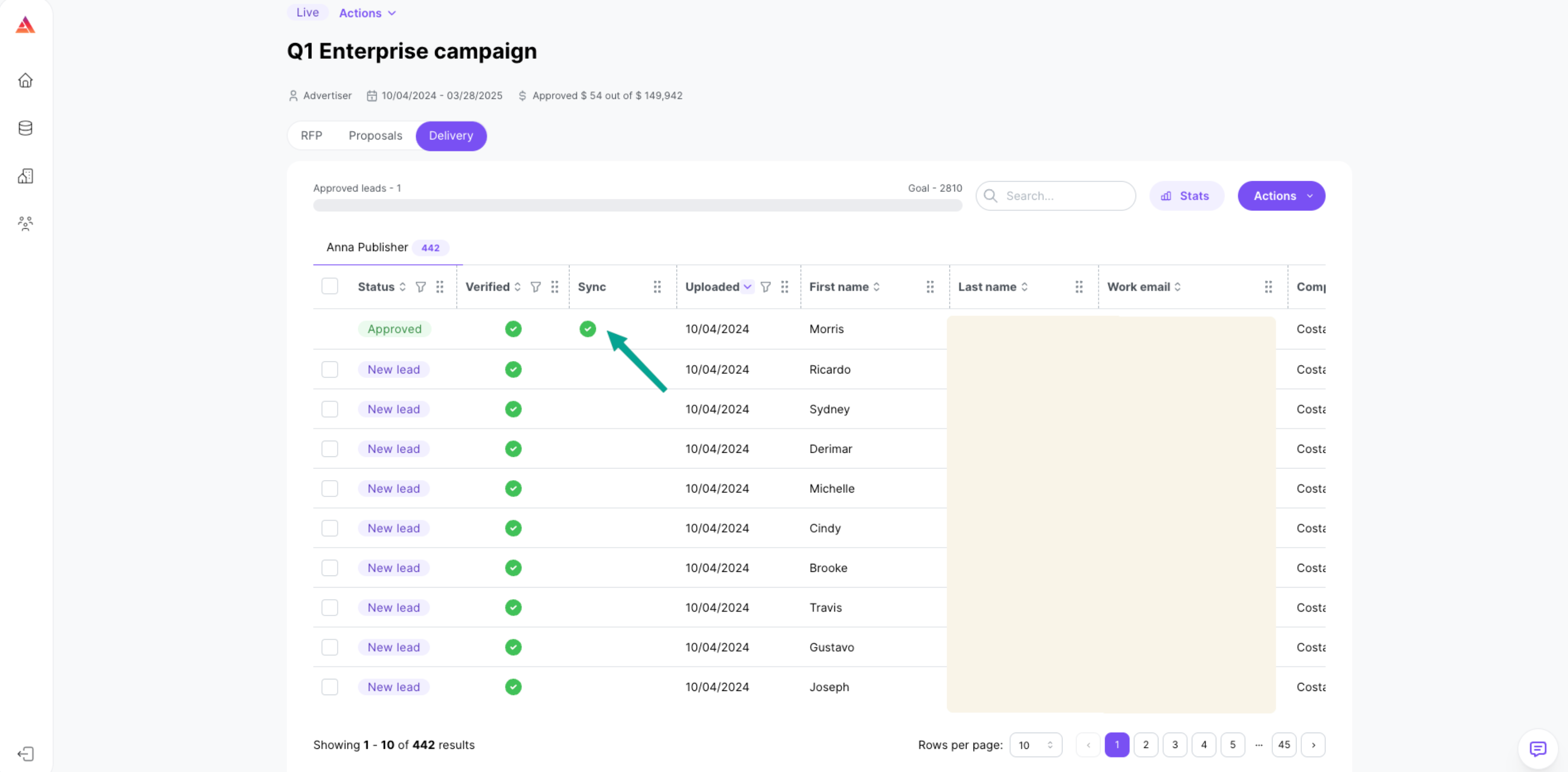
Note: In Audyence, open the campaign's lead delivery screen and check the Sync column. Each lead that synced shows a checkmark.
If the lead already existed in Pardot, the record is updated instead of duplicated.
Tip: Need each lead added to a specific Salesforce Connected Campaign? Use Pardot Form Handler Setup instead of direct integration.