Pardot Form Handler Setup
Last updated: October 13, 2026
What this is
This guide shows how to deliver approved Audyence leads through your Account Engagement form handlers, so each lead joins the right Salesforce campaign.
Form handler is a delivery type on the existing Pardot (Account Engagement) integration. Connect Pardot as usual, choose Form handler, map fields once, then pick a form handler on each gated content asset. When you approve a lead, Audyence sends it to that asset's handler. The handler's completion action adds the prospect to the Salesforce Connected Campaign you set up in Account Engagement.
Key takeaway: Build one form handler per content asset in Account Engagement first (with Kiosk mode on and an Add to CRM Campaign completion action). Then connect Pardot in Audyence, choose Form handler, map fields to the handler's external field names (case counts), and pick a handler on each asset. Existing Pardot customers who stay on Direct integration see no change.
Who this is for
This setup is for advertiser teams that:
use Pardot (Marketing Cloud Account Engagement) connected to Salesforce
need each Audyence lead added to a Salesforce Connected Campaign (campaign membership), not just created as a prospect
already create one form handler per content offer in Account Engagement, with a completion action that adds the prospect to the matching CRM campaign
If you only need Audyence to create or update prospects in Pardot, and don't need Connected Campaign membership, stay on Direct integration. See Pardot Integration Install Guide.
Before you start
Make sure you have:
Salesforce Admin access
Access to Salesforce Setup
Pardot Admin permissions
Access to Audyence Integrations
A Salesforce Connected App set up with OAuth (Step 1 below)
These credentials:
Connected App Consumer Key
Connected App Consumer Secret
Pardot Business Unit ID
Salesforce user login with Pardot admin access
You need these credentials so Audyence and Pardot can securely talk to each other.
Important:
The Salesforce user you connect with must have Account Engagement admin access, including permission to see form handlers. If that user's role can't read form handlers, Audyence can't load the dropdown or check fields.
Create the form handlers in Account Engagement before you set up campaigns in Audyence. Audyence doesn't create handlers for you.
Create one handler per gated content asset (whitepaper, webinar, report). Each handler should stand for the Salesforce campaign that asset belongs to.
Direct integration vs. Form handler
Direct integration | Form handler | |
|---|---|---|
How leads are sent | Audyence creates or updates the prospect through the Pardot API. | Audyence sends the lead to a form handler you already maintain in Account Engagement. |
Salesforce campaign membership | First-touch / source campaign only. Audyence can't assign a Connected Campaign through the API. | The handler's completion action (usually Add to CRM Campaign) assigns the right Connected Campaign. |
When to use it | You need prospects in Pardot and don't rely on Connected Campaign membership for reporting or sales follow-up. | Each content offer must land in a specific Salesforce campaign. |
Field mapping | Mapped once, to Pardot prospect field names. | Mapped once, to the handler's external field names (must match exactly, including capitals). |
Per asset | No extra field. | Required Form handler dropdown on each gated content asset. |
Existing customers | The default. Nothing to do. | Opt in by changing the integration type after you connect. |
Note: You choose one type for the integration. Approved leads aren't sent both ways.
Step 1: Create a Salesforce Connected App
In Salesforce, click the gear icon.
Select Setup.
In the search bar, type External Client App Manager.
Click New External Client App.
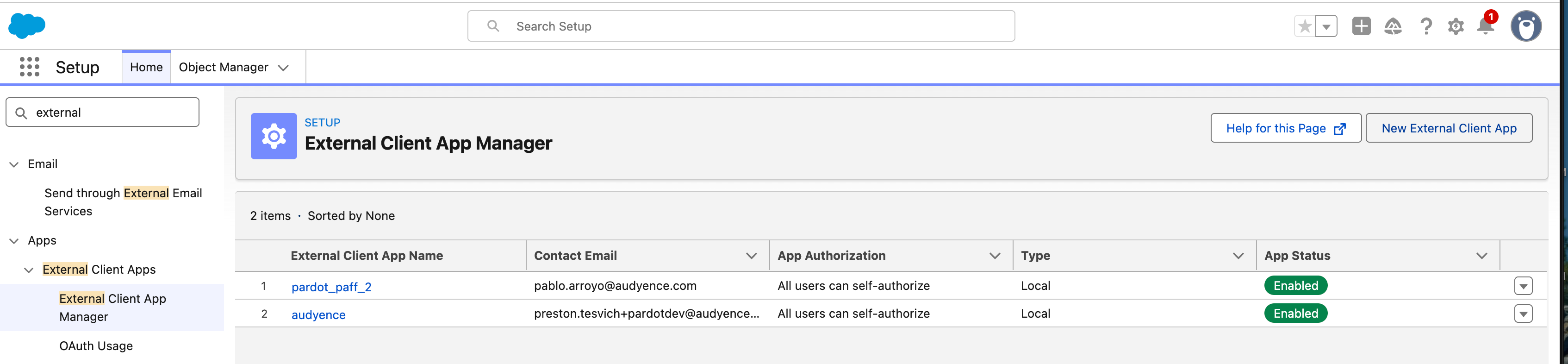
Then set up the app, section by section:
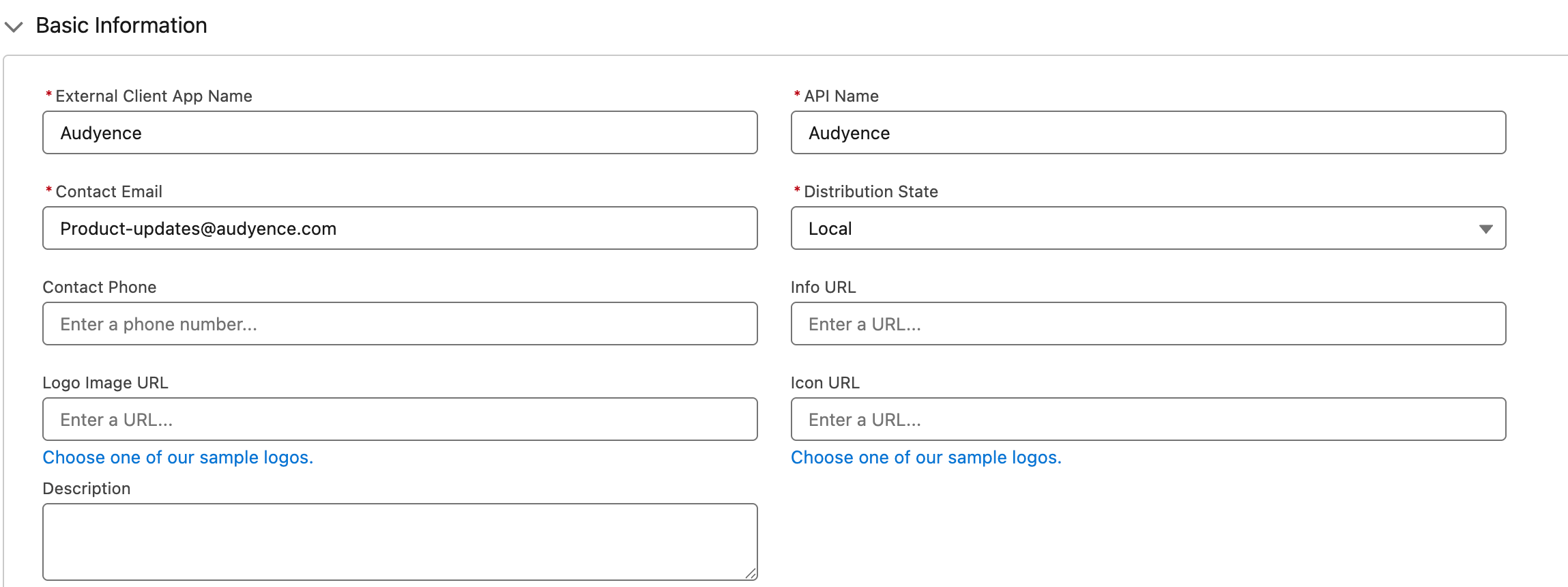
Basic Information
External Client App Name: Audyence
Contact Email: your email address
Distribution State: local
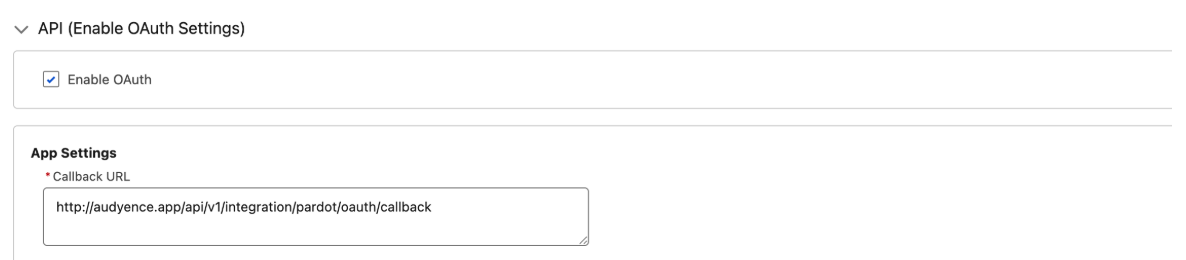
API (Enable OAuth Settings)
Select Enable OAuth.
Add this Callback URL:
https://audyence.app/api/v1/integration/pardot/oauth/callback
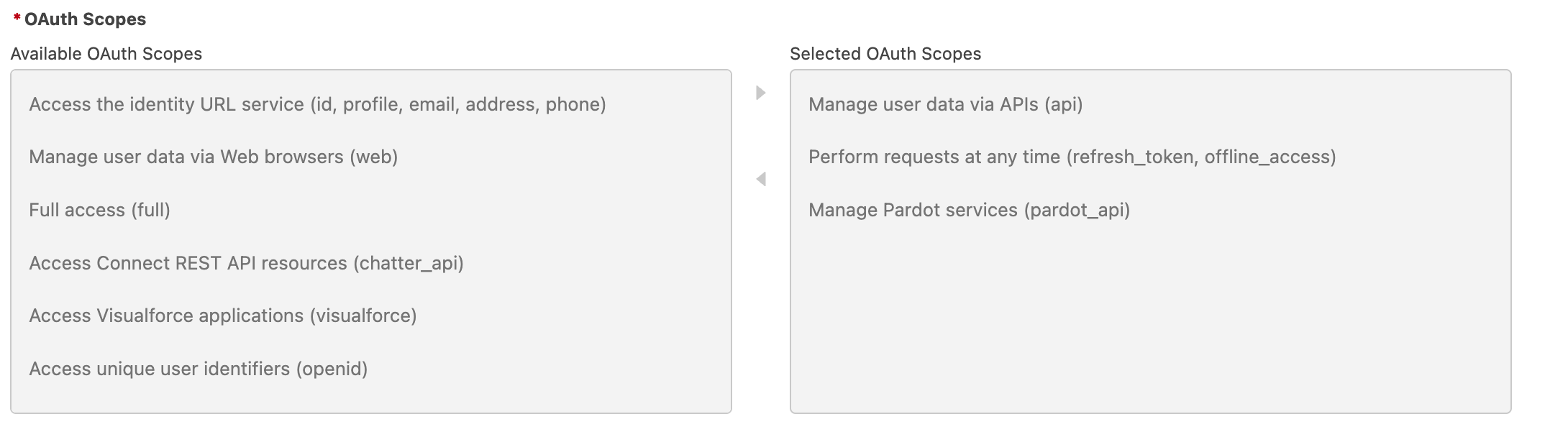
OAuth Scopes
Select:
Perform requests at any time (refresh_token, offline_access)
Manage Pardot services (pardot_api)
Manage user data via APIs (api)
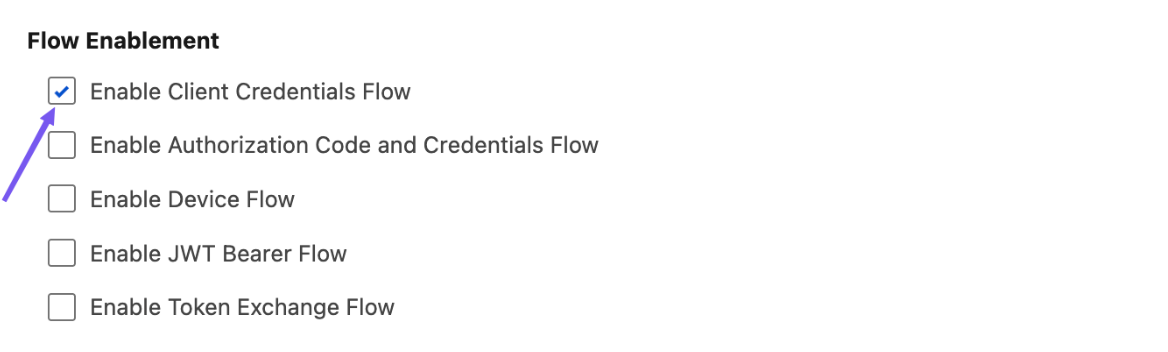
Flow Enablement
Select Enable Client Credential Flow.
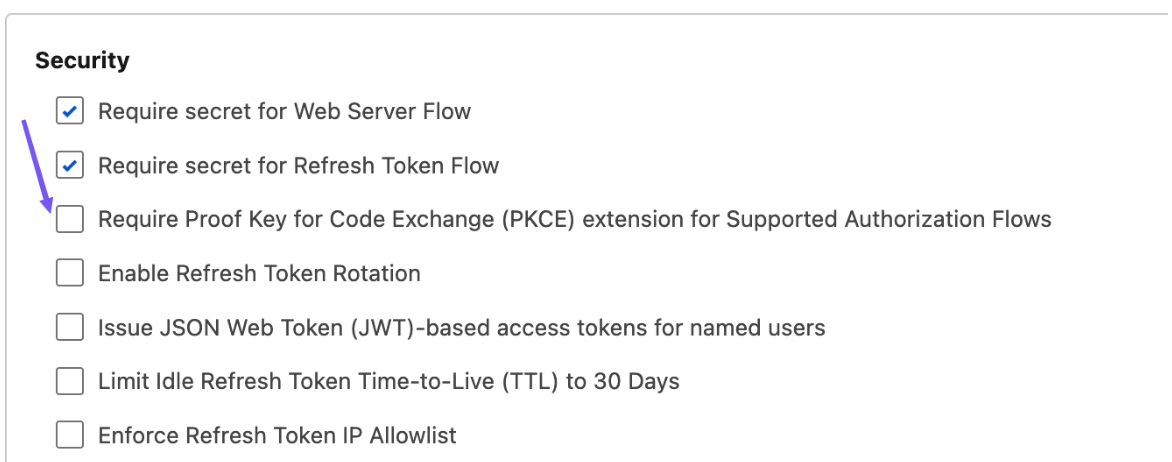
Security
Clear Require Proof Key for Code Exchange (PKCE) extension for Supported Authorization Flows.
Click Save.
Important: Use the callback URL exactly as shown, and remember to clear the PKCE option. Either one set wrong stops Audyence from connecting.
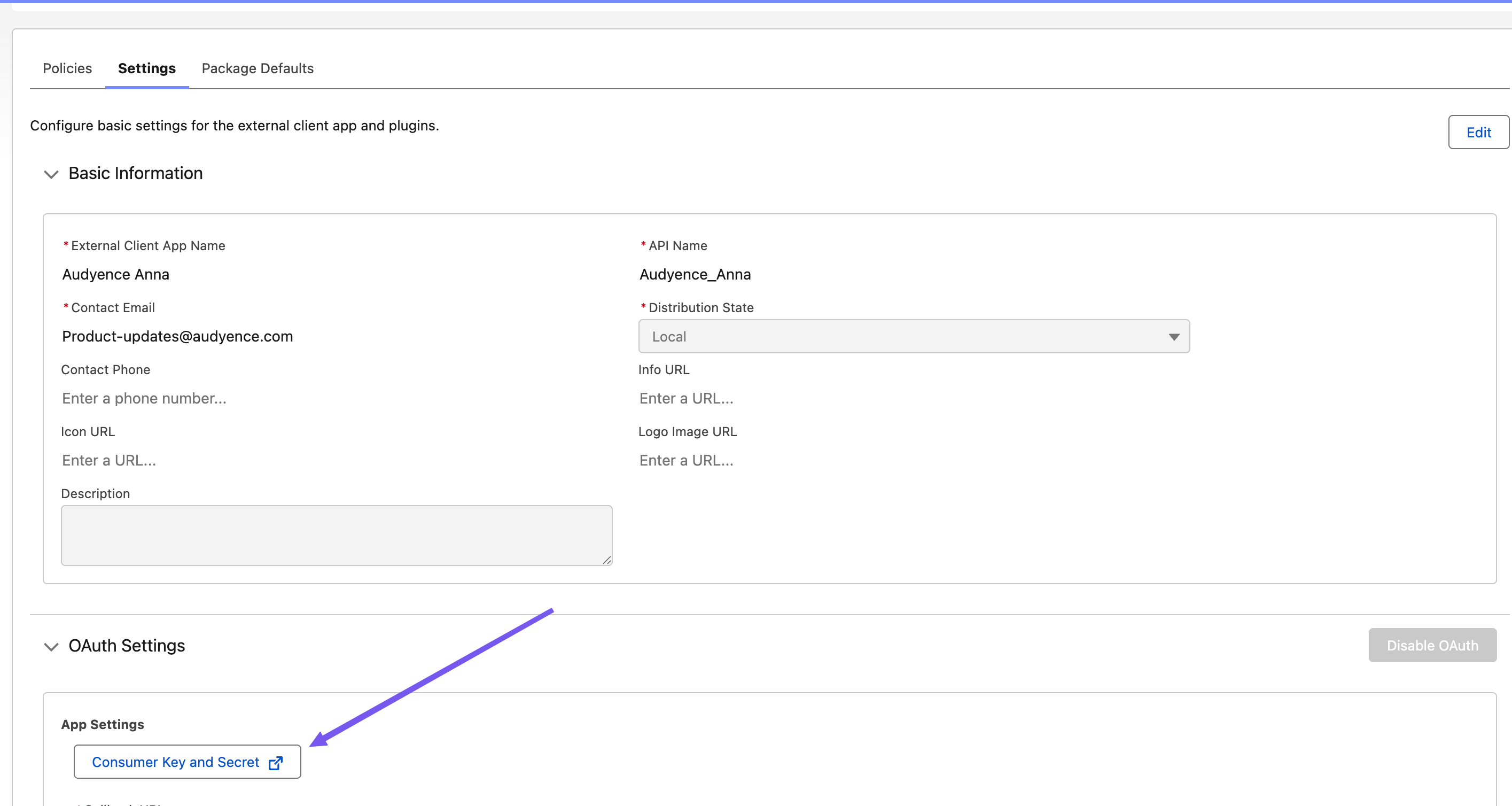
Step 2: Get the Consumer Key and Consumer Secret
Click the app's name to open it.
Open the Settings tab.
Expand OAuth Settings.
Under App Settings, click Consumer Key and Secret to show the credentials.
Copy the Consumer Key and Consumer Secret.
Store both somewhere secure.
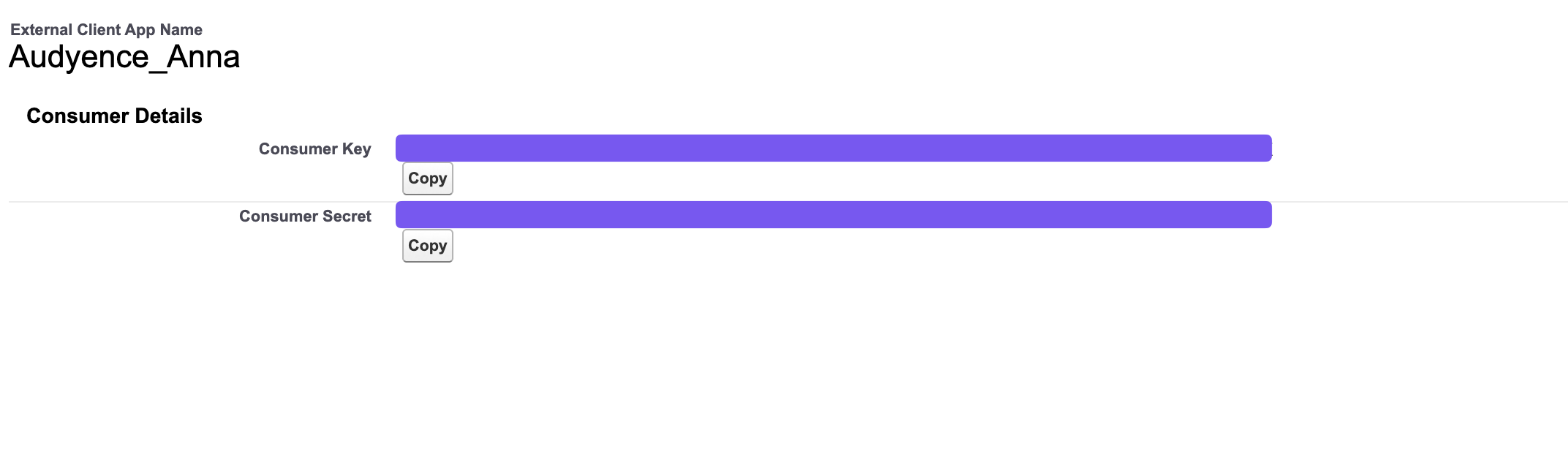
Warning: The Consumer Secret gives access to your Salesforce data. Keep it in a password manager and enter it only in Audyence.
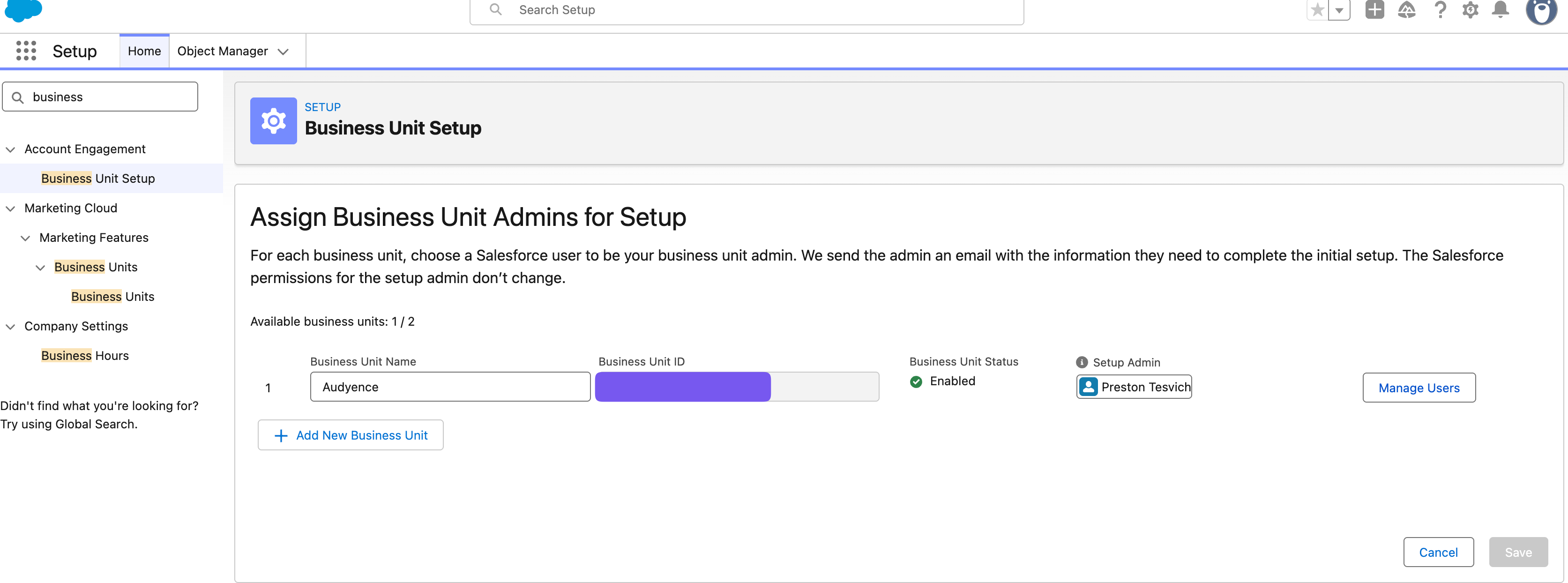
Step 3: Get the Pardot Business Unit ID
Go to Setup in Salesforce.
Search for Pardot Account Setup.
Open Pardot Account Setup.
Find and copy the Business Unit ID.
This ID makes sure Audyence talks to the right Pardot instance.
Step 4: Connect Pardot in Audyence
Log in to Audyence.
Go to Data → Integrations.
Select Pardot.
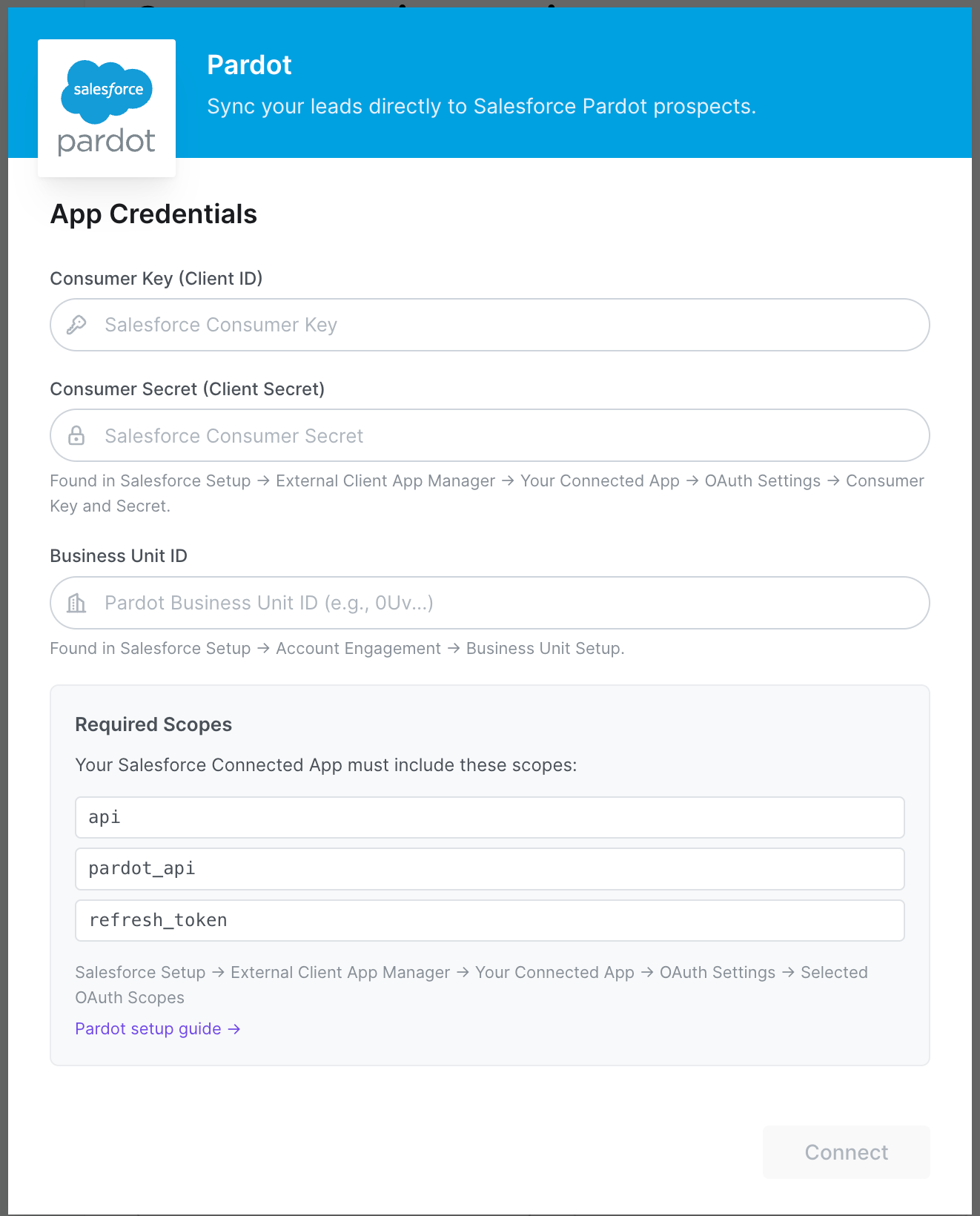
Enter: - Consumer Key - Consumer Secret - Business Unit ID
Save.
Step 5: Prepare form handlers in Account Engagement
Your marketing operations team does this part in Pardot / Account Engagement. Audyence only selects handlers that already exist.
For each content offer:
In Account Engagement, go to Content > Form Handlers (or Marketing > Forms > Form Handlers in the classic app) and click Add Form Handler.
Name the handler so your team can recognize it in Audyence (for example, the asset or campaign name).
Turn on Kiosk / Data Entry Mode. Audyence sends leads from its servers, not from the prospect's browser. Without kiosk mode, Account Engagement can treat the server as the prospect.
Add the fields the handler should accept. The External Field Name on each field is what Audyence must send, and it's case-sensitive. Typical required fields: Email, First Name, Last Name, Company, Country.
Add a completion action: Add to CRM Campaign, and choose the Salesforce Connected Campaign (and membership status) for that asset.
Save the handler. You don't need to paste the endpoint URL into Audyence: Audyence stores it automatically when you select the handler by name.
Salesforce help:
Step 6: Choose Form handler and map fields
Tip: To find integrations in Audyence, go to Data → Integrations in the left navigation.
Log in to Audyence.
Open Pardot on the integrations page.
Finish Step 1 (credentials) and click Connect if you haven't already. The header shows Connected · Production or Connected · Sandbox.
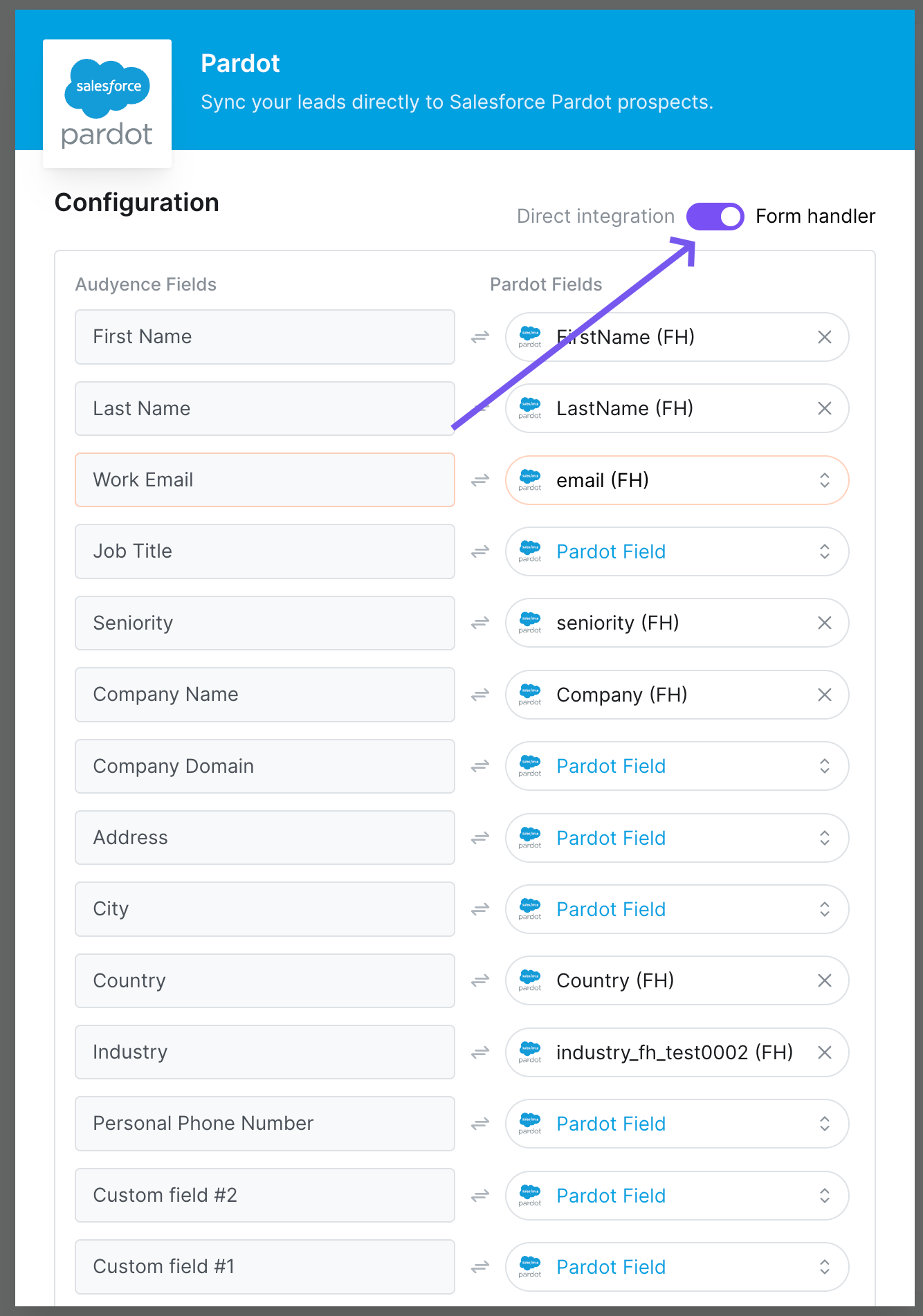
On Step 2 (Setup), choose Form handler: "Deliver leads to Pardot form handlers, chosen per asset."
Confirm the info note: you'll pick a form handler on each asset, and this mapping applies to all of them.
Review the field mapping table. Audyence fills in matches where names line up. The target column is Handler field name: the external names from your handlers, not Pardot API prospect names.
Map email (always required) and every other required row. Unmapped required rows block saving.
If you map a consent field, send the exact values the handler accepts (for example
Opted InandOpted Out). Don't send true/false, yes/no, or a blank value.Click Save integration.
Message | What it means |
|---|---|
Select an integration type to continue. | You didn't choose a type before saving. |
The connected Pardot user's role doesn't have access to these objects. | The connected Pardot user can't read form objects. Reconnect with a user whose role includes form handlers. |
Switching type later
You can switch from Direct integration to Form handler (or back) later. Each type keeps its own mapping. Switching doesn't copy field names across, because prospect fields and handler field names are different.
Warning: Switching type changes delivery for every campaign that uses this integration. Confirm the prompt only when you're sure.
Existing connected Pardot accounts stay on Direct integration until someone chooses Form handler.
Step 7: Select a form handler on each asset
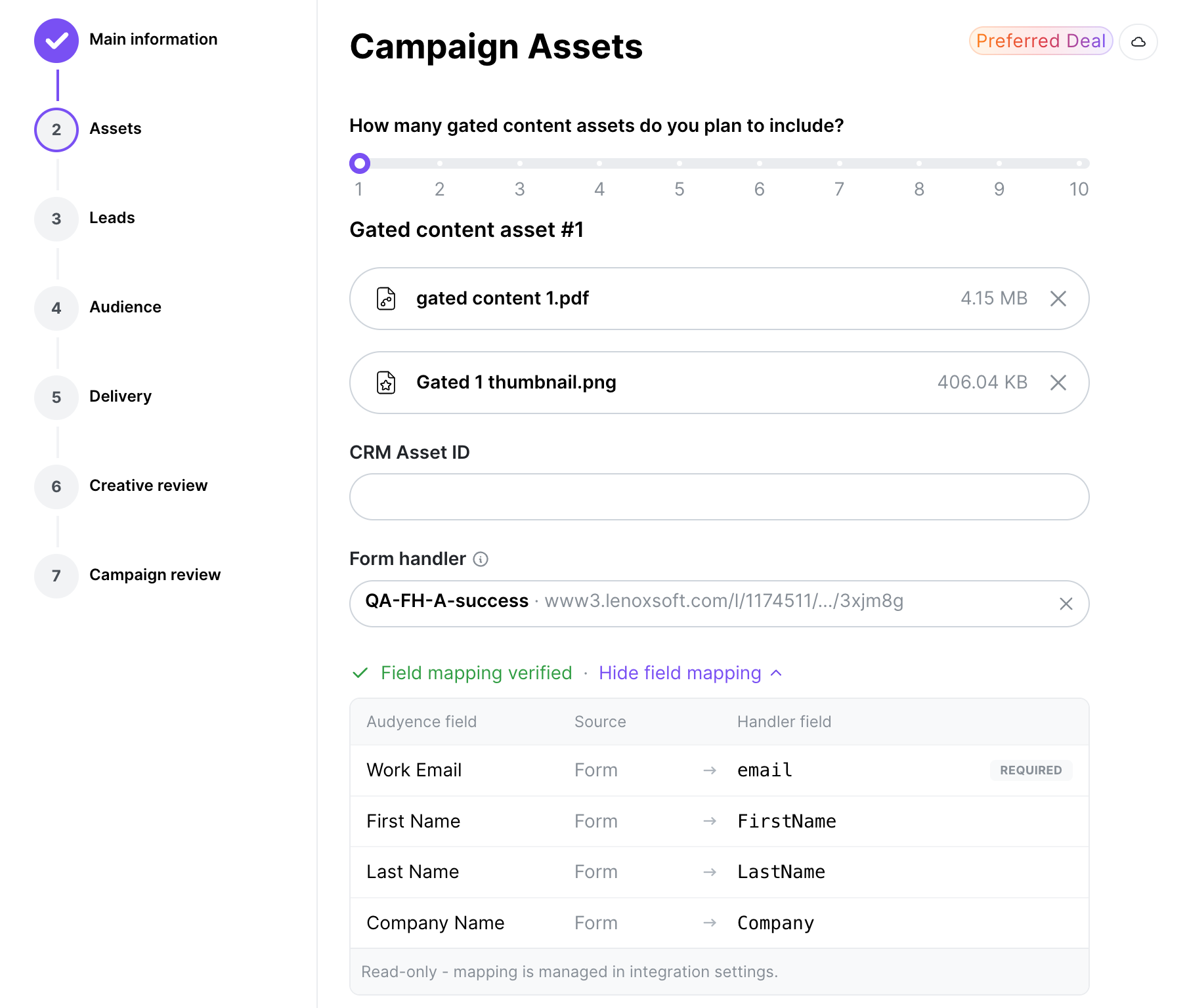
When the integration type is Form handler, the Assets step (gated content) of the campaign wizard shows a Form handler field on each uploaded asset, just below CRM Asset ID.
Tooltip: "Leads from this asset are delivered to the selected Pardot form handler."
Search the dropdown by handler name. The endpoint URL shows as smaller text so you can tell handlers with similar names apart.
The field appears after the asset file is uploaded. It's required before the campaign can continue.
Each asset has its own selection. Two assets can share a handler or use different ones.
You never paste a URL.
Message | What to do |
|---|---|
No form handlers found in your Pardot account. | Create handlers in Account Engagement, then reopen the dropdown. The list refreshes without reconnecting. |
This form handler no longer exists in Pardot – select another. | The handler you picked was deleted in Pardot. Pick another. |
Mapping check on the asset
When you select a handler, Audyence checks your saved mapping against that handler's fields.
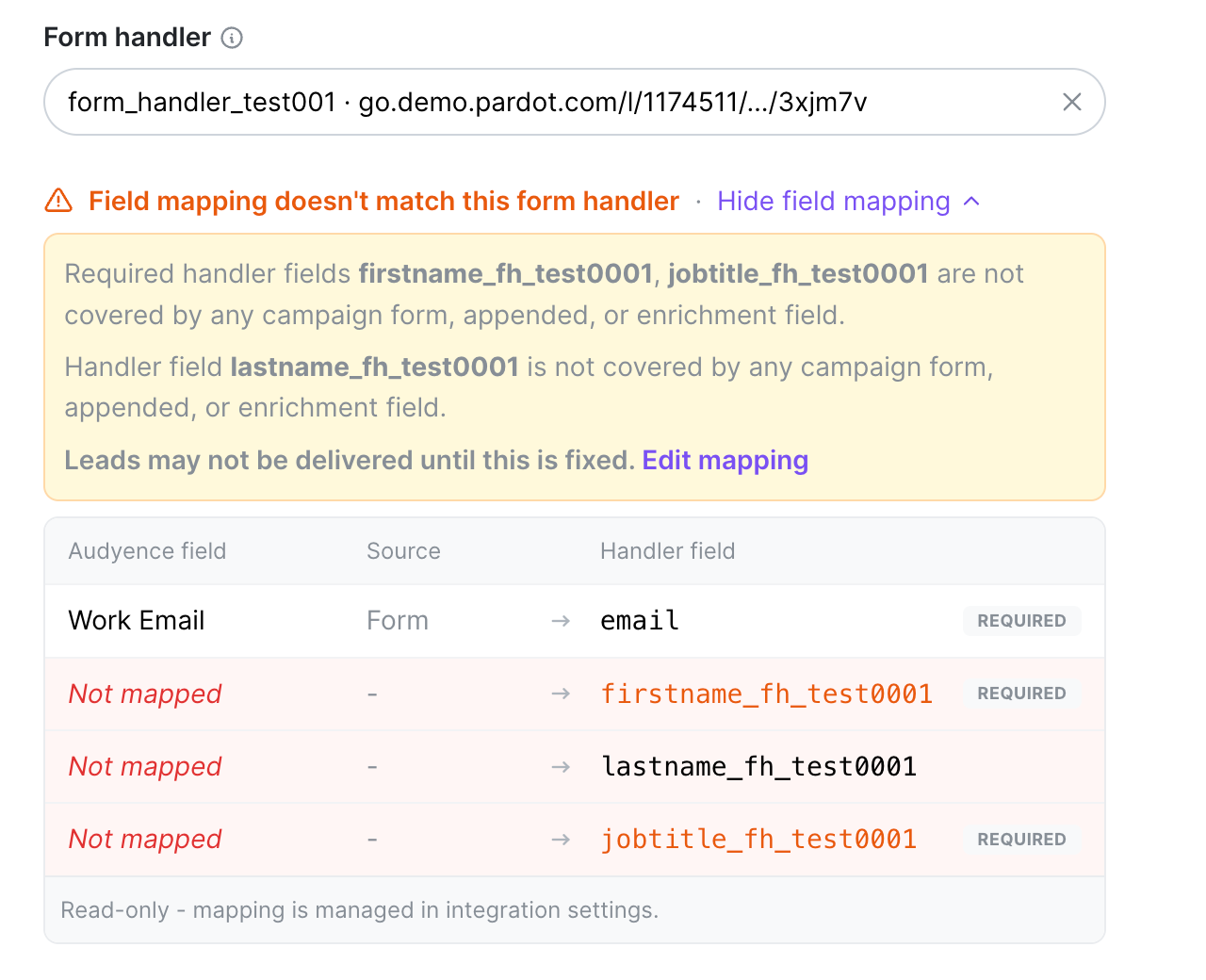
If it matches, you can expand Show field mapping to review the mapping (read-only on the asset).
If it doesn't match, a warning lists the problems. For example:
"This handler expects
FirstName; your mapping sendsfirst_name.""Required handler field
countryis not covered by any campaign form, appended, or enrichment field."Use Edit mapping to open the integration mapping step. Mapping is only edited at the integration level, never on the asset.
Important: A mapping warning doesn't stop campaign setup, but fix it before leads start delivering. A lead isn't sent if a required handler field is missing at delivery time.
Tip: If you change the main mapping later, reopen each asset that uses a form handler so Audyence can check it again.
Step 8: Turn on lead sync for the campaign
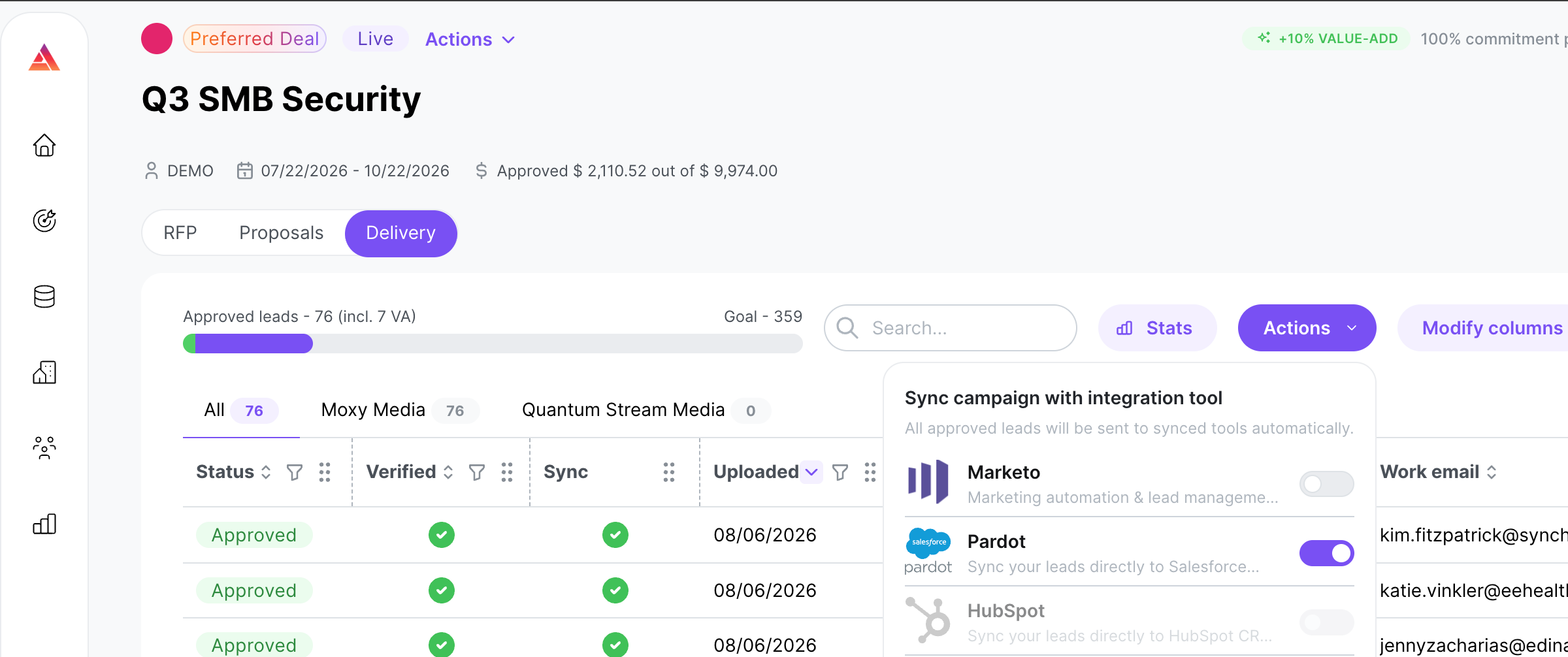
Lead sync is turned on campaign by campaign:
Open the campaign in Audyence.
Click Actions.
Select Sync campaign with integration tool.
Turn on the integration toggle.
From then on, every lead you approve on that campaign is sent to your connected platform. Only approved leads are sent.
Note: Only approved leads are sent, and only after a form handler is selected on the asset the lead converted on. Leads approved before that aren't sent later.
How delivery works
A publisher captures the lead on your campaign landing page. Audyence validates and enriches it. See How Leads Are Delivered.
You approve the lead.
Audyence sends the mapped fields to the form handler of the asset the lead converted on.
The handler's completion action adds the prospect to the Salesforce Connected Campaign for that asset.
If a matching prospect already exists, Account Engagement updates that record instead of creating a duplicate. The prospect's existing Source Campaign (first touch) is left as is.
A campaign with several assets sends each lead to its own asset's handler.
How to check it worked
Approve a lead in a campaign with form-handler delivery turned on.
Wait 1–2 minutes.
Note: In Audyence, open the campaign's lead delivery screen and check the Sync column. Each lead that synced shows a checkmark.
A failed delivery shows Delivery failed with a reason (for example, a missing required field, the endpoint rejecting it, or a timeout). Temporary failures are retried once.
Then, in Account Engagement and Salesforce, confirm:
the prospect exists with the mapped fields
the prospect is a member of the expected Connected Campaign
consent, if mapped, shows the value you set, not a default
Audyence confirms the handler accepted the submission. It doesn't check every field inside Pardot. If campaign membership is missing, check the handler's completion action in Account Engagement.
Tips
Build handlers in sandbox first, connect Audyence with the Sandbox toggle, approve one test lead, then repeat in production.
Keep external field names identical across the handlers you use with one Audyence mapping.
FirstNameandfirst_nameare different fields.Name handlers after the asset or Salesforce campaign so the Audyence dropdown is easy to scan.
Don't map Source Campaign from Audyence if you need first touch kept. Campaign membership belongs on the handler's completion action.
After you change mapping or swap a handler, reopen the asset and approve a new test lead before relying on production delivery.
Troubleshooting
Show troubleshooting table
What you see | What to do |
|---|---|
"Select an integration type to continue" | Choose Direct integration or Form handler, then save. |
"The connected Pardot user's role doesn't have access to these objects" | Reconnect with a user whose Account Engagement role can read form handlers. |
"No form handlers found in your Pardot account" | Create handlers in the same Account Engagement business unit you connected (sandbox vs. production). Reopen the dropdown. |
"This form handler no longer exists in Pardot – select another" | The handler was renamed or deleted. Select a current handler. |
Mapping warning on the asset | Open Edit mapping and line up handler field names (case-sensitive) and required fields. Reopen the asset to check again. |
Lead not sent / Delivery failed: required field missing | Add the field to the campaign form, appended fields, or enrichment, and map it. The lead isn't sent until required handler fields are there. |
Prospect created, but not in the Salesforce campaign | In Account Engagement, confirm the handler's Add to CRM Campaign completion action points at the right Connected Campaign. |
Duplicate or unexpected first-touch campaign | Confirm you're on Form handler (not Direct) and that a completion action you didn't intend isn't overwriting Source Campaign. |
Token expired | Re-authorize Pardot. Your saved mapping is kept. |
If problems continue:
Tip: Contact support@audyence.com for campaign questions, platform feedback, or anything else.
Include the campaign name, asset name, handler name, and the delivery failure reason from the Sync column.