6sense Integration Setup Guide
Last updated: October 13, 2026
What this is
Connect 6sense to Audyence to use 6sense's AI-powered account intelligence in your campaigns. Once connected, you can use your 6sense Target Account Lists (TALs) right inside your Audyence campaigns, so you reach the right accounts at the right time.
With 6sense connected, you can:
use your 6sense Target Account Lists (TALs) directly in Audyence
build data-driven campaigns that target high-intent accounts
keep account intelligence in sync across both platforms
use AI-powered buying signals in your lead generation
Key takeaway: Go to Data → Integrations, click Connect on 6sense, and paste your 6sense API Token. Your 6sense TALs then show up in the audience targeting step of any RFP, where you click + Add TAL to use them.
Connect 6sense to Audyence
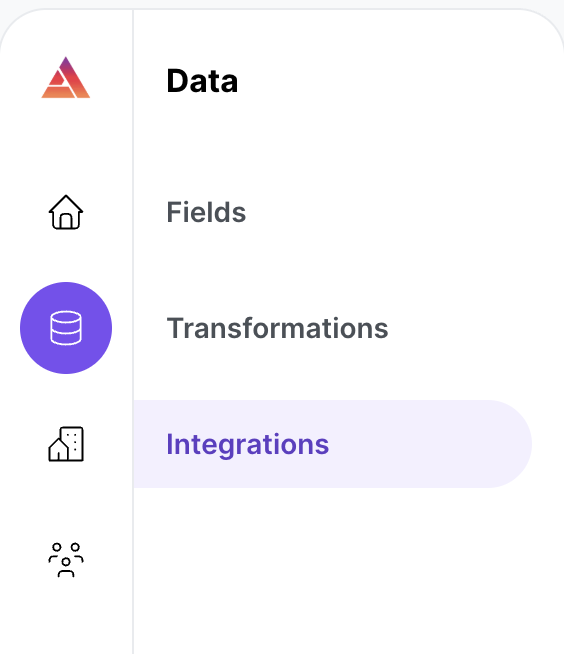
Step 1: Open integration settings
Tip: To find integrations in Audyence, go to Data → Integrations in the left navigation.
Log in to your Audyence account and open the integrations page.
Step 2: Start the 6sense connection
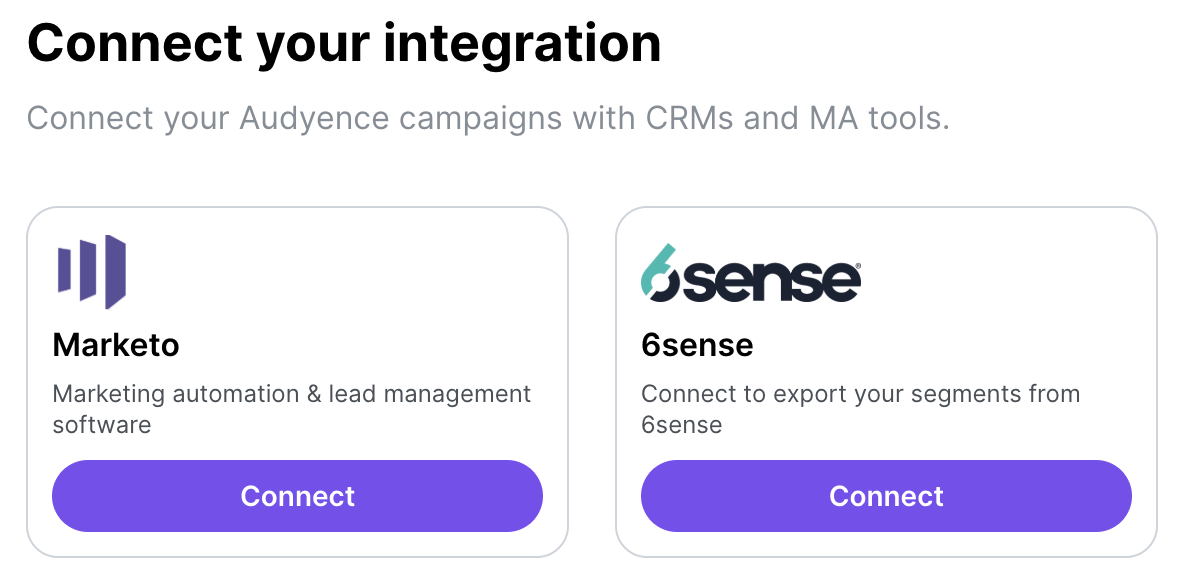
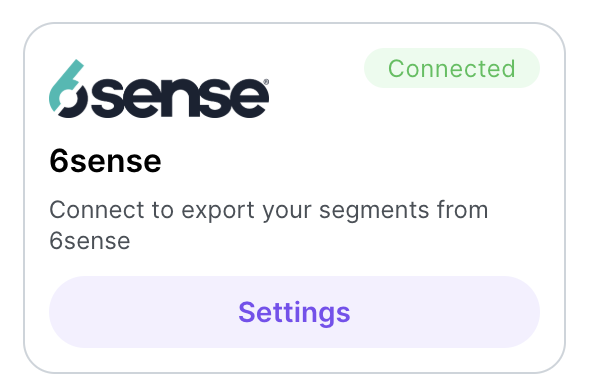
Find 6sense in the integrations list and click Connect.
Step 3: Enter your token
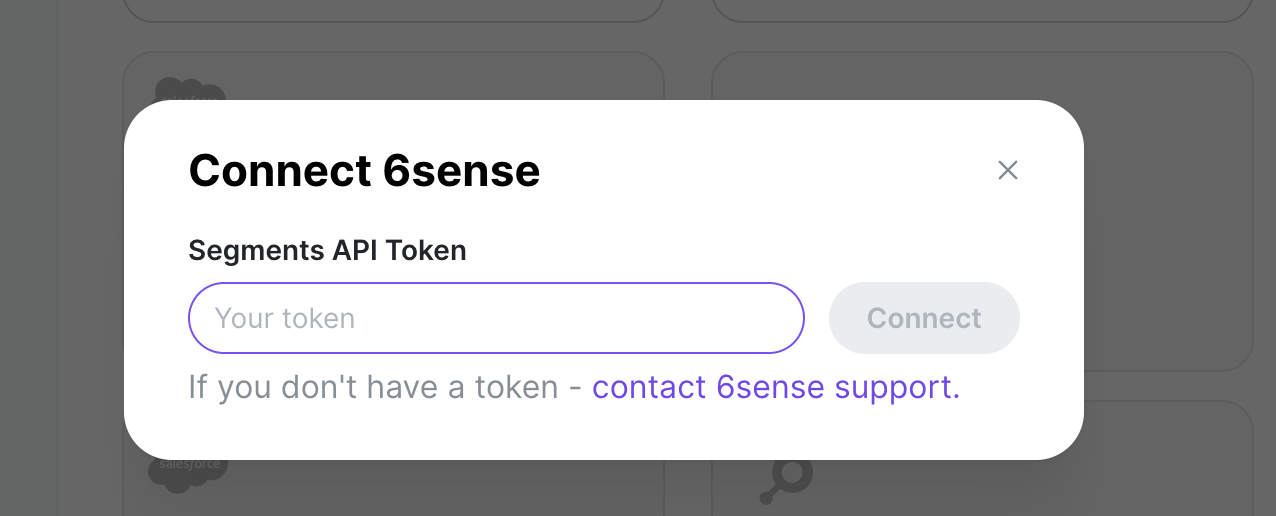
Enter your 6sense API Token in the field.

Important: The token must have Segment ID + Name set in its 6sense configuration. See 6sense API settings for segments and scores.
Tip: Don't have your token? Find it in your 6sense account settings under API Credentials, or ask 6sense support.
Click Connect.
Step 4: Confirm the connection
When the token is accepted, a confirmation pop-up shows your 6sense account is connected. Your 6sense integration is now active.

Use 6sense TALs in your campaigns
Once connected, you can use your 6sense Target Account Lists in any RFP campaign.
Create or edit an RFP the usual way.
When you reach the audience targeting section, your 6sense TALs are available.
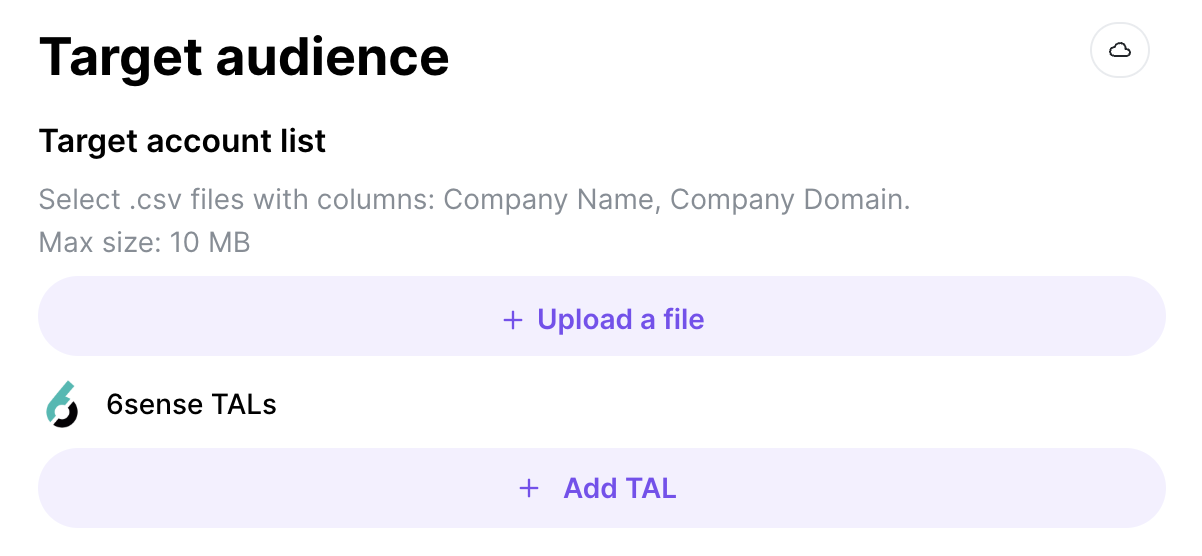
Click + Add TAL to browse your Target Account Lists.
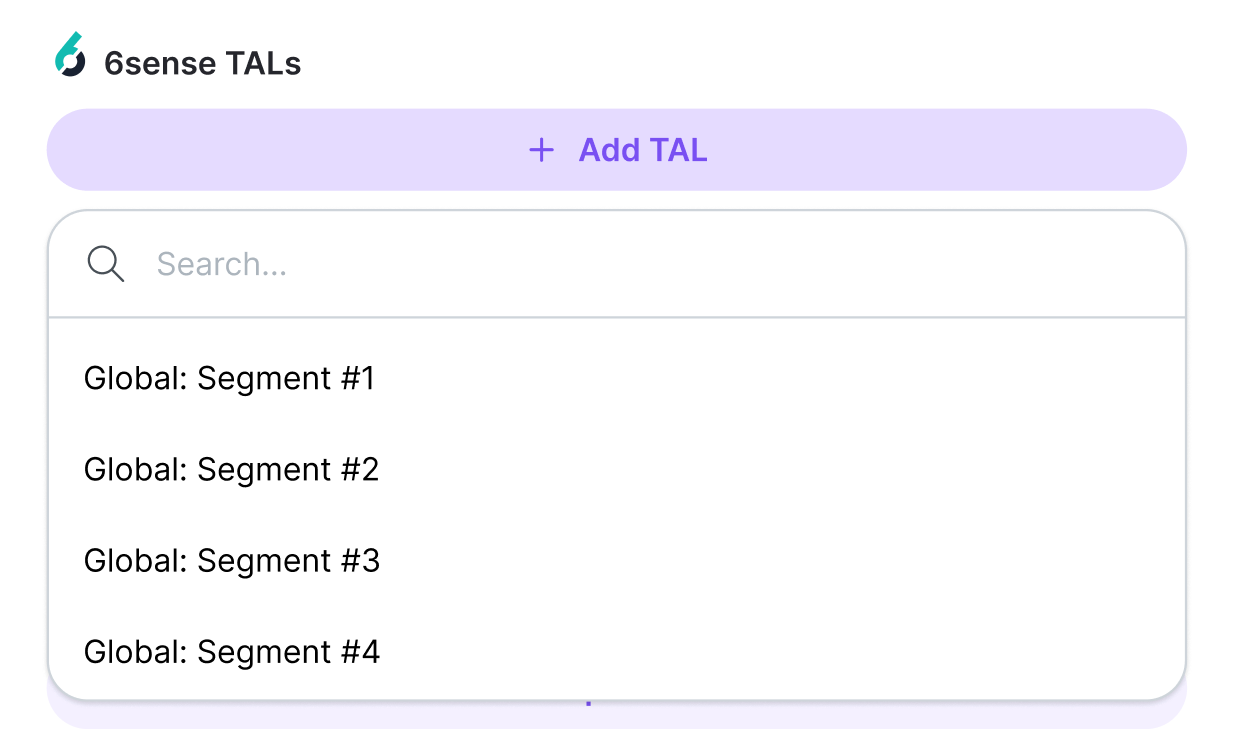
Search for and select the TAL(s) you want to target in this campaign.
Continue with the usual RFP steps to finish your campaign.
Your campaign now targets the accounts in your 6sense TALs.
Tip: You can select several TALs for one campaign to widen your reach while keeping your account focus.
Disconnect 6sense
Need to disconnect or switch accounts?
Go to Data → Integrations in the left navigation.
Click Settings on the 6sense integration card.
Click Disconnect to remove the integration.
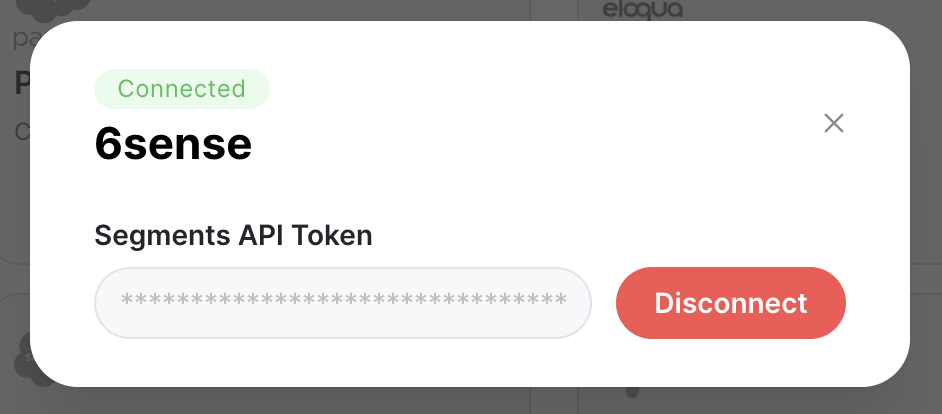
Warning: Disconnecting removes access to all 6sense TALs for new RFPs. Active campaigns already using these TALs aren't affected.
Note: You may need to refresh your browser to see the change.
Need help?
If you run into problems during setup:
Check that your 6sense API token is valid and has the right permissions.
Ask your 6sense administrator to make sure API access is turned on.
Tip: Contact support@audyence.com for campaign questions, platform feedback, or anything else.
Next steps
Explore your available Target Account Lists.
Create your first 6sense-powered campaign.
Track account engagement and conversion rates.