Localization: Running Campaigns in Multiple Languages
Last updated: November 12, 2026
What this is
With the launch of Localized Campaigns, Audyence campaigns can run in languages other than English. You turn on the languages your account works in, Audyence translates your lead form fields and consent text into them, and you set each campaign to run in one of those languages.
Note: Each campaign runs in exactly one language. To run the same offer or asset in two languages, create a separate campaign for each language.
Landing pages, thank-you pages, lead forms, and consent are produced in that language. Publishers working your campaign also get a fields requirements template in it.
This article explains how to turn on a language and set a campaign's language. It covers what is and isn't translated, and what happens when you change a language. It also covers how Target Account Lists and lead data work in other languages.
Key takeaway: One language per campaign. To run the same offer or asset in two languages, create a separate campaign for each language. Add languages in Settings → Languages, review the automatic translations, then pick the Campaign Language while the campaign is still in Draft. After the RFP goes out, the language is locked. Typed answers reach you in the lead's language, exactly as written. Most people set pick-list base values in English. Audyence translates the options the lead sees on the form, and you receive the English base value. If you want those answers in another language, set the base value in that language.
Supported languages
English is the default language of every account and can't be removed. 22 other languages are available:
Arabic (العربية) | German (Deutsch) | Portuguese – Brazil (Português) |
Bengali (বাংলা) | Hebrew (עברית) | Spanish – Latin America (Español) |
Chinese – Simplified (简体中文) | Hindi (हिन्दी) | Spanish – Spain (Español) |
Chinese – Traditional (繁體中文) | Indonesian (Bahasa Indonesia) | Swedish (Svenska) |
Dutch (Nederlands) | Italian (Italiano) | Thai (ไทย) |
French – Canada (Français) | Japanese (日本語) | Turkish (Türkçe) |
French – France (Français) | Korean (한국어) | Vietnamese (Tiếng Việt) |
Polish (Polski) |
Note: Arabic and Hebrew are written right to left. Landing pages and thank-you pages generated in these languages use a right-to-left layout.
See it in action: This short walkthrough shows all three steps: turning on a language in Settings → Languages, setting the Campaign Language, and reviewing the landing page in that language.
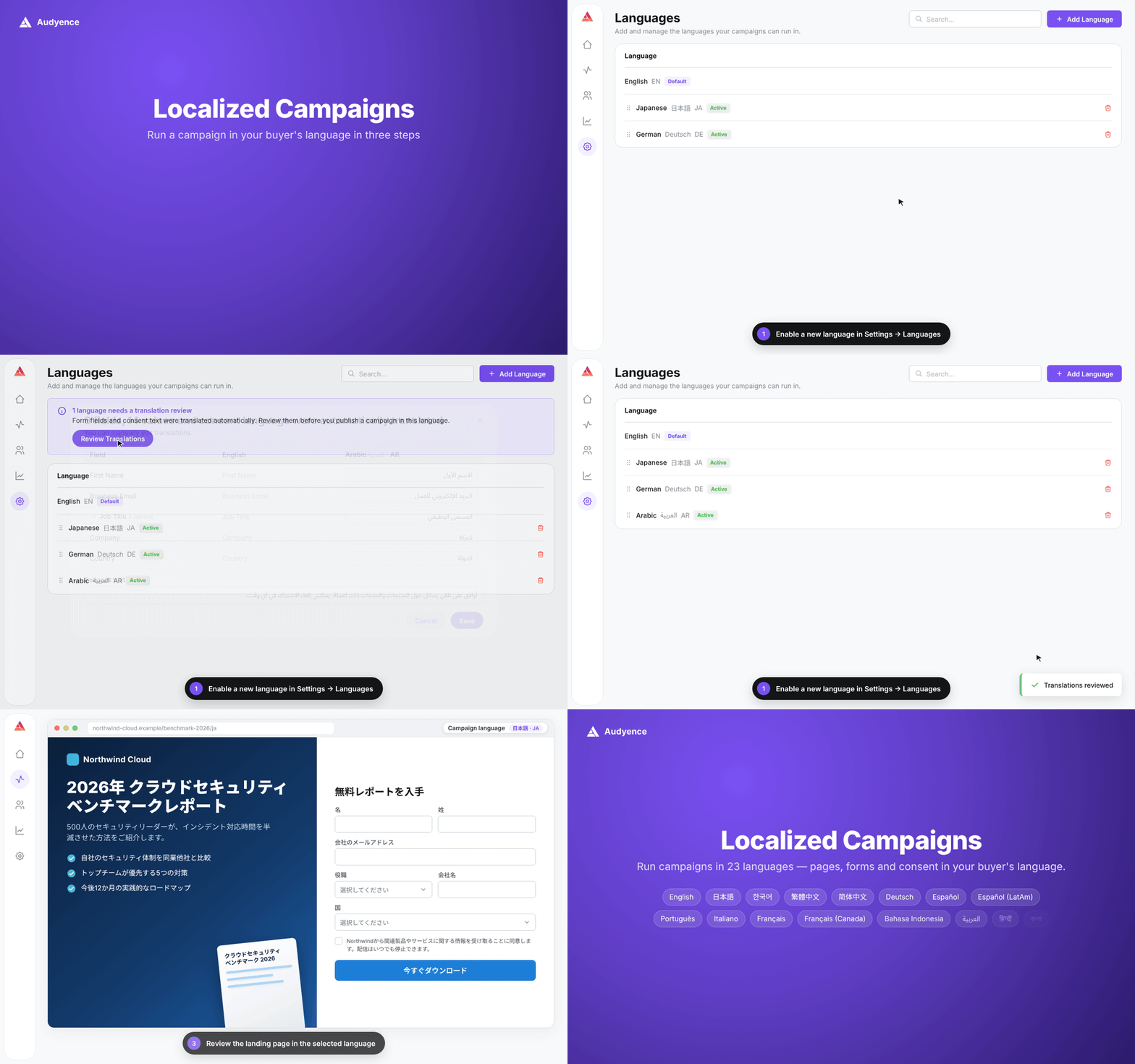
Localized campaigns in three steps (about 20 seconds, loops).
Step 1: Turn on the languages your account uses
Go to Settings → Languages. The page lists every language turned on for your account, with English pinned first as the default.
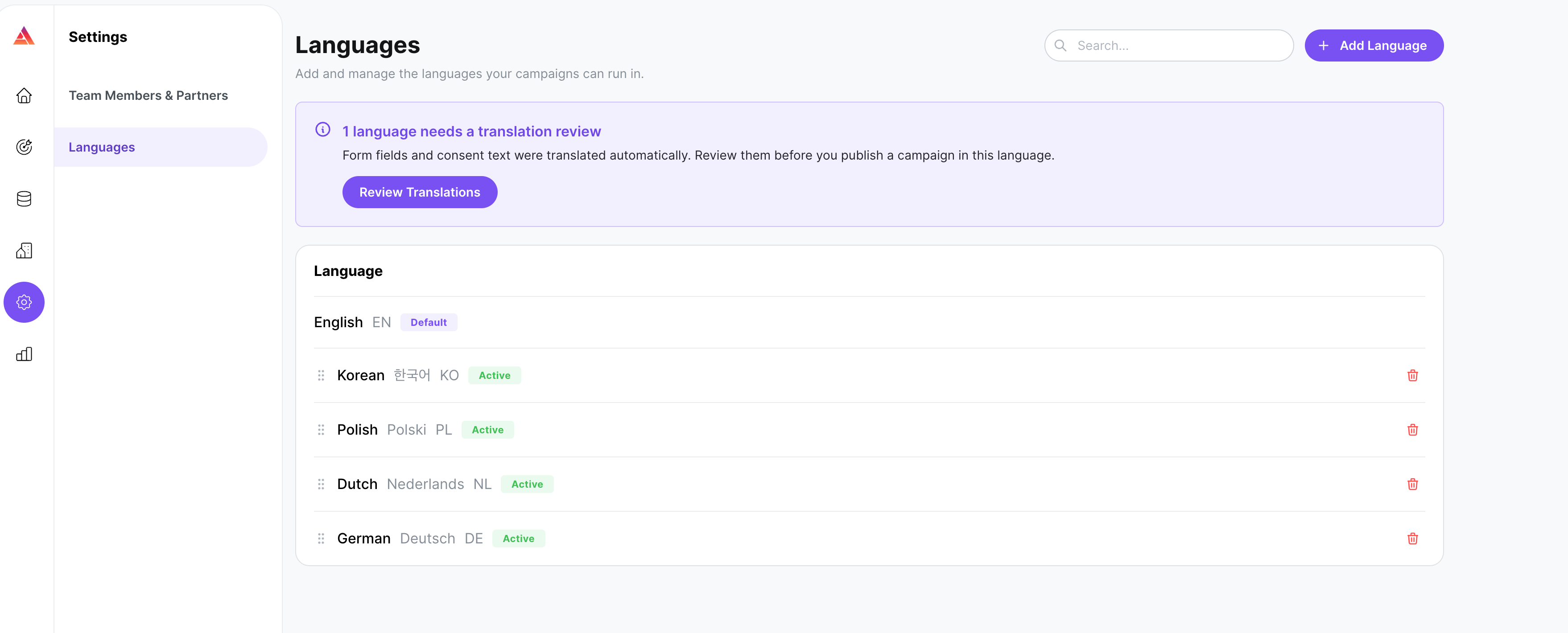
Action | What it does |
|---|---|
Add Language | Opens the catalog. Select one or more languages and save. Each one is added to your list. |
Reorder | Drag languages into the order you want them offered in campaign selectors. English always stays first. |
Search | Filters the list by the language's English name. |
Delete | Removes a language (see Removing a language below). |
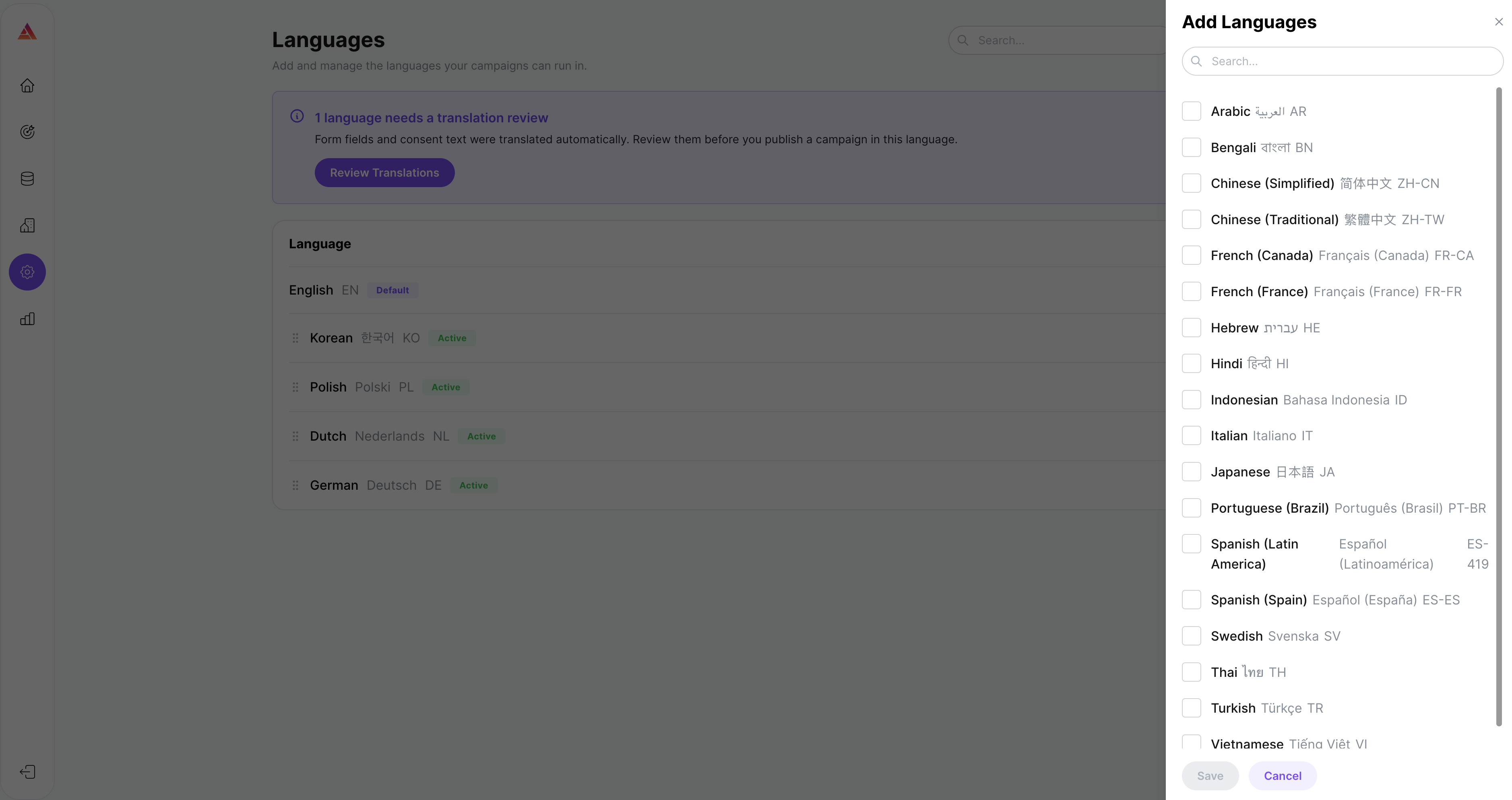
Important: Agencies: languages are set per client. Choose the client at the top of the page. The languages you add there are the ones that client's campaigns can run in, whether the agency or the client builds the campaign.
What happens when you add a language
As soon as you add a language, Audyence automatically translates into it:
the labels of your lead form fields
their allowed values and qualifying-question answer options
your consent text
Translation runs in the background. The language appears in your list right away while the text is still being produced.
Step 2: Review the translations
A banner at the top of the Languages page shows how many languages are waiting for review.
Click Review Translations. The review table shows fields down the left, one column per language, and every automatic translation in an editable box.
Expand a field to see and edit its response options. Consent text is reviewed below the table.
Correct anything that needs it, then click Save.
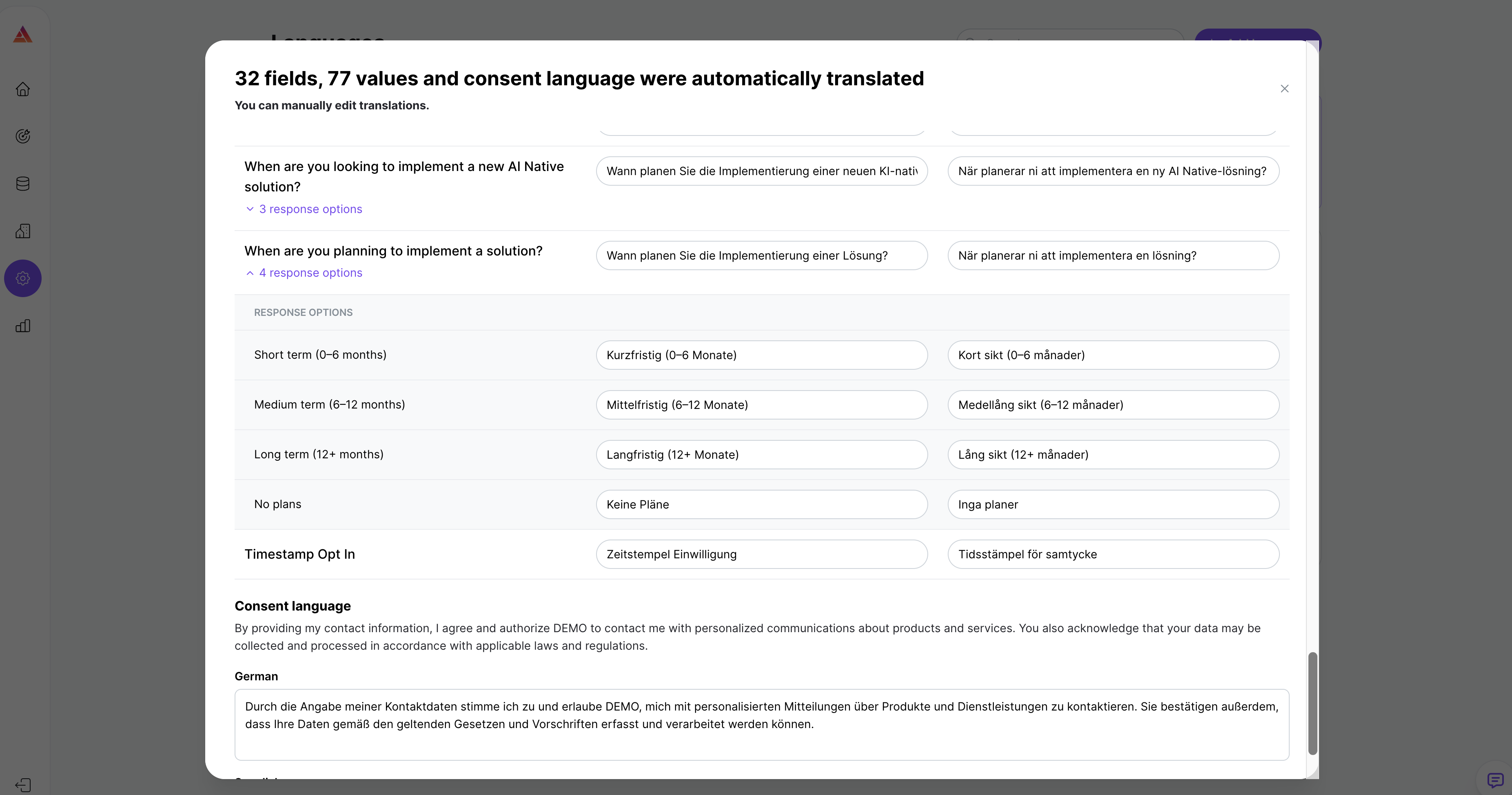
Your edits replace the automatic translation and are never overwritten by a later automatic run.
Tip: Review before you launch a campaign in that language. Reviewing isn't required: you can create a campaign in a language before its translations are reviewed. But the review banner stays until you save, and campaign steps show a reminder while a language is unreviewed.
Note: If a language's translations are still being generated, it's held back from the review save and stays pending until the text arrives. Reopen the review in a moment.
Removing a language
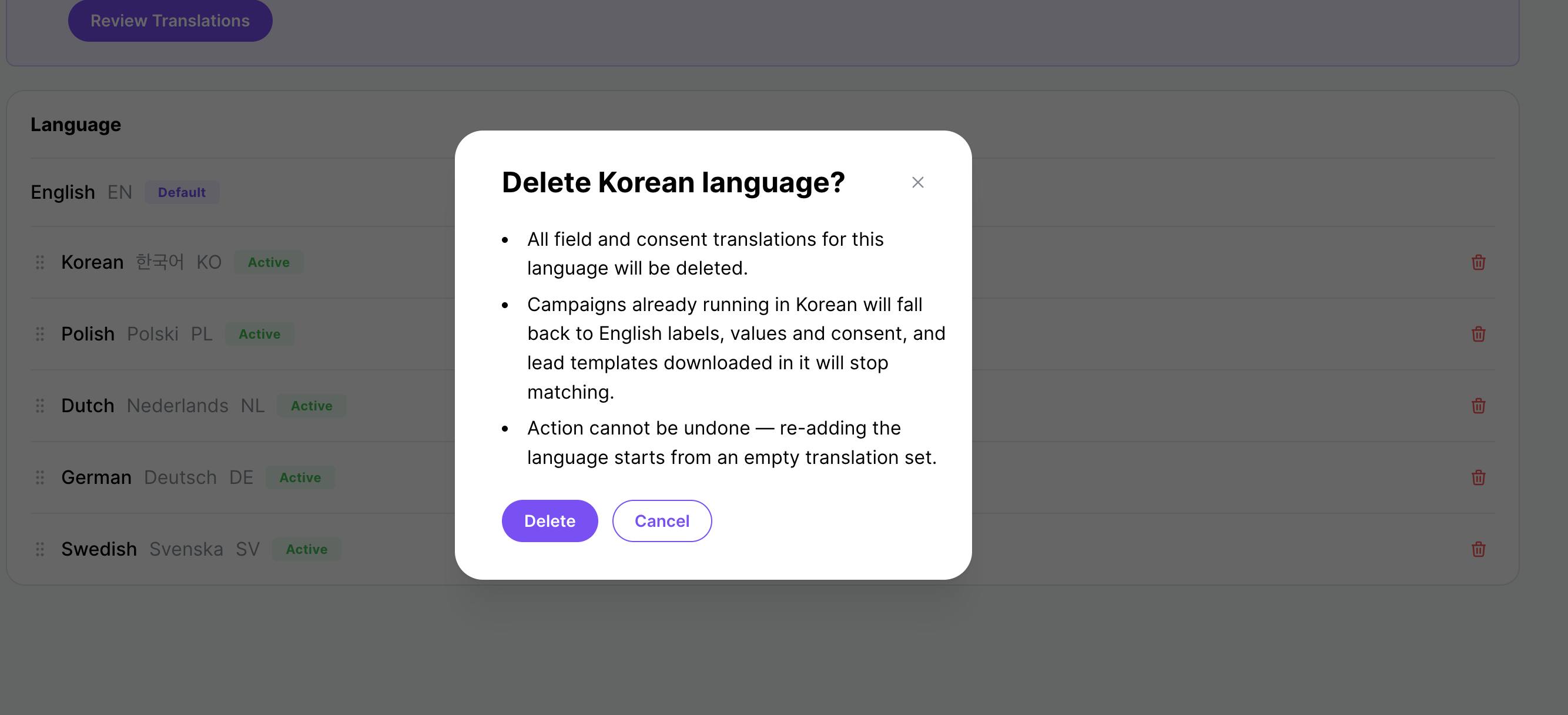
Warning: Deleting a language is permanent.
All field and consent translations for that language are deleted.
Campaigns already running in it fall back to English labels, values, and consent.
If you add the language again later, it starts with no translations and automatic translation runs again.
English can't be deleted.
Step 3: Set the campaign language
On the Main information step of campaign creation, choose the Campaign Language. The selector offers the languages turned on for the account (for agencies, the selected client's languages). Each one shows its native name, English name, and code, for example 한국어 (Korean) · KO.
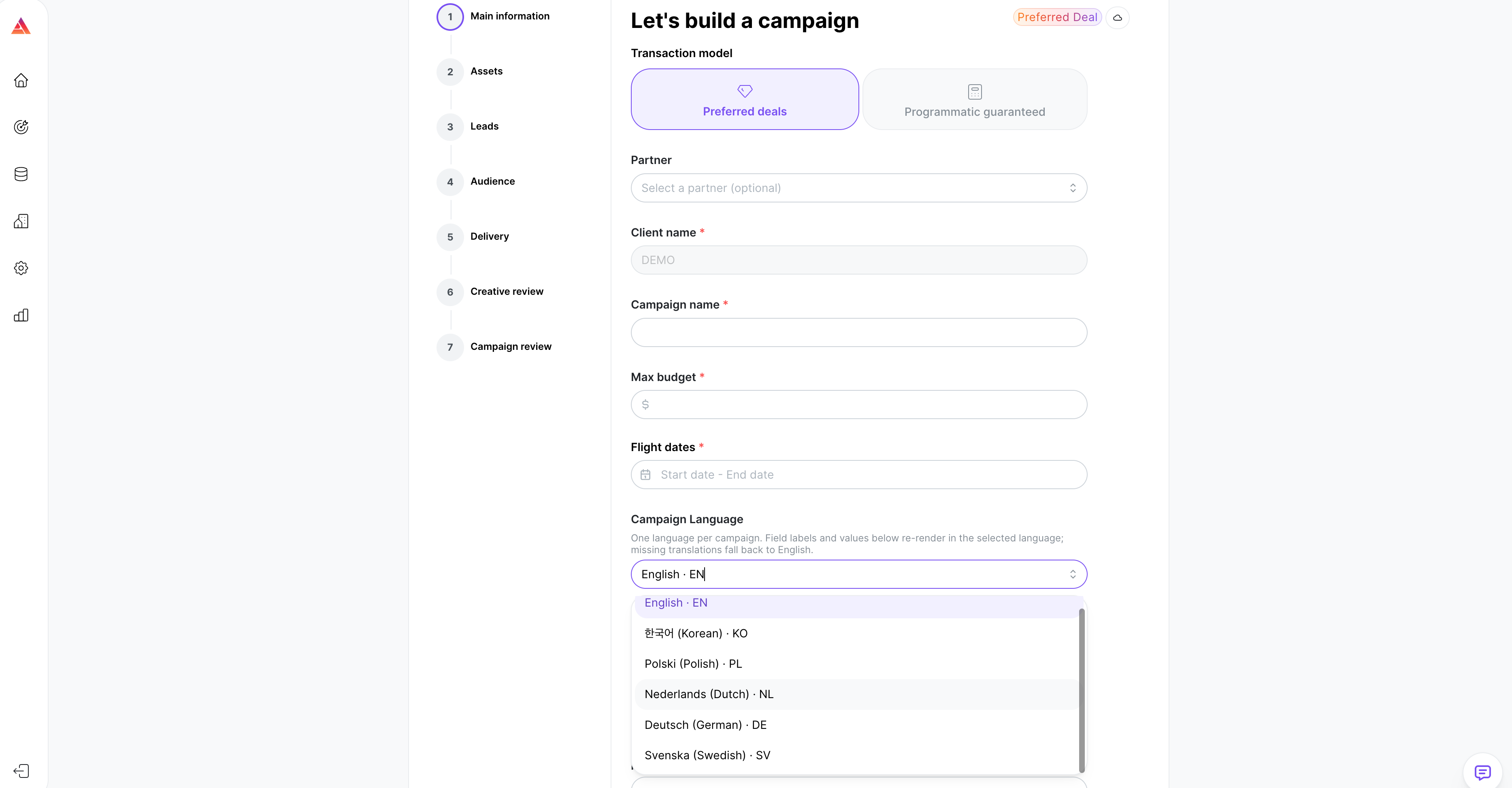
Important: A campaign can run in only one language. To run the same offer or asset in two languages (for example, English and German), create a separate campaign for each language and set its Campaign Language here.
Warning: You can change the language only while the campaign is in Draft. From the RFP onward it's locked and shown read-only, because publishers proposed against that language. If you try to change it, you'll see: "Campaign language cannot be changed while the campaign is [status]." To run in a different language after that, create a new campaign.
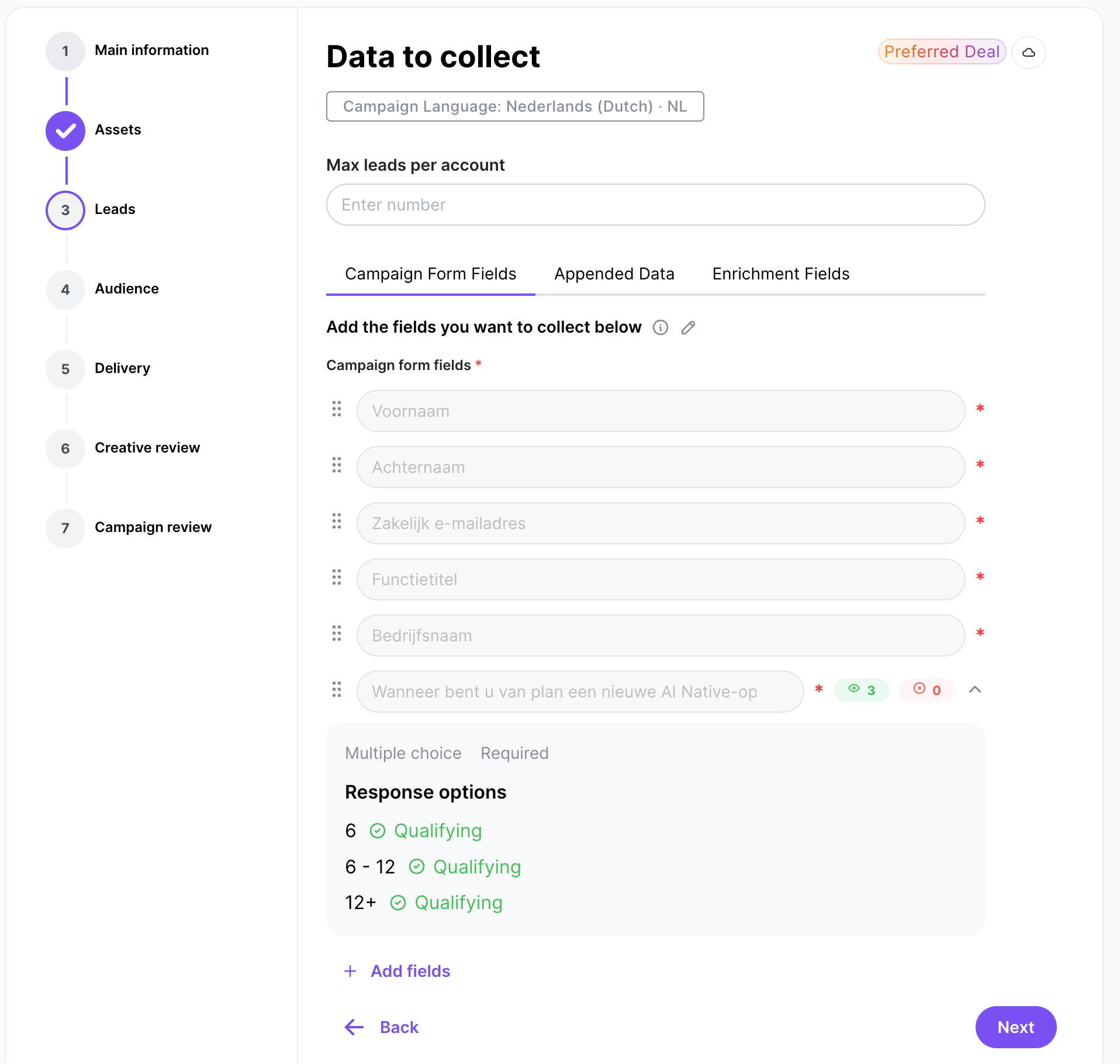
The Data to collect step and Creative review show the campaign's language on a chip, so you always know which language the form labels and page copy are in.
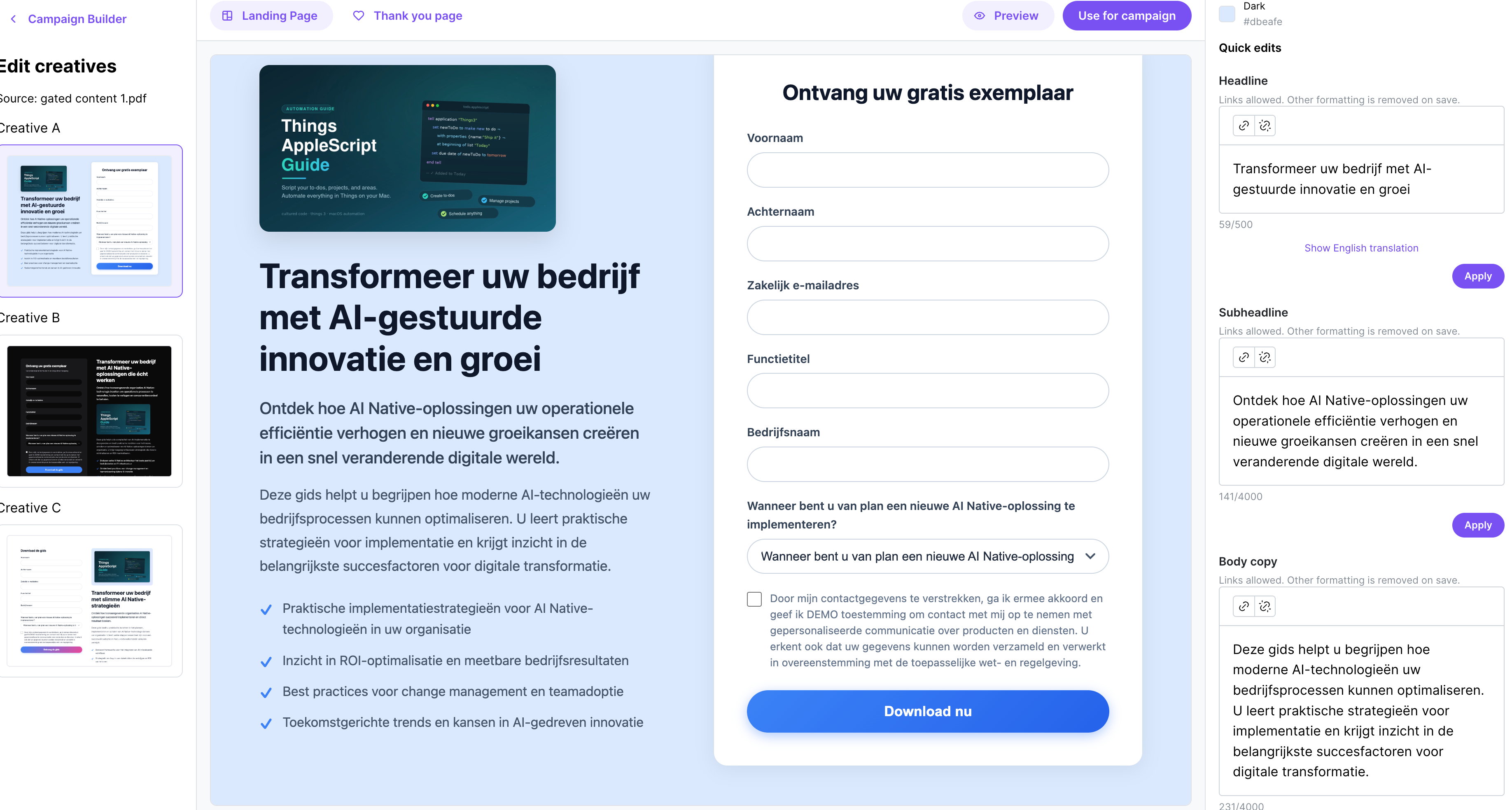
What runs in the campaign language
Element | Language |
|---|---|
Landing page headline, body copy, benefits, form heading, CTA button | Campaign (localized) language |
Thank-you page copy | Campaign (localized) language |
Form field labels shown to the lead | Campaign (localized) language (your reviewed translations) |
Dropdown and multi-select options shown to the lead | Campaign (localized) language (your reviewed translations) |
Consent text on the page | Your translated consent for that language |
Page direction | Right to left for Arabic and Hebrew |
Lead upload template sent to publishers | Campaign language headers, with an example row |
What stays in English
Field names, and the stored values of pick-list and question answers (in Audyence).
Most people enter the "base value" in English.
Audyence translates the options the lead sees on the landing page form, and you receive the English base value in Audyence. A lead who picked the Korean version of Director is delivered to you as Director. That keeps your CRM mapping, reporting, and integrations working.
If you want those answers in another language, set the base value as that word in that language.
Typed answers work differently: see The lead data you receive below.
Anything without a translation. Fallback works item by item, not page by page. An untranslated field label, option, or consent text shows in English while everything around it stays translated. The campaign steps flag which items fell back, so you can fix them in Settings → Languages.
The Audyence platform interface, which stays in English for all users.
The lead data you receive
Audyence does not translate what the lead typed. What you receive depends on whether the answer was typed or picked from a list.
What the lead entered | What you receive |
|---|---|
Typed fields:
| Exactly as the lead wrote it, in the original language. No translation. |
Dropdown, multi-select, and qualifying-question answers | Usually the English base value. Audyence translates the option the lead sees on the form, and you receive the base value in your Audyence dashboard. To receive the answer in another language, set the base value in that language. |
Email address | As entered. Use an email address in Latin characters. Email validation can't check non-Latin addresses, which are rare. |
Name, company, title, and custom answers can use any language or writing system. Japanese, Chinese, and Korean names, including single-character names, are allowed.
Tip: The campaign leads CSV download is UTF-8. Double-clicking it in Excel can display Japanese and other non-Latin characters as gibberish. Open it through Excel's Data → From Text/CSV import, which shows the text correctly. See How to Download Approved Leads from a Live Campaign.
Receiving pick-list values in English
Most people enter pick-list and qualifying-question base values in English.
Audyence translates the options the lead sees when filling out the form on the landing page. The value the lead selects maps one to one back to its base option.
You receive the English base value. That keeps your CRM mappings working.
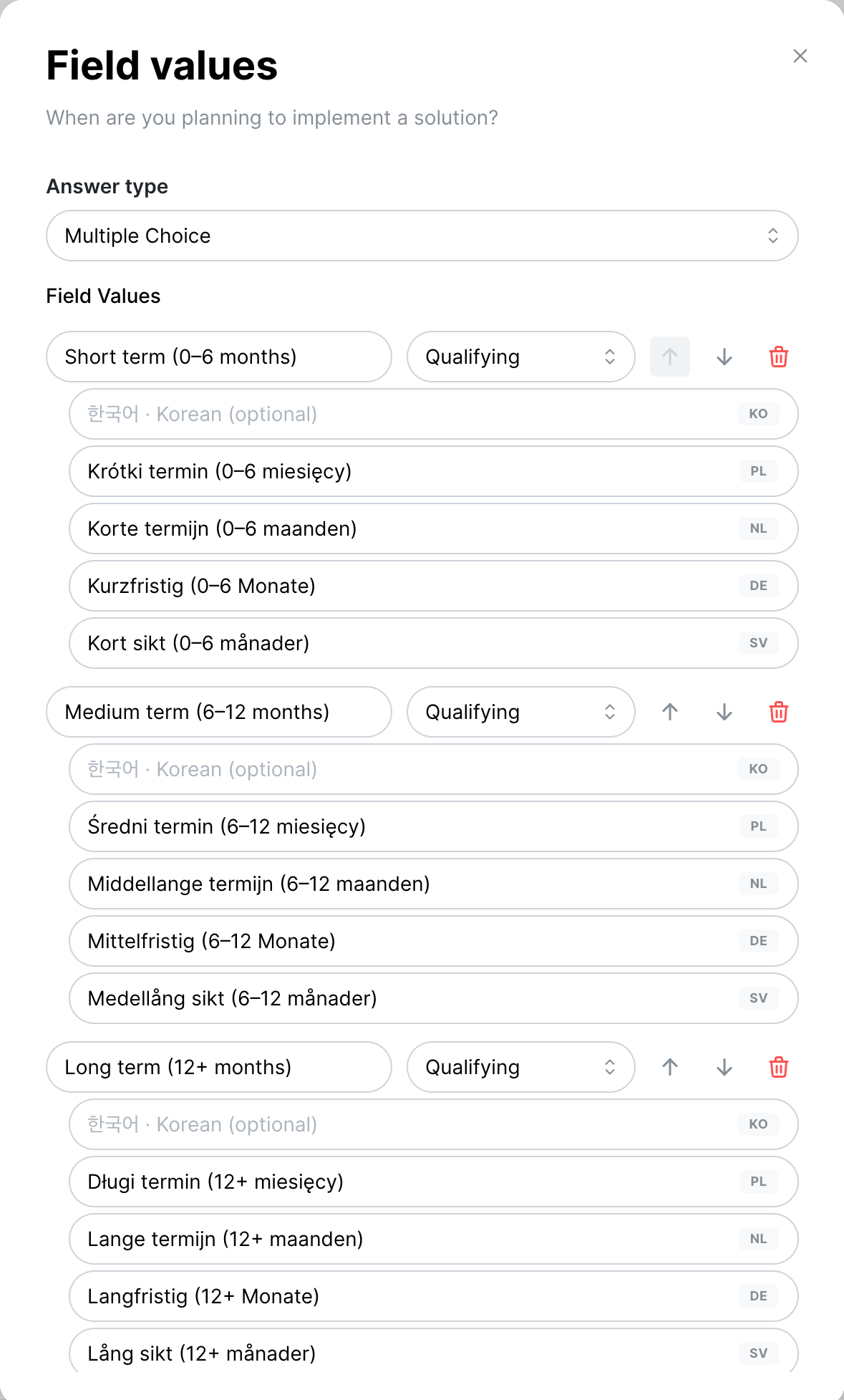
This is the most common setup. The base options are in English, and Audyence translates the options the lead sees on the form. A lead who picks the German variant of Short term (0-6 months) is delivered as Short term (0-6 months).
How to receive pick-list values in another language
If you want to receive those Field Value answers in another language, set the base value as that word in that language. Then you receive the answer in that language, exactly as defined.
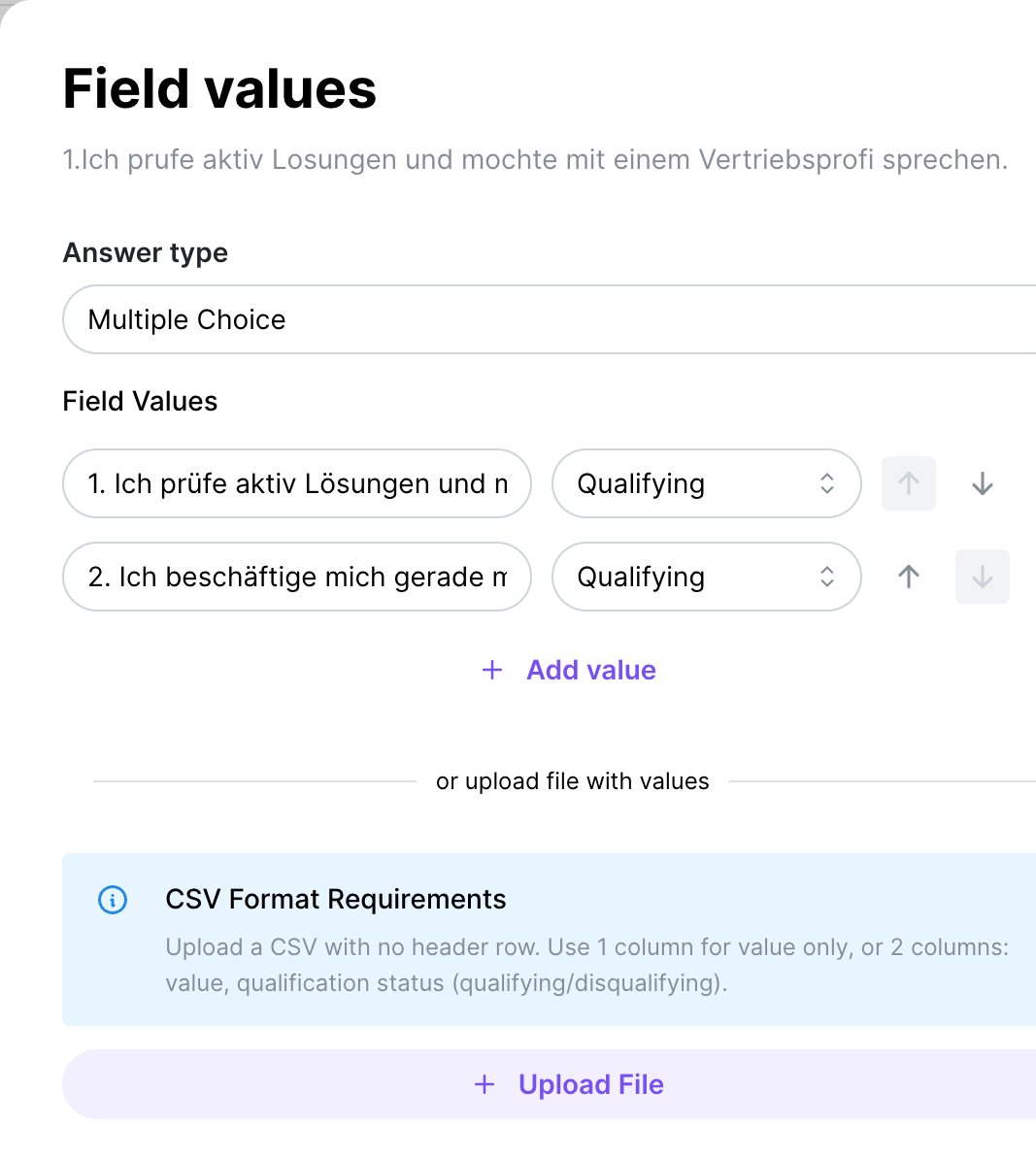
In this example, the questions were created as standalone fields, and the base value was set in German. The answers arrive in German, exactly as defined.
Target Account Lists and file encoding
A Target Account List does not need to be in Latin characters. Audyence doesn't validate the list for language or script. Company names can be uploaded in any language, including Japanese, Korean, and Chinese.
Matching uses the company domain, which is also used later in lead validation. Use a domain in Latin characters when you can. Non-Latin domains exist, but they're rare, and a Latin domain gives the most reliable match.
Important: Save Target Account Lists and lead files as UTF-8 CSV. A file saved in another encoding, such as Shift-JIS from Japanese Excel, comes through garbled, with no error shown. A UTF-16 file is refused at upload.
Changing things after pages are generated
If you change… | What happens |
|---|---|
The campaign language (Draft only) | Every generated landing page is regenerated in the new language. Templates you'd already selected, and ones already submitted, go back to Ready, so you must review and select again. Custom pages that Audyence built for you are flagged, not regenerated: request a new custom page in the new language. |
Your consent text, or its translation for a language | The pages that include it are regenerated. Pages already submitted keep the copy they were committed with. Pages not yet submitted are refreshed. |
A consent translation in the review table | Same effect for campaigns running in that language: their pages are regenerated so leads never see outdated consent copy. |
Tips
Add and review your languages before you build the campaign. The landing page is generated from your reviewed labels, options, and consent.
Decide the language in Draft. It can't be changed once the RFP goes out.
Check the fallback indicators on Data to collect and Creative review. They name exactly which labels or values still show in English.
Keep your consent text stable once a campaign is live. Every change asks publishers to redeploy the refreshed page.
Agencies: set languages on the client, not on the agency account.
Save Target Account Lists and lead files as UTF-8 CSV so non-Latin characters come through correctly.
For company domains on a Target Account List, use Latin characters when you can.
Frequently asked questions
Can I run one campaign in more than one language?
No. Each campaign runs in one language. To run the same offer or asset in two or more languages, create a separate campaign for each language and choose its Campaign Language on the Main information step while it's in Draft.
Does the Target Account List need to be in Latin characters?
No. Company names can be uploaded in any language, including Japanese, Korean, and Chinese. Audyence doesn't require Latin characters on the list itself. Matching uses the company domain, so use a domain in Latin characters when you can. Non-Latin domains exist, but they're rare, and a Latin domain gives the most reliable match.
Can I receive responses in the lead's original language?
Yes, for anything the lead types. First name, last name, job title, company, and free-text answers are stored exactly as the lead wrote them. They're sent to your CRM with no translation. Japanese, Chinese, and Korean names, including single-character names, are allowed.
Most people set pick-list and qualifying-question base values in English. Audyence translates the options the lead sees on the form, and you receive the English base value. If you want those answers in another language, set the base value as that word in that language. Then you receive that wording exactly as defined.
What if I set the pick-list base value in another language?
Set the base value as that word in the other language. You then receive the answer in that language, exactly as defined. The usual setup is still an English base value, with Audyence translating the options the lead sees on the form.
Do email addresses need to be in Latin characters?
Yes. Use an email address in Latin characters. Email validation can't check non-Latin addresses. In practice this almost never comes up.
What file format should I use for lists with non-Latin characters?
Save Target Account Lists and lead files as UTF-8 CSV. A file saved in another encoding, such as Shift-JIS from Japanese Excel, comes through garbled. A UTF-16 file is refused at upload.
Why do non-Latin characters look wrong when I open the leads CSV in Excel?
The download is UTF-8. Double-clicking the file in Excel can display Japanese and other non-Latin characters incorrectly. Open it through Excel's Data → From Text/CSV import instead, which shows the text correctly.