How to Submit an RFP with Contact-Level Suppression
Last updated: November 10, 2026
What this is
How to keep specific people out of your campaign's leads when you send an RFP. You upload a list of contacts at the last step and add a note that tells publishers to skip them.
Why it matters: the suppression list in the Audience step works only for whole companies. This is how you suppress individual contacts, such as people you already have in your database.
Key takeaway: Finish your RFP as usual. At step 7, Campaign review, upload your contact list under Upload your documents. Then add a note in Notes that names the file and asks publishers not to send leads for anyone on it. Publishers you add later also see the file and the note.
Words to know
RFP: the campaign brief an advertiser sends to publishers.
Account-level suppression: keeping whole companies out of your campaign. You set it with the suppression list in the Audience step.
Contact-level suppression: keeping specific people out of your campaign, even when their company is still in your audience.
Contact suppression file: the list of people you don't want leads for. You upload it with your RFP.
Allocation: the share of the campaign budget given to one publisher.
Before you start
Have your contact list ready as a file:
File types: .pdf, .doc, .docx, .xls, .xlsx, .csv, or .zip
Maximum size: 10 MB
Columns: at least each person's name and email. See What to include in your file below.
Tip: Give the file a clear name, such as Contact suppression - Q1 cloud campaign.csv. You'll type the same name in your note, so publishers can find it fast.
Steps
Step 1: Set up your RFP up to Campaign review
Build your RFP as usual, through Main information, Assets, Leads, Audience, Delivery, and Creative review.
Click Next until you reach step 7, Campaign review.
You'll see the full RFP to review before you send it.
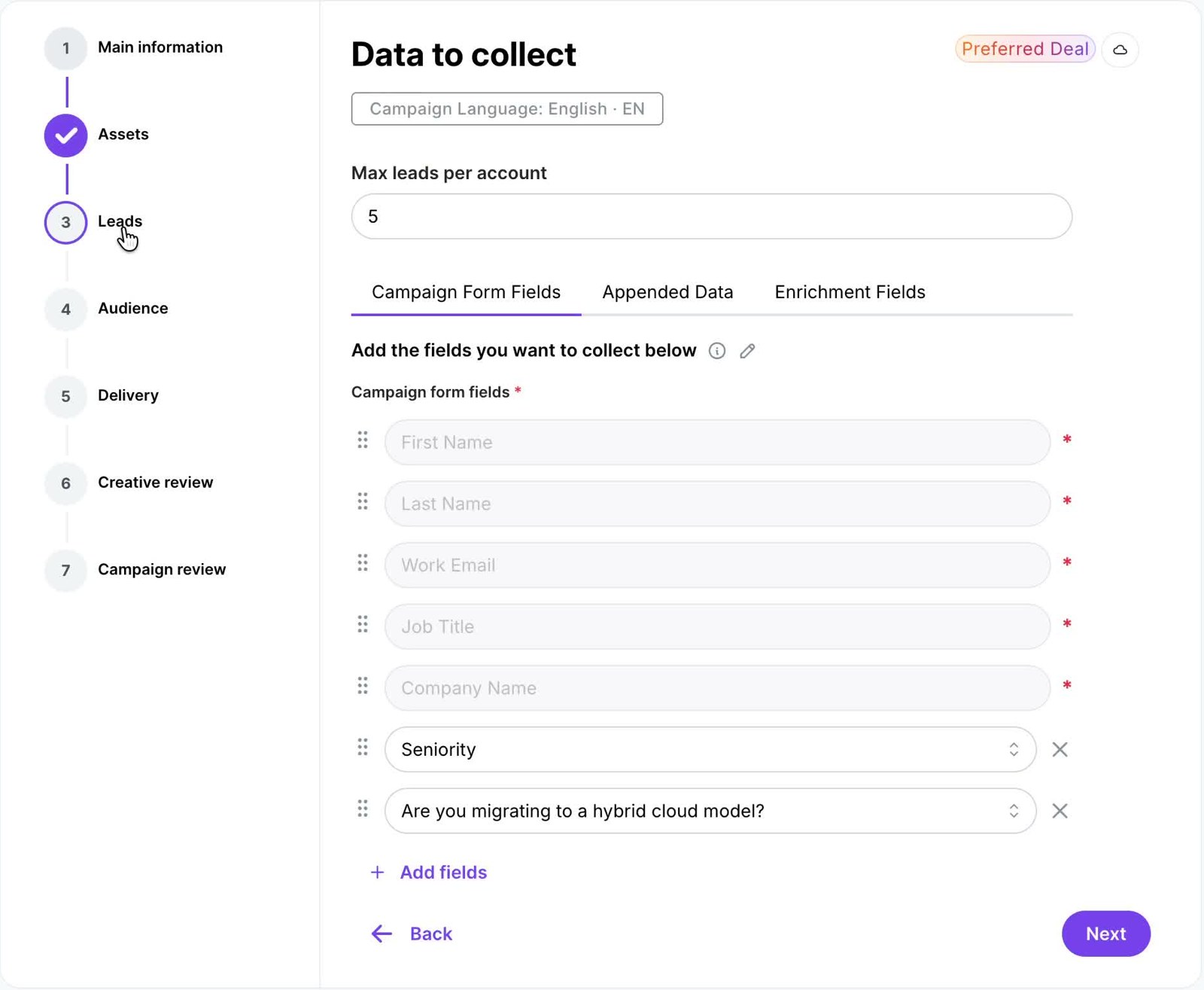
Watch this step on Loom (0:13)
Note: Don't put individual contacts in the Audience step's suppression list. That list works at the company level only. For people, use the steps below.
Step 2: Upload your contact suppression file
Scroll to the bottom of Campaign review, to Last step before you send your RFP.
Under Additional documents, find Upload your documents.
Click Upload a file and choose your contact list.
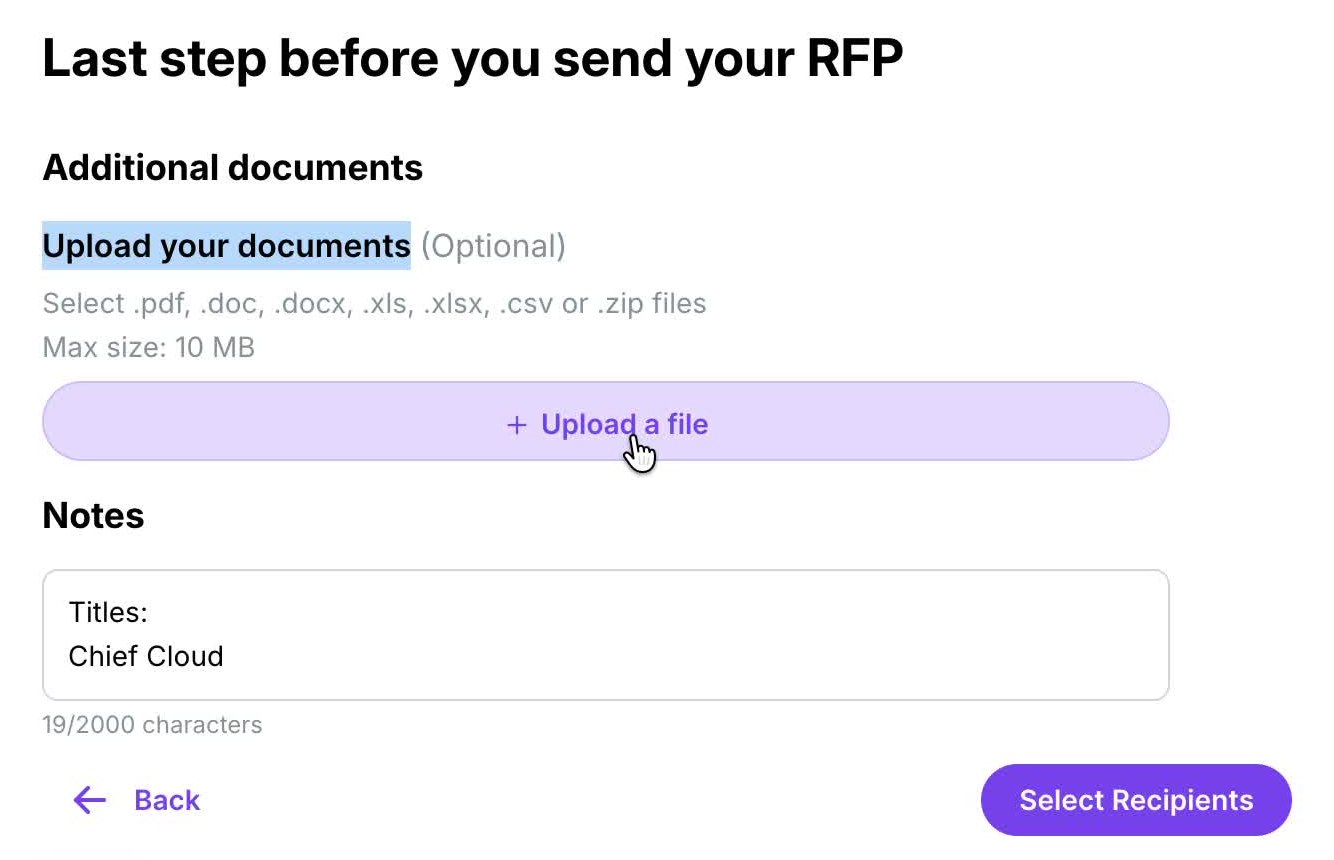
Watch this step on Loom (0:36)
Step 3: Add a note for publishers
In Notes, say that the campaign includes contact-level suppression.
State the campaign objective, for example net new leads.
Ask publishers to review the attached file, and give its exact file name.
Ask them not to send leads for anyone on the list.
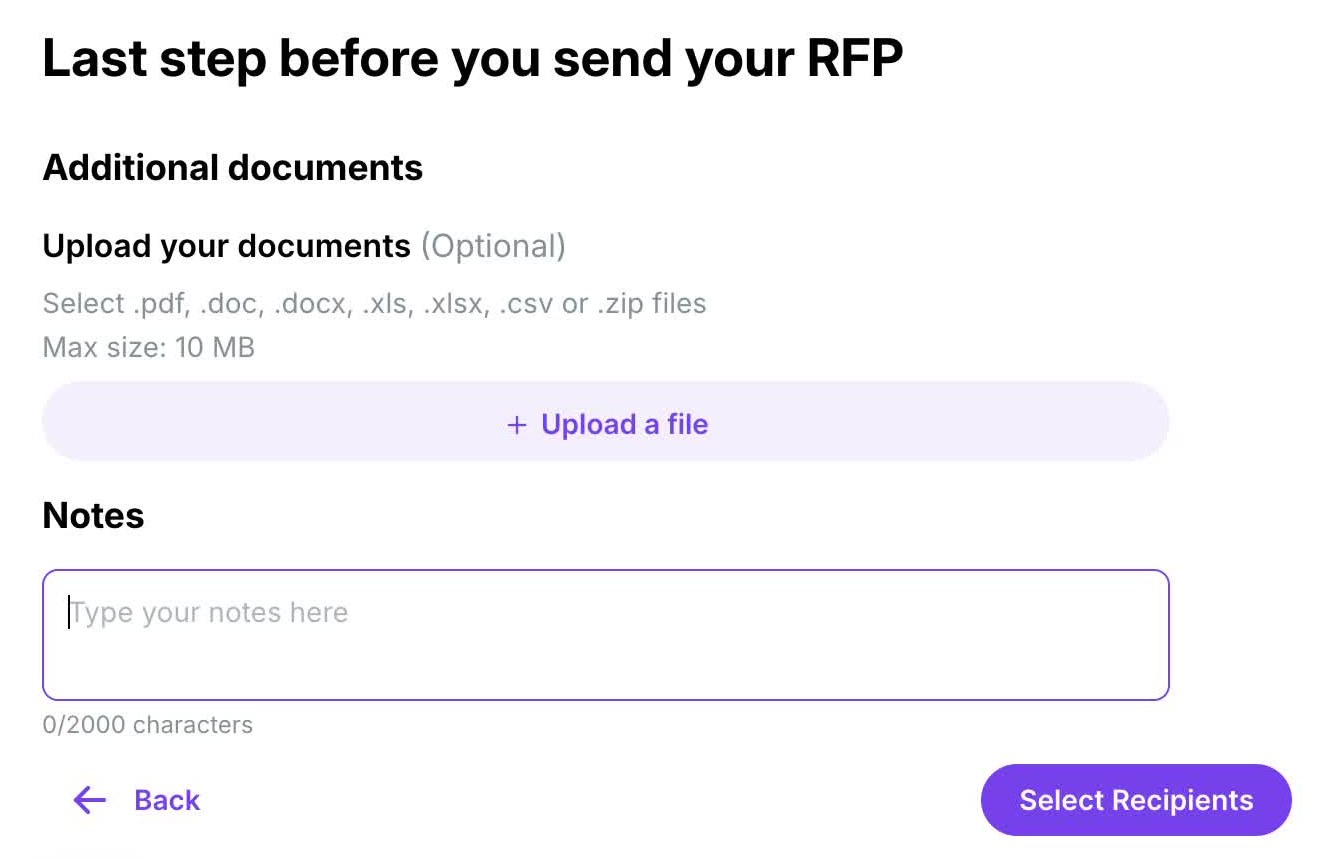
You can copy this note and paste it into Notes:
This campaign includes contact-level suppression.
Campaign objective: net new leads.
Please review the contact suppression file attached to this RFP:
Contact suppression - Q1 cloud campaign.csv
Do not send leads for any contact on this list.
Replace the file name with the exact name of the file you uploaded. If your objective isn't net new leads, change that line too. Notes holds up to 2000 characters.
Watch this step on Loom (0:57)
Step 4: Send your RFP
Check that your file is uploaded and your note names it.
Click Select Recipients and finish sending your RFP as usual.
Important: Do both: upload the file and add the note. Upload your documents is marked optional, and the file alone is easy to miss. The note tells publishers the file exists and what to do with it.
What to include in your file
Column | Needed? |
|---|---|
Name | Required |
Required | |
First name and last name, in separate columns | Better |
Company | Better |
Name and email are the minimum. A file with first name, last name, email, and company is even better.
Account-level vs. contact-level suppression
Account-level | Contact-level | |
|---|---|---|
What it keeps out | Whole companies | Specific people |
Where you add it | The suppression list in step 4, Audience | Upload your documents and Notes in step 7, Campaign review |
What the file needs | The columns | At least each person's name and email (see below) |
For more on the company list, see Save an Audience.
Who sees your file and note
Every publisher you add to the plan when you send the RFP.
Publishers you add later, for example when you reallocate budget or move to a new publisher partway through the campaign.
You don't need to send the file again when publishers change. See Re-allocating Budget Between Publishers.
Watch this part on Loom (1:32)
Frequently asked questions
Can I add people to the suppression list in the Audience step?
No. That list works at the company level, with the columns
Company NameandCompany Domain. To suppress individual people, upload a contact file and add a note at Campaign review.
Upload your documents says Optional. Do I need it?
Yes, for contact-level suppression. Without the file, publishers have no list of people to skip.
Can I use both kinds of suppression on one RFP?
Yes. Use the Audience step's suppression list for companies, and the contact file and note for people.
Do publishers added after launch see my file?
Yes. Publishers you add later, by reallocating budget or adding a new publisher partway through, see the same file and note.
Related articles
Save an Audience: build an audience, including a company suppression list
Target Audience: the ways to define who your campaign reaches
Lead Validation Rules: the checks every lead passes before it reaches you
Re-allocating Budget Between Publishers: move budget to other publishers on a live campaign
Campaign Setup Best Practices: advice for a campaign that delivers
Need help?
Tip: Contact support@audyence.com for campaign questions, platform feedback, or anything else.
Include the RFP or campaign name in your email.